Example 2. Running APPC or CPI-C Applications over a TCP/IP Network
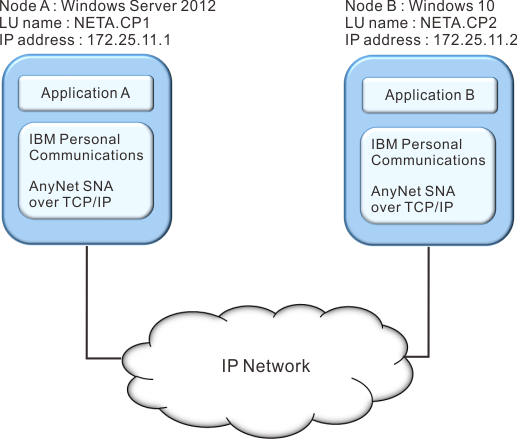
Follow these steps to establish communication between two Windows® nodes. Note that in this example, the CP names are used as LU names.
For Windows® Node A, do as follows:
- Add the following entry to the local HOSTS file:
172.25.11.2 CP2.NETA.SNA.IBM.COM - Create a configuration using the Personal Communications configuration tool:
- Click the SNA Node Configuration icon; or click Actions → Launch → SNA Node Configuration. The Personal Communications SNA Node Configuration window is displayed.
- In the Configuration Options list, choose Configure Node and click New.
- On the Define the Node window on the Basic tab, enter:
Fully qualified CP name:
NETA.CP1Click OK to complete node configuration.
- Choose Configure Devices. In the DLCs list, choose AnyNet® SNA/IP and click New.
- On the Define an AnyNet® SNA over TCP/IP Device window
on the Basic tab, enter:
SNA domain name suffix:
SNA.IBM.COM - Click the Routing Preferences tab:
Default Routing Preference: Nonnative only
Click OK to complete configuration of the AnyNet® device.
- From the Personal Communications SNA Node Configuration window, click File. Click Save as... and enter the desired file name to save.
For Windows® Node B, do as follows:
- Add the following entry to the local HOSTS file:
172.25.11.1 CP1.NETA.SNA.IBM.COM - Create a configuration using the Personal Communications configuration tool:
- Click the SNA Node Configuration icon; or click Actions → Launch → SNA Node Configuration. The Personal Communications SNA Node Configuration window is displayed.
- In the Configuration Options list, choose Configure Node and click New.
- On the Define the Node window on the Basic tab, enter:
Fully qualified CP name:
NETA.CP2Click OK to complete node configuration.
- Choose Configure Devices. In the DLCs list, choose AnyNet® SNA/IP and click New.
- On the Define an AnyNet® SNA over TCP/IP Device window
on the Basic tab, enter:
SNA domain name suffix:
SNA.IBM.COM - Click the Routing Preferences tab:
Default Routing Preference: Nonnative only
Click OK to complete configuration of the AnyNet® device.
- From the Personal Communications SNA Node Configuration window, click File. Click Save as... and enter the desired file name to save.
- Start Personal Communications on each machine.
- Start your applications (for example APING).