Lesson 2: Connect to a new Derby database
Use the Derby open source database manager to handle the data store for the application.
About this task
This tutorial uses the open source Derby database. In this chapter, you connect to a Derby database and create the table to be accessed. Alternatively, you can connect to a database of one of the following kinds: Cloudscape, DB2® UDB, Informix®, Oracle, or SQL Server. If you prefer to use one of those databases, review the following help topic: Creating an SQL database connectionCreating an SQL database connection at http://publib.boulder.ibm.com/infocenter/rbdhelp/v8r0m0. In any case, create the table described in this lesson.
- Create an SQL database connection through the EGL Preferences.
- Use the Data perspective to create and connect to the database.
- Write an SQL script to create a table within the database.
- Disconnect from the database, as is necessary because Derby allows only one connection, which you will need during code development.
Create an SQL database connection
Procedure
- In the top menu of the EGL workbench, click Window and then click .
- Next to the list of connection details, click New.
- In the Connection Profile window,
complete these steps:
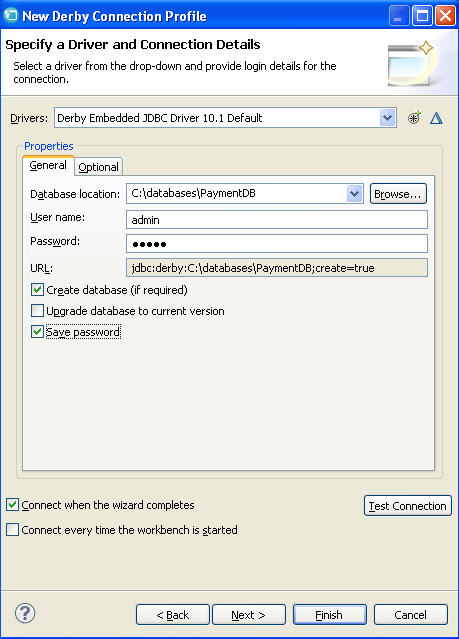
- In the Specify a Driver and Connection Details window,
specify the following information:
- Make sure that Connect when the wizard completes is
selected and that Connect every time the workbench is started is
cleared.
- Make sure that Connect when the wizard completes is
selected and that Connect every time the workbench is started is
cleared.
- In the Preferences window, make sure that Derby Database Connection is highlighted, then click OK.
Switch to the Data perspective
About this task
To set up the Derby database for your application, use the Data perspective, which is a workbench perspective and different from the EGL Data view.
To connect to the database:
Procedure
- Change to the Data perspective as follows:
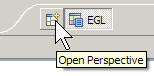
- Click the Open Perspective button, which is located
by default in the right side of the navigation bar.
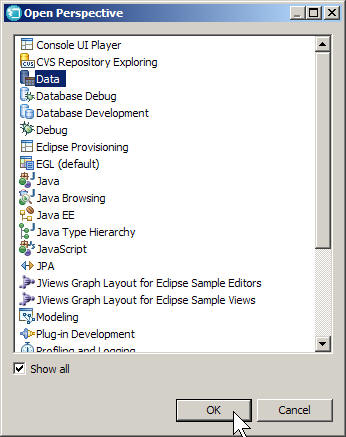
- If you still do not see the Data perspective, select Show
All at the bottom of the wizard. Click Data and
then click OK.
- Click the Open Perspective button, which is located
by default in the right side of the navigation bar.
Create a table
Procedure
- In the Data Source Explorer view, expand Derby
Database Connection. Right-click the PaymentDB database
name and click New SQL Script.
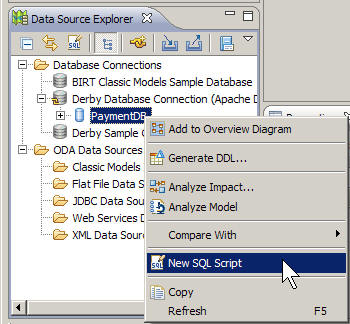 A new script file opens in the editor.
 - Right-click anywhere in the background of the editor pane,
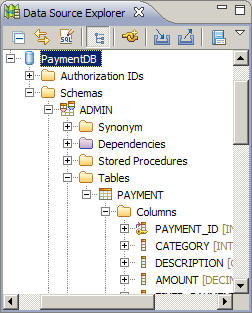
and then click Run SQL.The SQL Results view, which is by default at the bottom center of the workbench, should show the create table operation and a status of Succeeded. You can now expand the PaymentDB entry in the Data Source Explorer and see the columns for the new table:
Lesson checkpoint
About this task
- Created an EGL database connection
- Created a database named
PaymentDB - Created a database table named
PAYMENT
In the next lesson, you start writing application code.