VT Display Session
The following features are introduced for the VT Display session in HOD Hex Client 4.0 .
- SSH: VT Support only SSH Protocol. SSH (Secure Shell) is a protocol for
conducting a secure session over a non-secure network. VT-SSH supports Password and
Public Key Authentication.
- Password Authentication: For Password authentication, a user can give a username and password to log in.
- Public key Authentication: The user must enter the following values
to perform VT-SSH Public Key Authentication.
- KeyStore Password
- Public Key Alias
- Keystore File
Note:The above information will appear only for public key authentication. - Terminal properties: The following terminal properties are available for the
VT Display session.
- New-Line Operation
- Backspace
- Reverse Screen Image
- History Log
VT Backend:
VT Backend:
VT Backend service can be started using the Admin Console “Service” tab. Users can perform start and stop operations here.
VT Backend Properties:
To configure the VT backend, the user must specify configuration details in the prodConfig.properties.
#ftp backend port
                port=3090
                #ftp frontend url (CORS)
                url=http://localhost:8080
                #https
                secure=false
                #/lib/
                keystore_path=default
                keyAlias=serverlabel
                passphrase=hodpwd
                #tlsdetails
                tls_keystore_path=default
                tls_passphrase=hodpwd
                #welknowncertificatedetails
                welknown_keystore_path=default
                welknown_keystore_passphrase=hodpwd
                #No Of FTP_Users
no_of_users=3- port: Port on which the VT backend (Node js) is running.
-
URL: The user can add multiple app server URLs separated by a comma (,) used for the CORS mechanism. Only specified URLs are authenticated to access the FTP backend.
Syntax: http://AppserverMachineIp:AppserverPort
Example: http://127.0.0.1:8080
- secure: Boolean variable enables the https in the backend server.
- keystore_path: By default, the value for this property is “default”, which means it will take /bin/HODServerKeyStore.jks file for https. If the user wants to use a different JKS, the user must give the complete path of the JKS.
- keyAlias: Alias to the key that needs to be used for https.
- passphrase: Passphrase for the keystore.
-
Make sure that the user adds VT backend URLs in vtBackend params in web.xml of HOD Hex Client, respectively.
Syntax: http://VtBackendIP:VtBackendPort
Example: http://127.0.0.1:3001<context-param> <param-name>vtBackend</param-name> <param-value>http://localhost:3001</param-value> </context-param>
- Supported algorithms for VT-SHH are listed FTP/VT SSH Support List.
- JKS holding your private key for public key authentication of SSH protocol will be transferred from the client machine to the server machine.
Starting of VT as a Java Admin Console service:
To start VT services in Admin Console, enable AUTO-START for VT service in HOD_Distribution/private/NSMprop. C:\Program Files\HCL\ZIEForWeb\private
Download the required files from Fix Central, place the files in the appropriate folder (as shown in Figure 1), and then restart the HOD service.
- Make sure VT service ports are available. Once the HOD service is started, users can see the VT service status in Adminconsole ➔ Services.
-
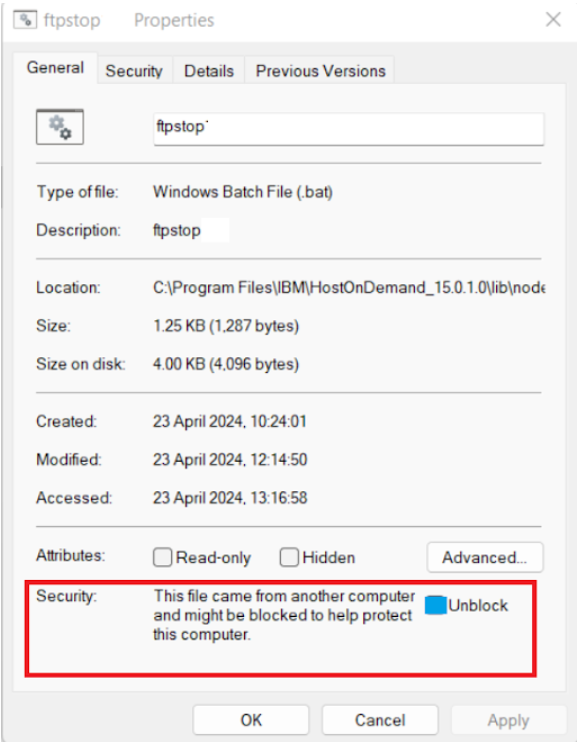
After pasting the files, ensure that the vtstop.bat file properties are enabled using the settings below.
Enabling VT Backend Server Configuration from Admin Console:
VT Backend will be running on the HOD server. For the initial release, make the required changes to the server configuration properties and save the configuration under configuration under <distribution Directory>/lib/node/vt_build/config based on the environment.
 Figure 1
To configure VT Backend Server Properties:
- Login to the Admin Console.
- Click the Services tab in the Admin Console.
- Click the VT Backend Server Configure button, and a popup appears with all the VT server configuration properties.
- Update the required configuration properties and Click Save.
- Restart the server to reflect the modified configuration.