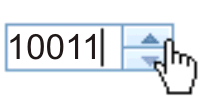
This example shows how to create a Number spinner Dojo widget to
use for the same Account number input field used in the
Filtering select example. See Host screen with account number input
field.
Start by creating a HATS Text box Dojo widget to render the input
field.
After you create an Input field component rendered with a Text
box widget, the widget appears on the transformation .jsp file as
shown below:
Figure 1. Dojo Text box widget
Edit the transformation .jsp file and perform the following steps:
Add a dojo.require statement for the Number spinner widget as
shown in the example below.
Select the <HATS:Component> tag, right-click, and select HATS Tools > Transform for Dojo Editing.
This transforms the <HATS:Component> tag to a <HATS:Render>
tag.
Within the <HATS:Render> tag, locate where the Text box
widget is created. Comment out (or remove) the creation of the Text
box widget and create a Number spinner widget as shown below.
// comment out the original text box code
// var uInputWidget = new
// dijit.form.TextBox({"type":inputType},"<HATS:ElementId/>_input");
var uInputWidget = new
dijit.form.NumberSpinner({"smallDelta":1,"constraints":
{"min":10011,"max":10037,"places":0},"required":"true"},
"<HATS:ElementId/>_input");
The Number spinner widget now appears on the transformation .jsp
file as shown below. In this example, the min and max options
are set to match the correct range of account numbers for this particular
application.
Figure 2. Dojo Number spinner
widget