This example shows how to fill the drop-down list of a HATS Dojo
Filtering select widget from a global variable.
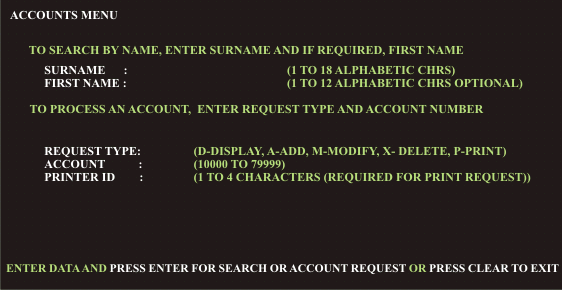
Start by creating a Filtering select widget, for example, for the Account number
input field on the following host screen for the Accounts application.
Figure 1. Host screen with account number input
field
After you create an Input field component rendered with a Filtering
select widget, the widget appears on the transformation .jsp file
as shown below:
Figure 2. Dojo Filtering
select widget
Edit the transformation .jsp file and perform the following steps:
Locate the <HATS:Component> tag in the transformation .jsp
file. Below is the source code that is created for this example.
Select the <HATS:Component> tag, right-click, and select HATS Tools > Transform for Dojo Editing.
This transforms the <HATS:Component> tag to a <HATS:Render>
tag.
Position the cursor after the last </script> tag in the .jsp
source. Right-click and select HATS
Tools > Insert Global Variable.
On the Insert Global Variable window, select the global variable
whose contents contains the data to fill the Filtering select drop-down
list. In this example, a global variable named acctnumGV contains
the text, 10011;10012;10013;10014, which are valid account
numbers for this application and are in the same format, separated
by a semicolon (;), used by the List items setting
of the Filtering select widget.
One result of using the Insert Global Variable tool is to add
the following import statement before the <html> tag in the .jsp
source.
<%@page import="com.ibm.hats.common.*"%>
<html>
A second result is to add the following statement at the cursor
location, in this case, after the last </script> tag in the .jsp
source.
Within the <HATS:Render> tag, locate the creation of the
jsonList variable. Following this statement, add statements to create
a gvString variable and then add the items in the gvString variable
to the jsonList variable. To initialize the gvString variable, cut
and paste the statement added by the Insert Global Variable tool following
the </script> tag. When complete, the code should be as shown below.
var jsonList = getListItemsFromJSONData(jsonData, getListItemsFromHATSWidgetSettings(widgetSettings));
var gvString = '<%= ((TransformInfo)request.getAttribute(CommonConstants.REQ_TRANSFORMINFO))
 .getGlobalVariable("acctnumGV", true).getString(0) %>';
jsonList = getListItemsFromString(gvString, jsonList);
var storeList = new dojo.data.ItemFileReadStore({data: {identifier:"value",
 items:createUniqueItemsList(jsonList,"value")}});
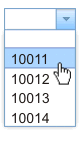
The Filtering select widget now appears on the transformation .jsp
file as shown below. In this example, the drop-down list contains
the set of valid account numbers provided by the accountNum global
variable.
Figure 3. Dojo Filtering
select widget using global variable