Lesson 11: Add code to the map locator handler
Complete the background code for the user interface that you created in the previous lesson.
Finish the source code for MapLocatorHandler.egl
Procedure
- Make sure that the MapLocatorHandler.egl file is open in the Rich UI editor. If you are in the Design view, click the Source tab.
- Add a blank line just before the
startfunction and declare a variable that is based on the Interface part you created:lookupService GooglePlacesService{@restbinding};The @restbinding property indicates that service-access details are in your code rather than in the EGL deployment descriptor. The decision is convenient but inflexible. A change in the service location requires that you change the source code. Lesson 14 introduces the EGL deployment descriptor, where you are likely to put service-access details in most of your development work.
- To resolve a reference to the Interface part, press Ctrl-Shift-O. The next steps will add new red error marks, and you will not remove them until late in the lesson.
- Do not add content to the
startfunction. - Complete the
checkForEnterfunction as follows:function checkForEnter(event Event in) if(event.ch == 10) search(); end endConsider the following background detail: The EGL runtime code invokes the
checkForEnterfunction and passes an event object, which is a memory structure that includes details about the event. In this case, the event that caused the invocation is onKeyDown, and the event object includes the ASCII character that represents the user's keystroke. Specifically, the number 10 is the decimal value for the Carriage Return (the ENTER key) in the ASCII table, as noted here: ASCII table and description (http://www.asciitable.com).The
checkForEnterfunction is invoked only if the user presses a key such as Tab or ENTER when the text field has focus. The function in turn invokes thesearchfunction only if the key was ENTER. You will create thesearchfunction soon. - Complete the
buttonClicked()function:function buttonClicked(event Event in) search(); endThe buttonClicked function and its relationship to the button-specific onClick property ensures that the user's clicking the Search button invokes the
searchfunction. - To add the
searchfunction, place the following code at the end of the handler, before the final end statement in the file:function search() localMap.zoom = 10; localMap.removeAllMarkers(); // show an initial marker, as necessary to display the map at all localMap.addMarker(new MapMarker{ latitude = "37.47", longitude = "-122.26", address = "I am here!", description = "San Francisco"}); // Call the remote Google service, passing the type value call lookupService.getSearchResults( typeComboBox.value ) returning to showResults onException displayError; endNote the following details:- The EGL Google map widget includes the zoom property, which specifies the scale of the map. Rather than specifying the large scale used for the default map of North Carolina, where the zoom value was 8, set the zoom value to 10, which produces a map that shows individual city.
- The EGL Google map widget also includes the
addMarkerfunction, which accepts a record of type MapMarker and identifies the map location of an input address.In this initial display for a search result set, the only detail that you provide to the
localMap.addMarker()function is the city location marker.
- Next, add the
showResultsfunction that is invoked if access of the Google Places service succeeds without error. Place the following code after thesearchfunction, before the last end statement in the file:linkListing HyperLink[0]; for(i int from 1 to retResult.result.getSize() by 1) newLink HyperLink{padding = 4, text = retResult.result[i].name, href = "#"}; newLink.setAttribute("title", retResult.result[i].vicinity ); newLink.setAttribute("lat", retResult.result[i].geometry.location.lat); newLink.setAttribute("lng", retResult.result[i].geometry.location.lng); newLink.onClick ::= mapAddress; linkListing.appendElement(newLink); end listingBox.setChildren(linkListing); endYour call to the service returns an array of places details. Consider these aspects of theshowResultsfunction:- Each element comprises a title (that is, a place name).
- The
showResultsfunction creates an array of hyperlink widgets and reads through the input array. For each element in the input array, the function creates an element in the array of hyperlink widgets. - As shown by the following declaration, each hyperlink widget has
displayable text and padding and includes a placeholder (#) instead
of a web address:
newLink HyperLink{padding = 4, text = retResult.result[i].title, href = "#"};The hyperlink will cause the invocation of code rather than a web address. However, the presence of the placeholder ensures that the hyperlink shows text in a familiar way, with an underscore and in color, as if the user's clicking the hyperlink opens a web site.
- The function invokes the setAttribute function to place a value in the DOM tree, in an area of memory that is specific to the widget. In particular, the function stores a latitude and longitude for retrieval by another function.
- In relation to each hyperlink widget, the
showResultsfunction sets up a runtime behavior by assigning themapAddressfunction to the onClick event. - The complete array of hyperlink widgets is assigned as the only child of the listing box.
- Place the following function after the
showResultsfunction:function mapAddress(e Event in) // Show the marker when the user clicks the link businessAddress string = e.widget.getAttribute("address") as string; businessName string = e.widget.getAttribute("title") as string; lat string = e.widget.getAttribute("lat") as string; lng string = e.widget.getAttribute("lng") as string; localMap.addMarker( new MapMarker{ latitude = lat, longitude = lng, address = businessAddress, description = businessName}); EndWhen the user clicks the hyperlink at run time, the
mapAddressfunction retrieves the attributes that were set in theshowResultsfunction and sets a marker on the displayed map. - You now add the exception handler that receives data if
access of the Google Places service fails. Place the following code
after the
mapAddressfunction, before the last end statement in the file:function displayError(ex AnyException in) DojoDialogLib.showError("Google Service", "Cannot invoke Google Places service: " + ex.message, null); endDojoDialogLibis a Library part in the com.ibm.egl.rui.dojo.samples project that you added to your workspace in Lesson 2. TheshowErrorfunction in that library displays information in a dialog. The function invocation includes a string named message, which is in the exception record that the EGL runtime code passes to thedisplayErrorfunction. - Format your code by pressing Ctrl-Shift-F, resolve the references by pressing Ctrl+Shift+O, and save the file. If you see errors in your source file, compare your code to the file contents in Finished code for MapLocatorHandler.egl after Lesson 11.
Test the new portlet
Procedure
- Make sure to save the file, and then click Preview.
EGL displays the entry form with the default North Carolina map.
- Select mortgage in the selection list for type.
- Press the Enter key or click the Search button.
A list of mortgage places is displayed down the left side of the screen. On the right is a map of San Francisco.
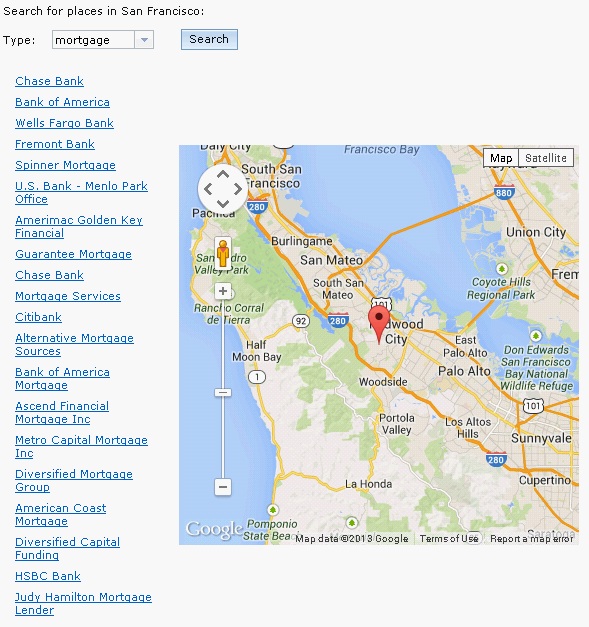 Note:Note: The Google Places Search Service sometimes returns no data, in which case an error message is displayed because of a null exception. If the service is unavailable or does not return data, click Cancel and wait for a later time to complete the tutorial.
 - Click any of the names in the left column. The map displays a marker that shows the location of the business. If you hover over the marker, the name of the name is displayed.
- Redo the same search or search on a nearby cafe. The markers that you placed on the map remain there.
- If you want to remove all markers before each search, click
the Source tab and add the following line at
the top of the
showResultsfunction:localMap.removeAllMarkers(); - Test your work in the Preview tab.
- Close the file.
Lesson checkpoint
About this task
- Create and use a variable that is based on the Local Search service.
- Respond to user keystrokes.
- Use the DOM tree to pass values from one function to another.
- Begin to use a map widget.
In the next lesson, you embed the new handler in the application.