HATS Subfile Frequently Asked Questions
Please refer to HATS Technotes (FAQs) for additional information.
Note: Graphics in the FAQs might not display if the entire FAQ page doesn't finish loading before you toggle a question to display the answer. Browsers display a progress bar when a page is loading. When the page finishes loading, the progress bar disappears. In Internet Explorer, a browser setting (Tools > Internet Options > Advanced > Browsing > Notify when downloads complete) enables a message stating how many items remain to be loaded for the page. When opening a page, the message displays in the status area (bottom left corner) of the browser window. When all objects are loaded, the message changes to Done.
Click any question to toggle the answer display.
-
What's new in the
HATS V9.5 subfile?
- Enhanced subfile column detection settings:
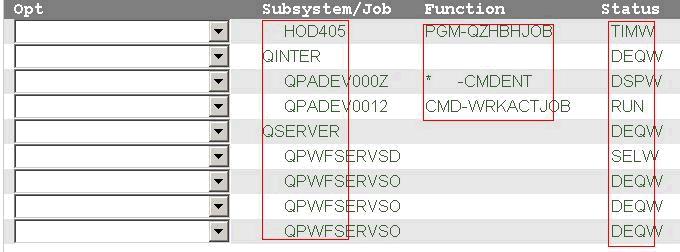
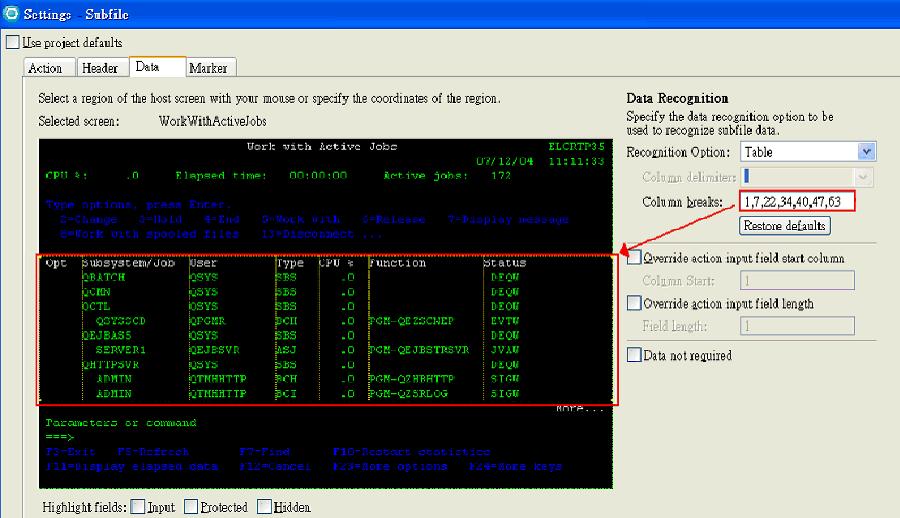
HATS V9.5 subfile improves the column detection settings for data recognition. For subfiles with columns that are not recognized correctly, a new setting is provided under the subfile column data tab. This setting enables the user to identify the column locations and display the resulting column split in the host screen view in real time.
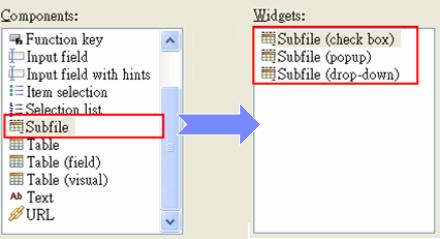
- New widgets for subfile rendering:
- Subfile (popup)
- Subfile (check box).
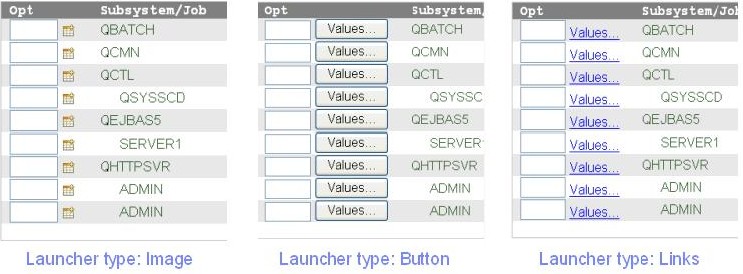
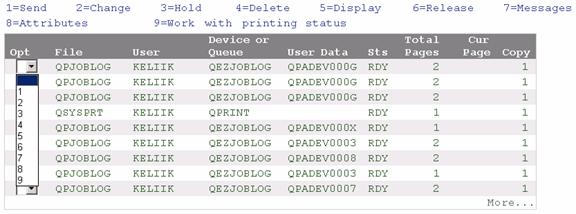
Subfile (popup) widget: This widget works much like the subfile (drop-down) widget, except that it renders a Popup widget (like the current Popup widget does) for each input field. This is better than a drop-down because it enables customers who use the keyboard to simply enter a number into the field and move on (as opposed to selecting it from a drop-down).
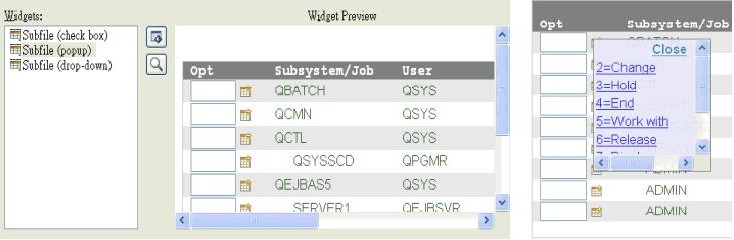
A launcher is used to open the popup. Options for the launcher are Image, Button, or Links.
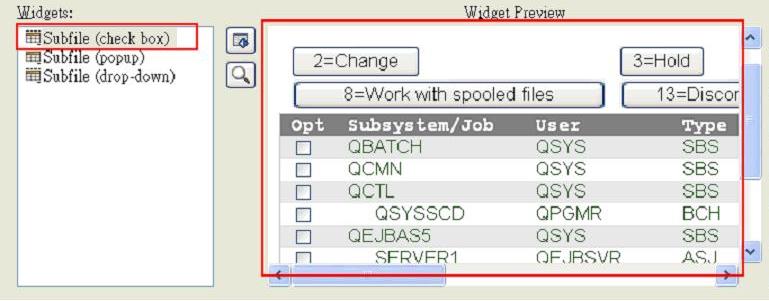
Subfile (check box) widget: This widget works differently from the subfile (drop-down) widget. The subfile (drop-down) widget enables a user to select different actions for different rows. The subfile (check box) widget does not allow different actions for different rows, because the action can only be triggered by one of the actions. Each row of the subfile that has the box checked has a number represented by the clicked action entered into it.
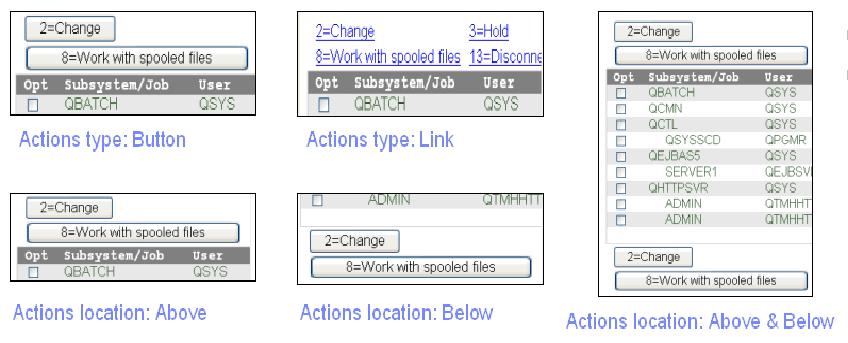
If the total width of all of the buttons or links is larger than the width of the subfile, the buttons or links are separated into two or more rows.
If you use the check box widget, you can display the action launchers as buttons or links. You can also decide whether to display the buttons or links above or below the subfile table, or both.
- Rich client platform support:
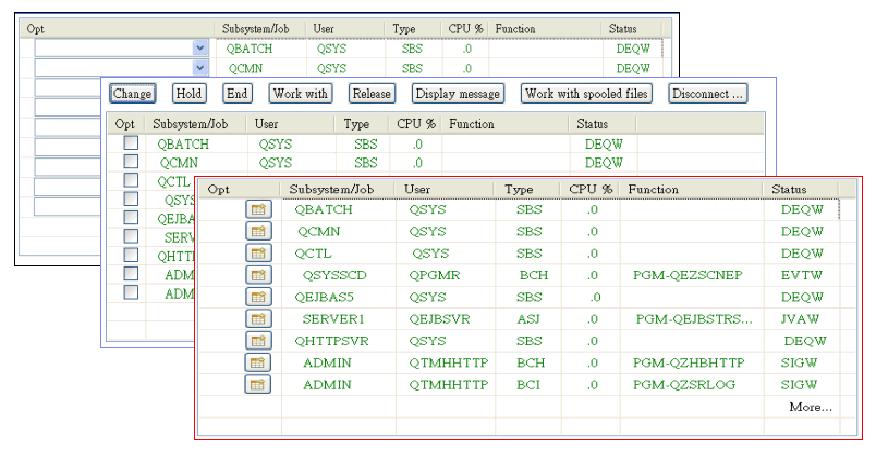
In HATS V9.5, you can create rich client applications that run in an Eclipse Rich Client Platform (RCP) implementation. Subfile components and widgets are supported in RCP projects. Examples of transformations for a subfile widget follow:
- Enhanced subfile column detection settings:
-
Why is my subfile not
being recognized or rendered correctly by default?
The default subfile settings are set to be generic enough that a larger number of subfiles can be recognized. The subfile settings criteria might need to be modified to properly recognize your subfile and render it.
-
How do I recognize
and render various types of subfiles in default rendering?
Multiple subfile rendering items should be added to the main rendering set (default rendering). After you configure each subfile rendering item and add it to the rendering set, you should sort the items appropriately. The subfile rendering item order is important because HATS consumes and renders the portion using the rendering item that first matches its specified criteria in the list of rendering items. This can cause subfiles to render using an unanticipated subfile rendering item.
-
How do I configure the
subfile component settings to recognize my subfile?
For each part, specify the region to search for the criteria, and set the criteria for that part.
Let's walk through configuring the subfile settings for recognizing and rendering a given subfile that is not recognized by the subfile default settings.
The following screenshot depicts the subfile we are going to configure:
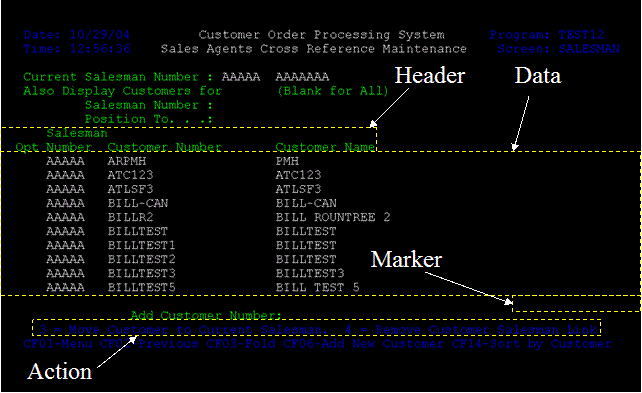
Edit the subfile component settings.
For the Actions:
- Specify the region to search for actions:
Select the following region:
Start row: 22 Start column: 4 End row: 22 End column: 76 - Verify that the current criteria is satisfied. Change the Delimiter
setting from "=" to " = ".
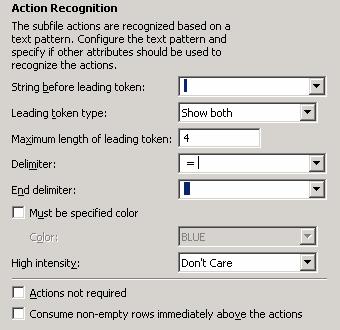
For the Header:
- Specify the region to search for a header:
Select the following region:
Start row: 8 Start column: 1 End row: 9 End column: 48 - Verify that the current criteria are satisfied.
- Uncheck Recognize by text.
- Uncheck High Intensity.
- Check Specified color and select GREEN.
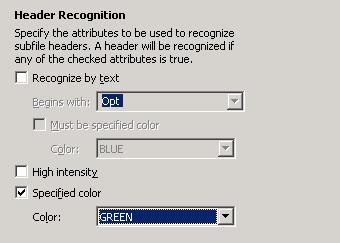
For the Data:
- Specify the region to search for data:
Select the following region:
Start row: 10 Start column: 1 End row: 19 End column: 80 - Verify that the current criteria are satisfied.
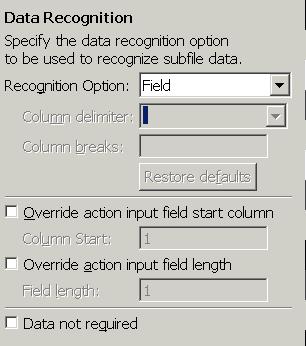
For the Marker:
- Specify the region to search for a marker:
Select the following region:
Start row: 20 Start column: 68 End row: 20 End column: 80 - Verify that the current criteria are satisfied.
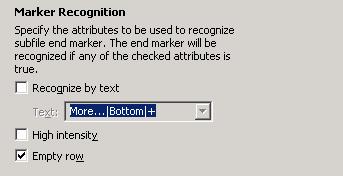
- Uncheck Recognize by text.
- Uncheck High Intensity.
- Check Empty row.
- Specify the region to search for actions:
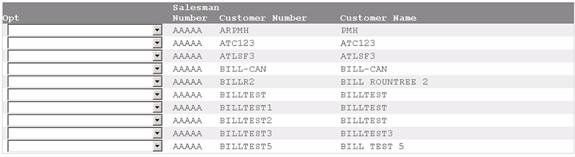
Notice that the selected region is not the entire row of the host screen. The Empty row parameter is defined as an empty row within the specified region. The Empty row parameter can be used to recognize subfiles that don't explicitly have an "end marker".
Rendered subfile:
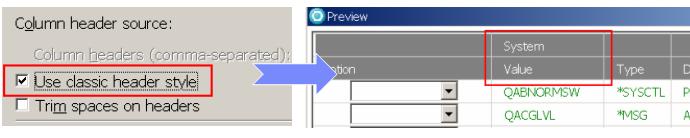
You can render a subfile with multiple row headers, like the following, in an RCP project:

The subfile widget combines the same column of each line into a single row.

You can select Use classic header style in the subfile widget to render the multi-row header as it appears on the host screen.
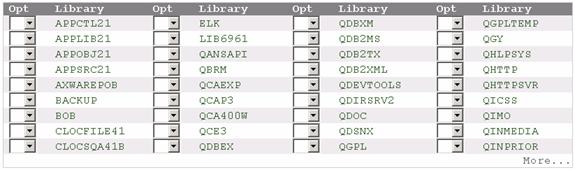
By default, the subfile component renders only the first input field within a row of a subfile. This prevents HATS from falsely identifying and rendering multiple action input fields as drop-down lists. There are two subfile component settings located on the Data tab used to configure a subfile to recognize a multi-column subfile. They can be used separately or in conjunction with each other.
Override action input field start column: Allows you to specify the action input field start column(s) for the subfile. Override action input field length: Allows you to specify the action input field lengths. Therefore, all inputs in the subfile with the specified input field length are rendered as an action dropdown list.
The rendered multi-column subfile:
To accomplish this, edit the subfile widget setting. The dropdown list displays only the action code, and the action code and the meaning of the action are displayed in text.
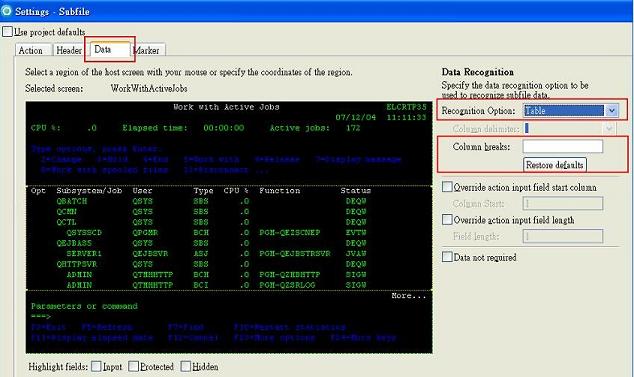
In the subfile component settings dialog, there is a new column break setting under the data tab where you can specify the column break locations. Select the Recognition Option of Table to enable related settings on this dialog.
You can input the column breaks into the field, and the host screen displays the
resulting column split in real time. 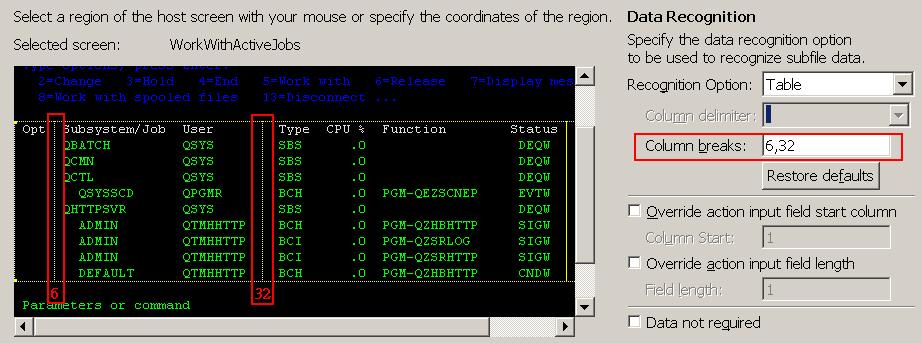
When you click Restore Defaults, the Column breaks field defaults to the visual table recognition values of the selection area. You can adjust these values as needed.
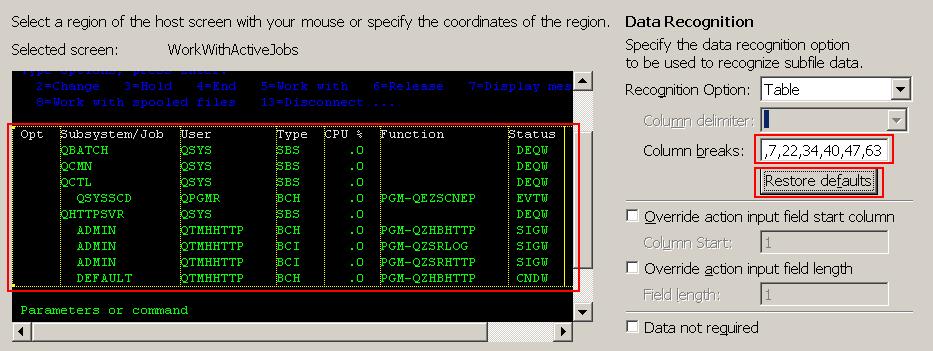
You can add or remove column breaks using the mouse on the host screen view. Use the following steps to make those changes:
- Move the mouse cursor between two columns in the host screen view. The host screen indicates the column position in a tooltip and draws a solid line between the columns.
- Click the left mouse button to add the column break. You can also click the right mouse button to display a context menu and select Add Column to add this column break position to an input field.
- After adding the column break, the position is added in the Column breaks field and the column split displays as a dotted line in the host screen view.
- If there is a column break setting for a position where you place the mouse cursor,
you can remove the column break by clicking the left mouse button to remove the
column break. or you can click the right mouse button to display a context menu and
select Remove Column to remove the column break from the input field, and
delete the dotted line for the column split from the host screen view.
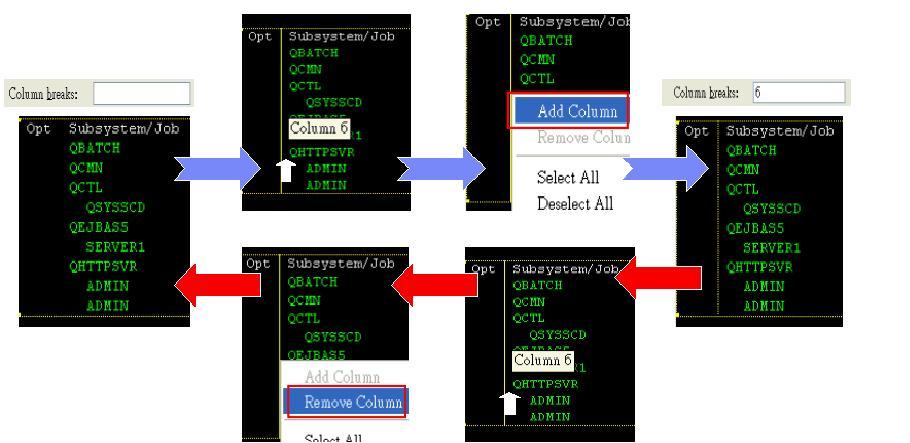
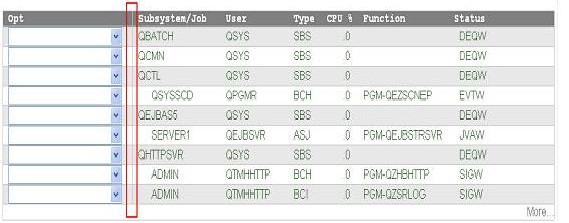
When you confirm the column break settings from the host screen view on the left-hand side of the dialog and click OK, you can check the result of the rendering in the widget preview.
If you use the visual table for data recognition of a subfile table of records, the
records are recognized incorrectly and the subfile is rendered incorrectly. In the
following example, the application expects five columns. However, subfile recognition
expects a single space to be the table delimiter. The records would be divided visually
into six columns, and the output result might not be what you wanted. 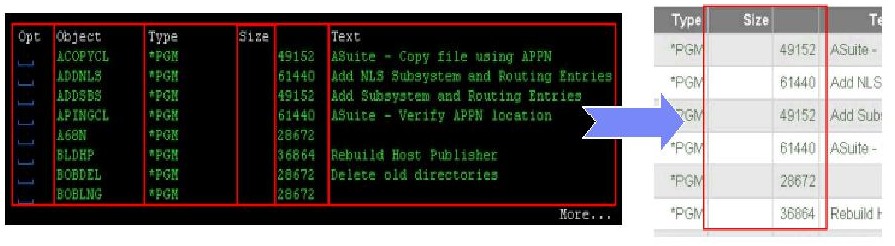
In HATS V9.5, you can use the table component as the data recognition option in the
subfile settings dialog. When you click Restore Defaults, the column break values
display the visual table recognition values of the selection area. 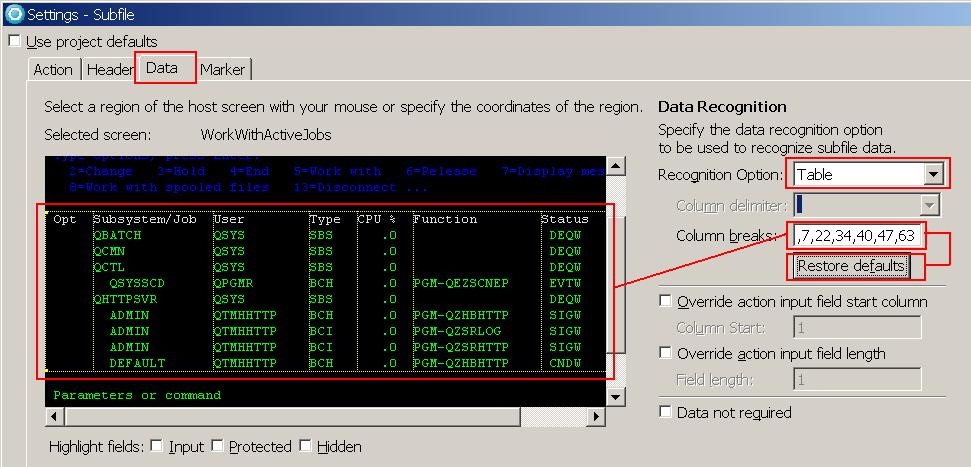
You can adjust these values as needed, as shown in the following example. You can add or
remove column splits to get the result you want. 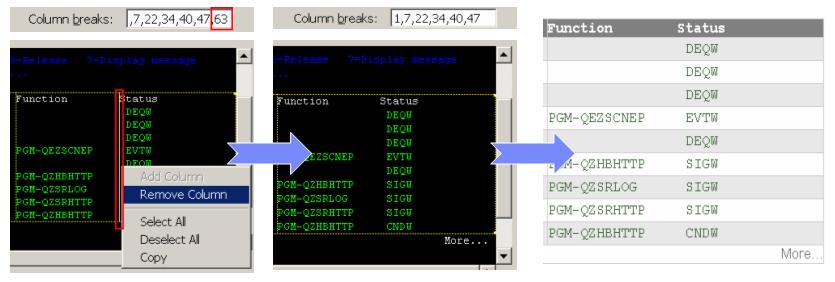
A marker must be specified and the marker must be located below the header for the subfile settings criteria to be satisfied, although the "marker" can be as discrete as specifying a blank field.
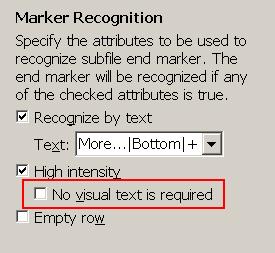
To use high intensity and an empty string for subfile end marker recognition, follow these steps:
- Uncheck Use project defaults in the subfile component settings, and click the Marker tab.
- Check High intensity and No visual text is required.
- Subfiles with empty headers are not supported.
- Some subfile data records are not rendered when using the Visual Table recognition option. Workaround: use the Field, Field Table, or Table recognition option.
- Multi-row headers/records are not supported for Visual Table recognition option. Workaround: use the Field, Field Table, or Table recognition option.
- When the end delimiter of action items is a space, the description of the action
items can be truncated if they contain multiple words. Example:
 The action drop-down list is rendered as
{2=Approve}, {4=Not}, {5=Display}. Note that "4=Not Approved" is rendered as only
"4=Not".
The action drop-down list is rendered as
{2=Approve}, {4=Not}, {5=Display}. Note that "4=Not Approved" is rendered as only
"4=Not". - When recognizing a subfile with the Table recognition option, the limitations are
the same as with the Table component. There are two situations where column breaking
is not supported, and the split line is not generated in the widget at runtime. The
two situations are demonstrated in the following graphic:
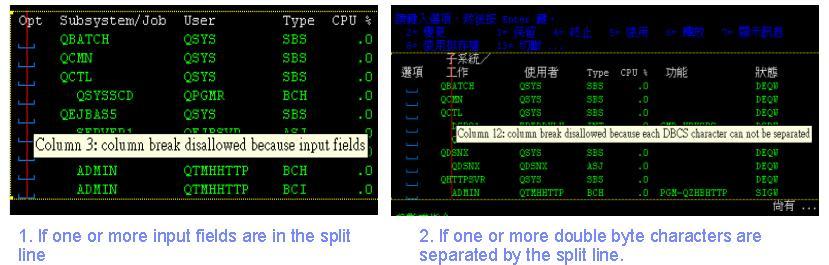 When one of these situations occurs, the split line is marked in red and the Add
Column action is disabled in the context menu when you are using the mouse
to select column breaks. When selecting column breaks by entering numbers in the
Column breaks input field, you receive error messages in red text.
When one of these situations occurs, the split line is marked in red and the Add
Column action is disabled in the context menu when you are using the mouse
to select column breaks. When selecting column breaks by entering numbers in the
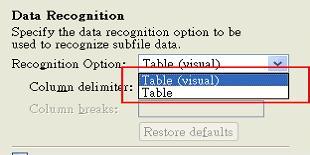
Column breaks input field, you receive error messages in red text. - When using subfile data recognition in an RCP project: Due to a limitation in the
SWT table control, Field and Table (Field) are not supported for data recognition in
the subfile component; however, Table and Table (visual) are supported for data
recognition.
- Subfile alignment problems in Web projects: The rendering by the subfile widget uses
a non-monospace font to display the subfile table, which causes a data alignment
problem in Web projects. This issue is fixed with the HATS V7.0.0.1 Refresh Pack.