HATS Rich Client Platform Frequently Asked Questions
Please refer to HATS Technotes (FAQs) for additional information.
Note: Graphics in the FAQs might not display if the entire FAQ page doesn't finish loading before you toggle a question to display the answer. Browsers display a progress bar when a page is loading. When the page finishes loading, the progress bar disappears. In Internet Explorer, a browser setting (Tools > Internet Options > Advanced > Browsing > Notify when downloads complete) enables a message stating how many items remain to be loaded for the page. When opening a page, the message displays in the status area (bottom left corner) of the browser window. When all objects are loaded, the message changes to Done.
Click any question to toggle the answer display.
General
-
What are some of the advantages of HATS rich client over HATS Web?
- Easier integration with desktop applications and files.
- Processing occurs on the client instead of on a server.
- Better response time (compared with HATS Web applications).
- Decreased network traffic (since the 3270 or 5250 datastream is flowing over the network instead of HTML).
- Rich set of user interface widgets, including tabbed folders, sliders, combos, toolbars, menus, and trees.
- Local 3270E print support (direct to application user's Windows printer).
- No requirement for WebSphere Application Server or WebSphere Portal.
- Application user keyboard remapping support, and support for numeric keypad field exit.
- Disconnect occurs whenever the application user closes the client or closes the view.
- No HTTP session inactivity disconnect.
- The user can easily work with multiple instances of the same application.
-
How does HATS rich client compare to a traditional emulator, such as Host On-Demand?
HATS rich client applications are meant to transform the host application experience for the user. HATS can increase the productivity of a user through application streamlining and an updated work flow appropriate for the current business process being used. HATS enables business logic to be added to an existing host application so that it can extended for use in new business processes being implemented. HATS also allows a single host application to be customized in different ways for different user roles.
Traditional emulators, such as Host On-Demand, are best suited for users who are familiar and satisfied with the "green screen" application user interface. The users might be power users who have memorized navigation through the "green screen" application and prefer to type ahead to the next screen. The traditonal emulators also provide interactive VT host access, file transfer function, non-associated printer sessions, and 3270 host graphics.
-
Which platforms can I run my HATS rich client
applications on?
See the Detailed System Requirements page.
-
What value does Lotus Expeditor provide
over the base Eclipse Rich Client Platform?
- Server-managed deployment of the client.
- Provides role-based access to HATS rich client applications.
- Infrastructure for wiring applications together provided by Lotus Expeditor.
- Tools for creating composite applications (applications composed of SWT views, Native Windows applications, ActiveX controls, and portlet-based components).
-
Why can I not connect when I run my rich client
application outside of the development environment?
When you run a HATS rich client application in a development environment, you are allowed to establish an unlimited number of connections without going through the license enablement process. However, if you deploy the application to its target platform without going through the license enablement process, you are not allowed to establish any connections from the deployed application.
Refer to Enabling HATS runtime and license settings in HATS Getting Started for instructions about how to perform license enablement for HATS. These steps must be performed before deploying your application.
-
Which traditional HATS functions are available in HATS rich client?
The following list contains some, but not all, of the features available in HATS rich client applications:
Default rendering
Global rules (project and screen level)
Text replacement
Background connections
Templates
Transformations
Keypads (host and application)
Asynchronous updates from the host
Connection and global variable parameter overriding
Keyboard support
Business logic
Custom components
Custom widgets
Connect and disconnect macros
Print support
ENPTUI (5250 only)
Light pen (3270 only)
SSL (between client and host)
Macros
Macro handler pages
Connection pooling
Global variables
Basic screen customization
-
How can I control which keys appear on the host
keypad and application keypad when a specific transformation is
applied?
You can overwrite getHostKeypadDisplayInfo() or getApplicationKeypadDisplayInfo() methods in your transformation class to control which keys appear on the host keypad and application keypad. An example showing how to overwrite the default host keypad setting to display [clear], [pagedn], and [pageup] keys follows:
//Extend super.getHostKeypadDisplayInfo() to display [clear], [pageup], and [pagedw] keys as buttons. public IHostKeypadDisplayInfo getHostKeypadDisplayInfo() { KeypadKey[] keys = new KeypadKey[3]; keys[0] = new KeypadKey(ECLConstants.CLEAR_STR,"Clear"); keys[1] = new KeypadKey(ECLConstants.PAGEUP_STR,"Page Up"); keys[2] = new KeypadKey(ECLConstants.PAGEDWN_STR,"Page Down"); HostKeypadDisplayInfo hkdInfo = new HostKeypadDisplayInfo(keys,true,IHostKeypadDisplayInfo.DISPLAY_BUTTON); return hkdInfo; } -
How can I control what information appears on the OIA
when a specific transformation is applied?
You can customize OIA settings by extending the getOiaDisplayInfo() methods in your transformation class. An example showing how to overwrite default OIA settings by extending getOiaDisplayInfo() follows:
//Extend default OIA settings to display only input mode and cursor position information.
public IOiaDisplayInfo getOiaDisplayInfo() {
	OiaDisplayInfo oiaDisplayInfo = new OiaDisplayInfo();
	oiaDisplayInfo.setAreaVisible(true);  //ensure area is visible
	oiaDisplayInfo.setInputModeVisible(true);
	oiaDisplayInfo.setRowColCursorPositionVisible(true);
	return oiaDisplayInfo;
}
Advanced customization
-
How can I validate input on a transformation before
it is sent to the host?
For details on how to validate input on a transformation before sending it to the host, please refer to Validating input on a transformation in the Transformations chapter of the HATS V9.5 Rich Client Platform Programmer's Guide.
-
How can I interact with the Eclipse UI from
business logic code?
Because business logic code does not run in the Eclipse UI thread, you must use APIs provided by Eclipse to interact with any UI object, including other views, windows, widgets, and so on. Attempting to access any UI object from within business logic (or custom components or widgets) will result in an exception:
org.eclipse.swt.SWTException: Invalid thread access
The following example shows a safe way to call theopenInformation()method from business logic:Display.getDefault().syncExec(new Runnable() { public void run() { MessageDialog.openInformation(Display.getDefault().getActiveShell(), "Test Message", "Sample message."); } });In the previous example, thesyncExec()method was used, but you can also use the asyncExec() method, which runs your code without blocking the UI thread. For example:.Display.getDefault().asyncExec(new Runnable() { public void run() { MessageDialog.openInformation(Display.getDefault().getActiveShell(), "Test Message", "Sample message."); } });For more information on the Eclipse UI thread, refer to the Display class API in the Eclipse SDK documentation. -
How can I change the default keyboard
mappings?
For details on how to change the default keyboard mappings for a rich client application, please refer to Remapping keys for HATS rich client applications in the Enabling keyboard support chapter of the HATS V9.5 User's and Administrator's Guide.
Deployment
-
How can I export a product package for both
Windows and Linux?
- Create a HATS rich client project and run the project in Rational Application Developer.
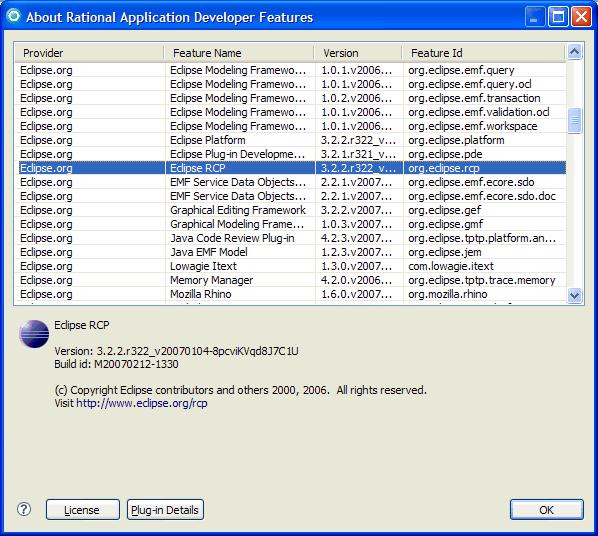
- Click Help > About Rational Application Developer.
- Click Feature Details and check the version of Eclipse RCP
feature. In this example, it is 3.2.2. The
"r322_v20070104-8pcviKVqd8J7C1U" is called as a "qualifier" and you can
ignore it for now.
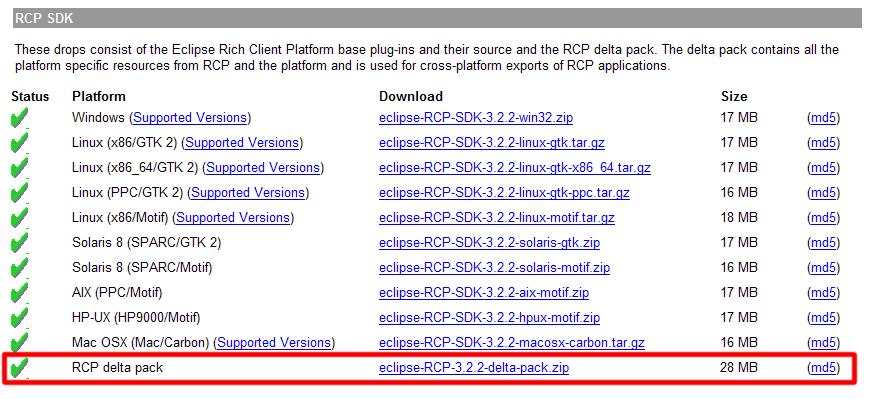
- Download the RCP Delta pack from an Eclipse download site. Have the RCP
Delta pack corresponding to the version of your Eclipse RCP feature
available.
- Unzip the download ZIP file. In this example, it was unzipped at C:\deltapack.
- Open your text editor, Notepad for example, and create the
.eclipseextension file in the eclipse subdirectory of the directory
where you unzipped the RCP delta pack.
id=ibm.software.development.platform 1 name=IBM Software Development Platform version=7.0.0
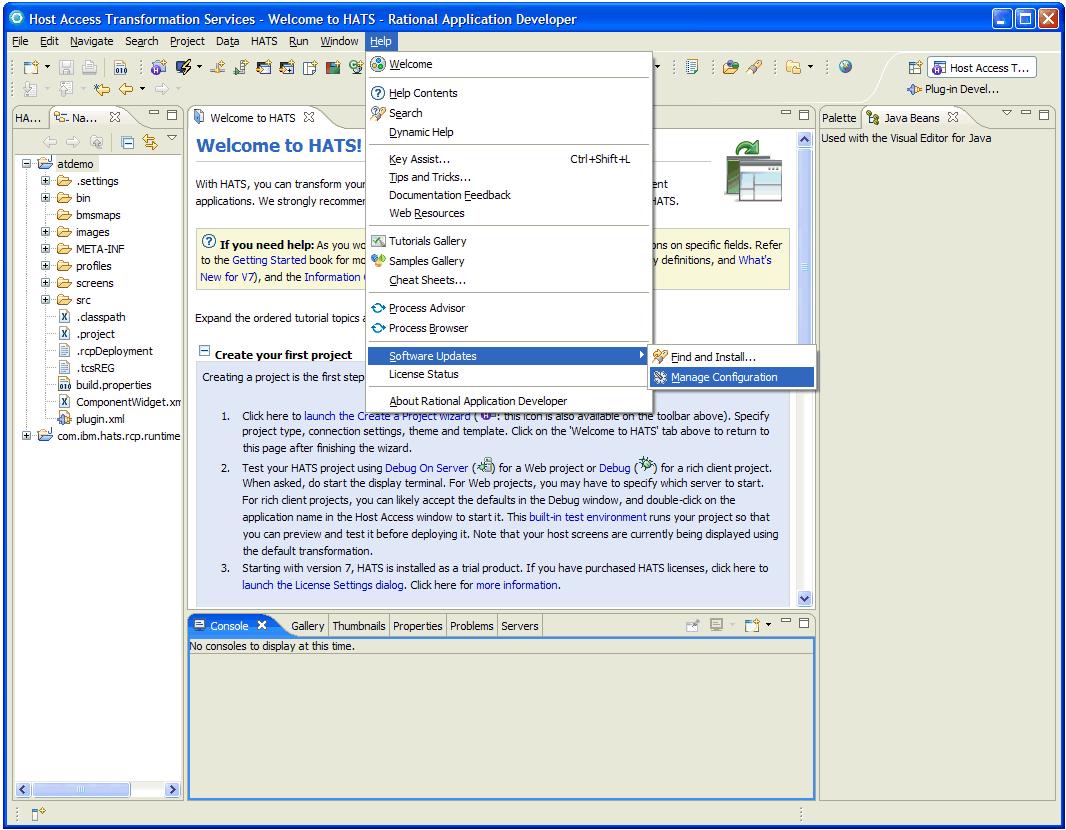
- In the Rational Application Developer main menu, click Help >
Software Updates > Manage Configuration.
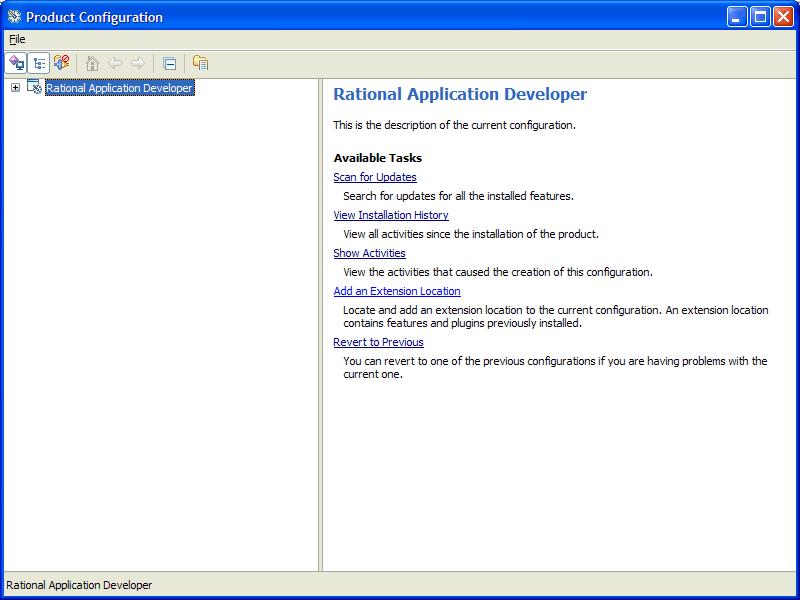
- Click Rational Application Developer in the tree view and click
Add an Extension Location link.
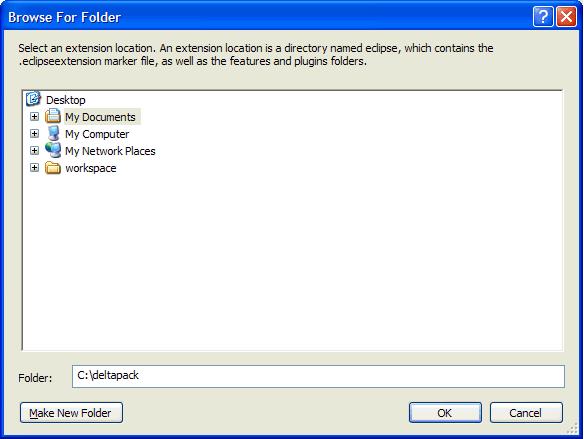
- In the Folder field, enter the eclipse subdirectory of your RCP
delta pack directory and click OK.
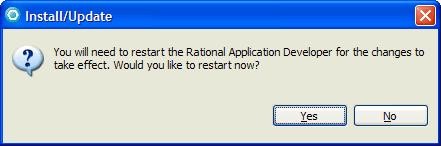
- Click Yes to restart Rational Application Developer.
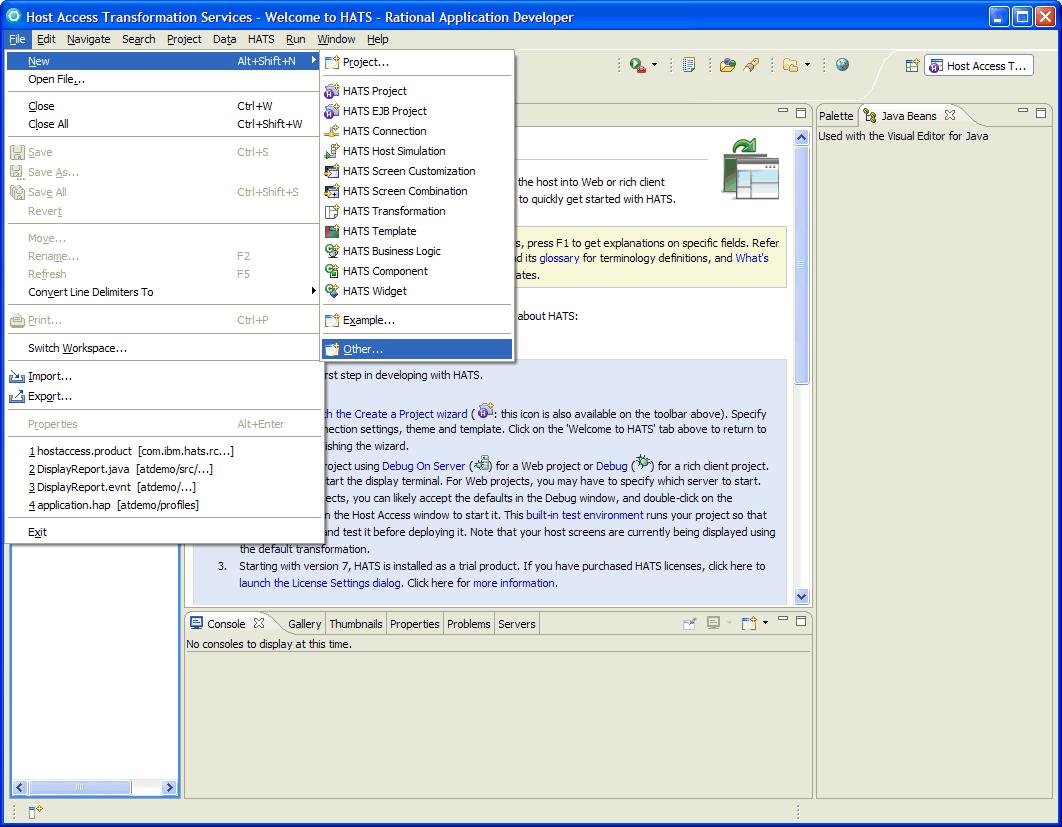
- When Rational Application Developer is restarted, click File > New
> Other.
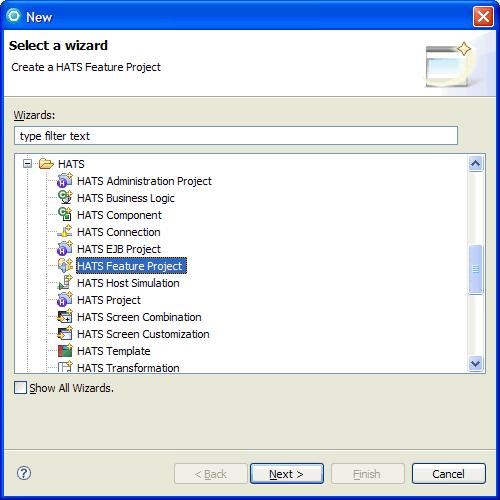
- Click HATS > HATS Feature Project and click Next.
- Select your HATS rich client project and click Finish.
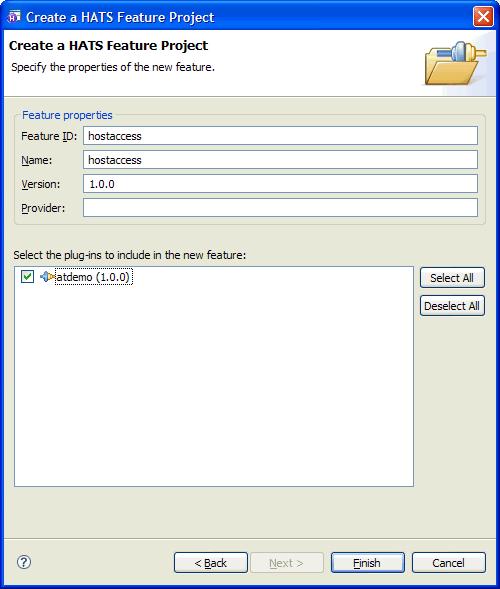
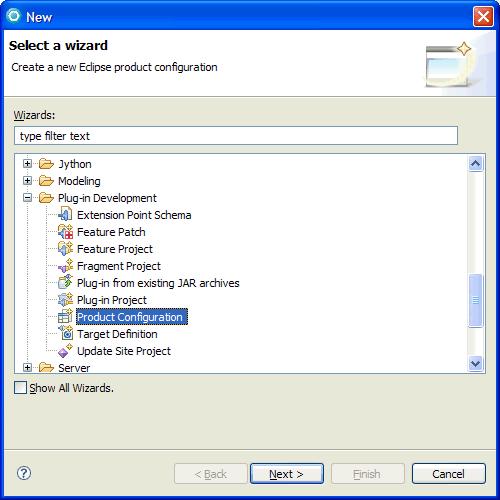
- Click File > New > Other again, select Plug-in
Development > Product Configuration and click Next.
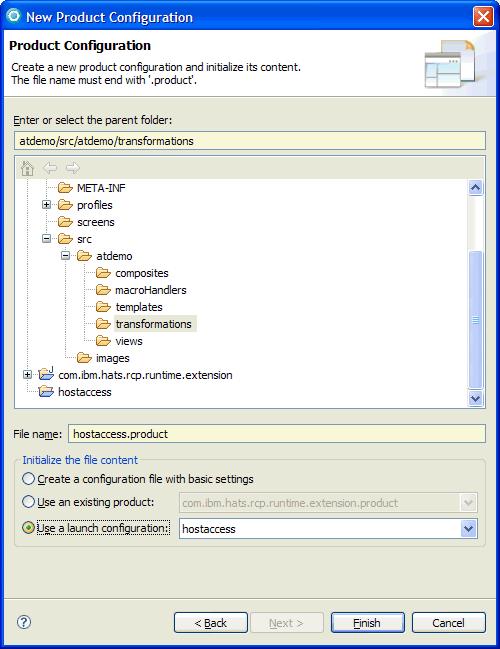
- Select the "com.ibm.hats.rcp.runtime.extension" plug-in project folder
as the destination folder. Enter "hostaccess.product" in the File
name field and click Finish.
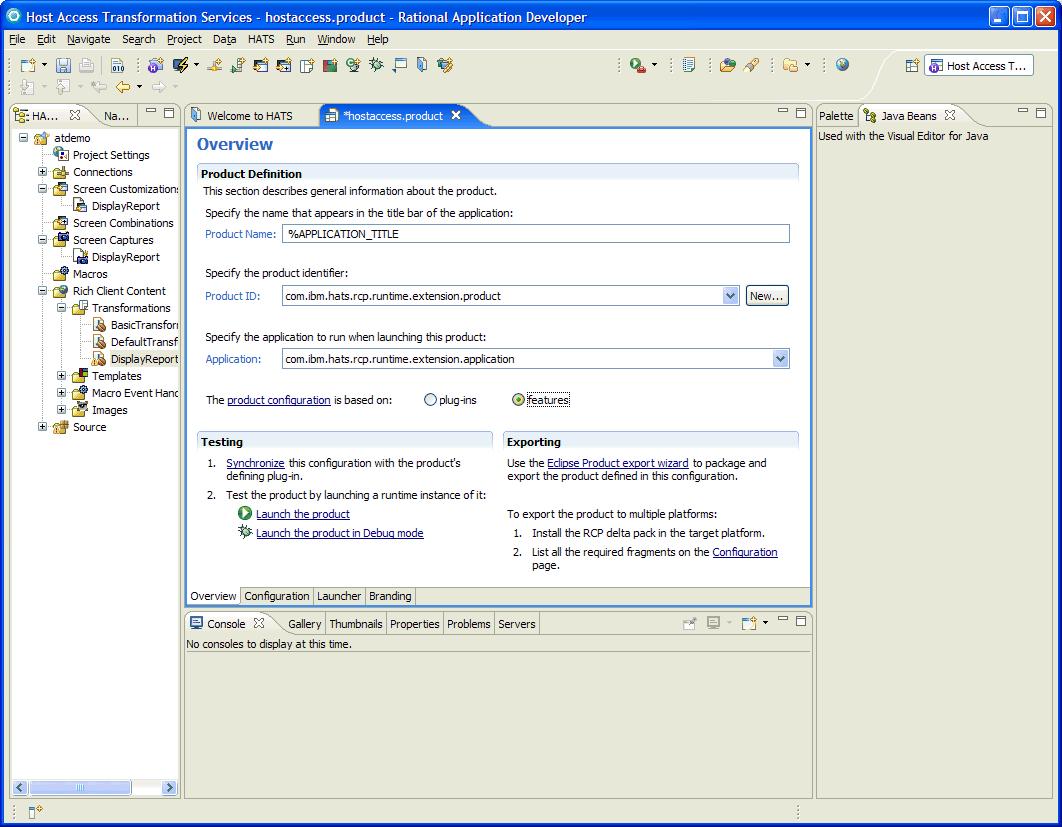
- Once the product configuration editor opens, select features for
The product configuration is based on radio button and open
the Configuration tab.
- Add following features to the list:
- org.eclipse.rcp
- org.eclipse.platform
- org.eclipse.emf
- org.eclipse.emf.eco.sdo
- com.ibm.hats.core
- com.ibm.etools.terminal.beans
- com.ibm.hsrendering
- hostaccess
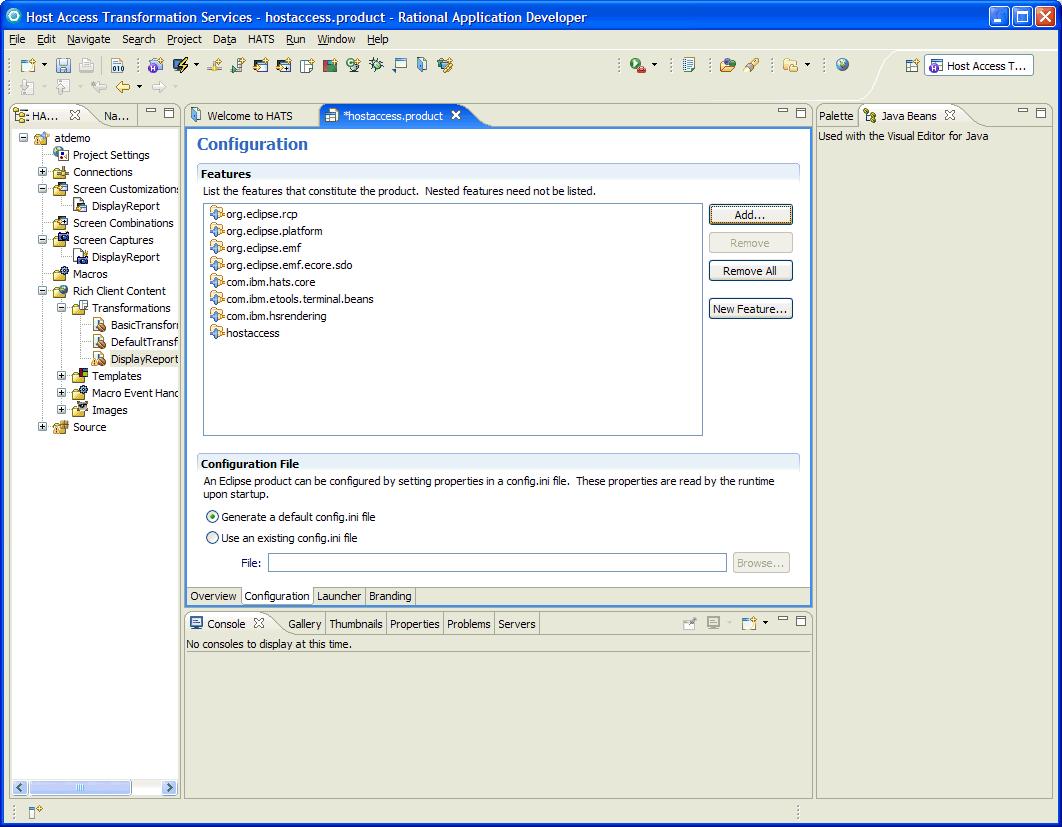
- Click File > Save to save the changes.
- Click the Overview tab and click the Eclipse Product export
wizard link.
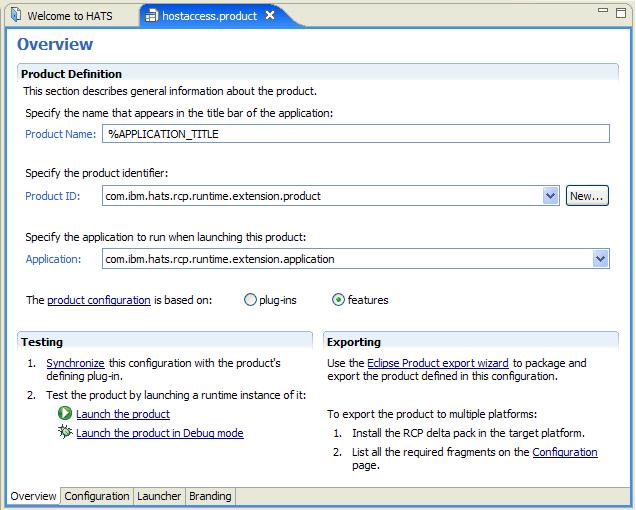
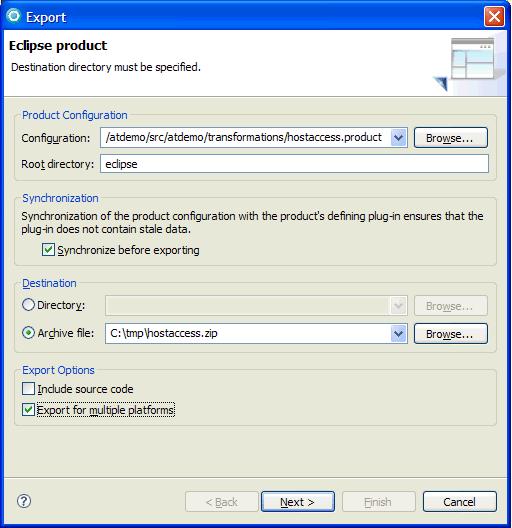
- Under Destination, select Archive file and enter the name
of the archive (zip) file to export the Eclipse product to, for example
"c:\tmp\hostaccess.zip". Check the Export for multiple platforms
box and click Next.
- Check the boxes for linux (gtk/x86) and win32 (win32/x86)
and click Finish.
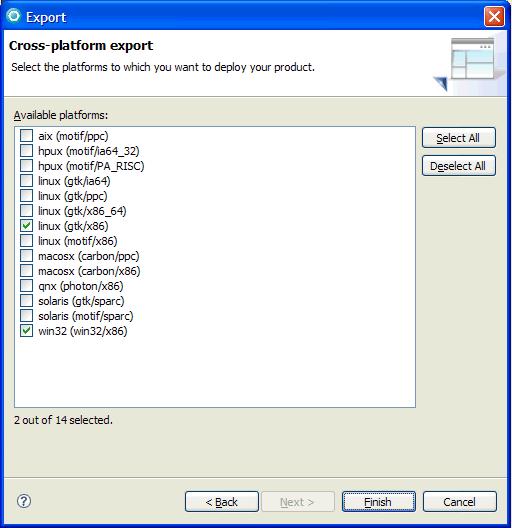
- Two ZIP files are created:
- Linux:
- hostaccess.linux.gtk.x86.zip
- Windows:
- hostaccess.win32.win32.x86.zip
-
How can I provide update support for my
Eclipse RCP applications?
- Create a HATS rich client project and run the project in Rational Application Developer.
- When Rational Application Developer is restarted, click File > New
> Other.
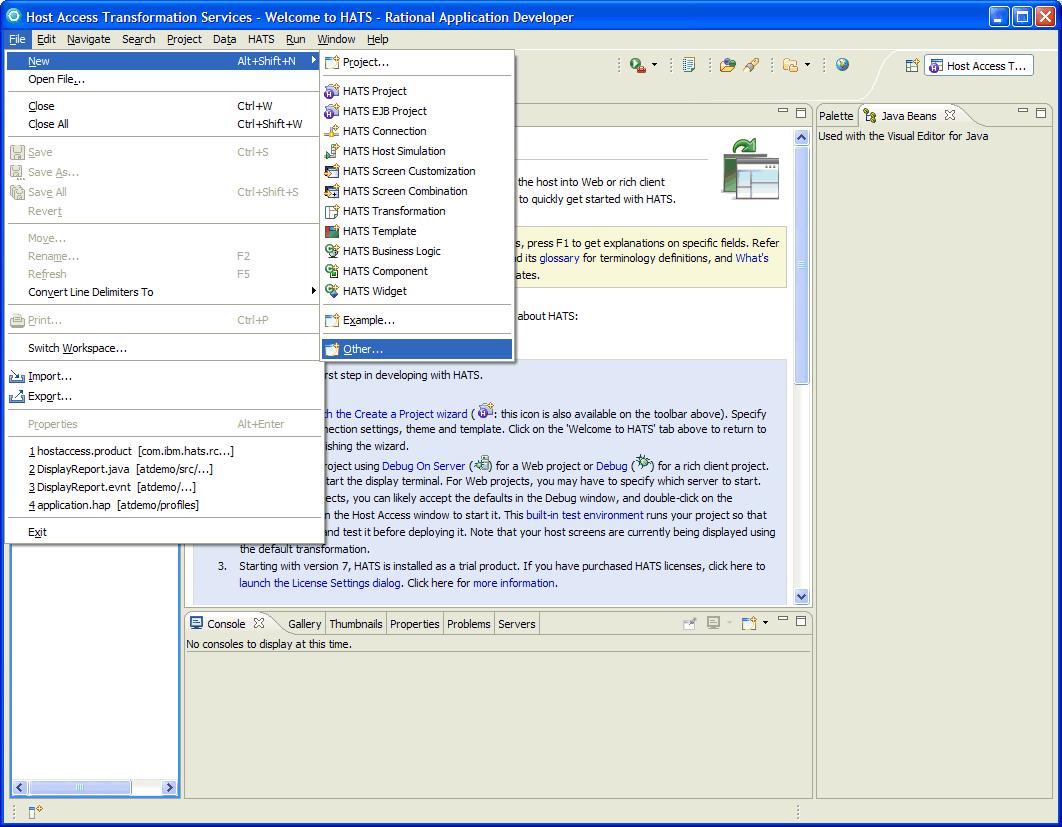
- Click HATS > HATS Feature Project and click Next.
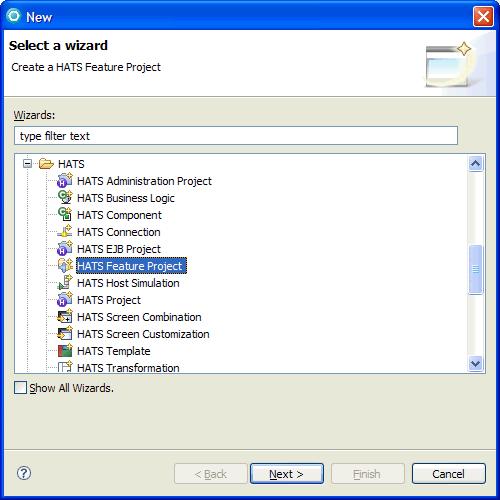
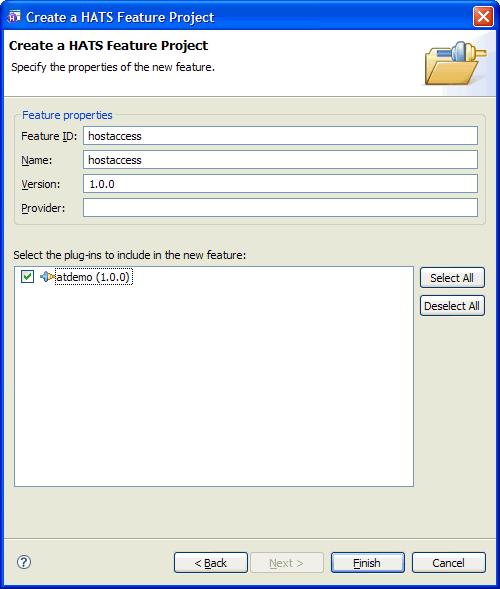
- Select your HATS rich client project and click Finish.
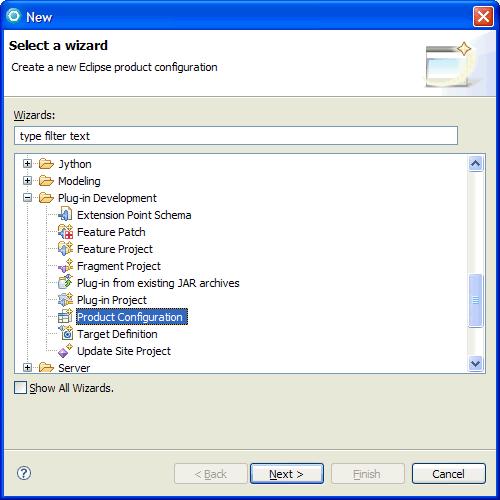
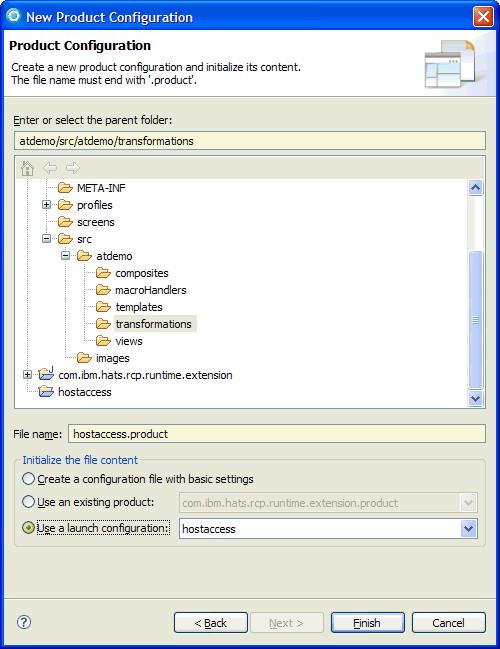
- Click File > New > Other again, click Plug-in
Development > Product Configuration, and click Next.
- Select the com.ibm.hats.rcp.runtime.extension plug-in project
folder as the destination folder. Enter "hostaccess.product" in the
File name field and click Finish.
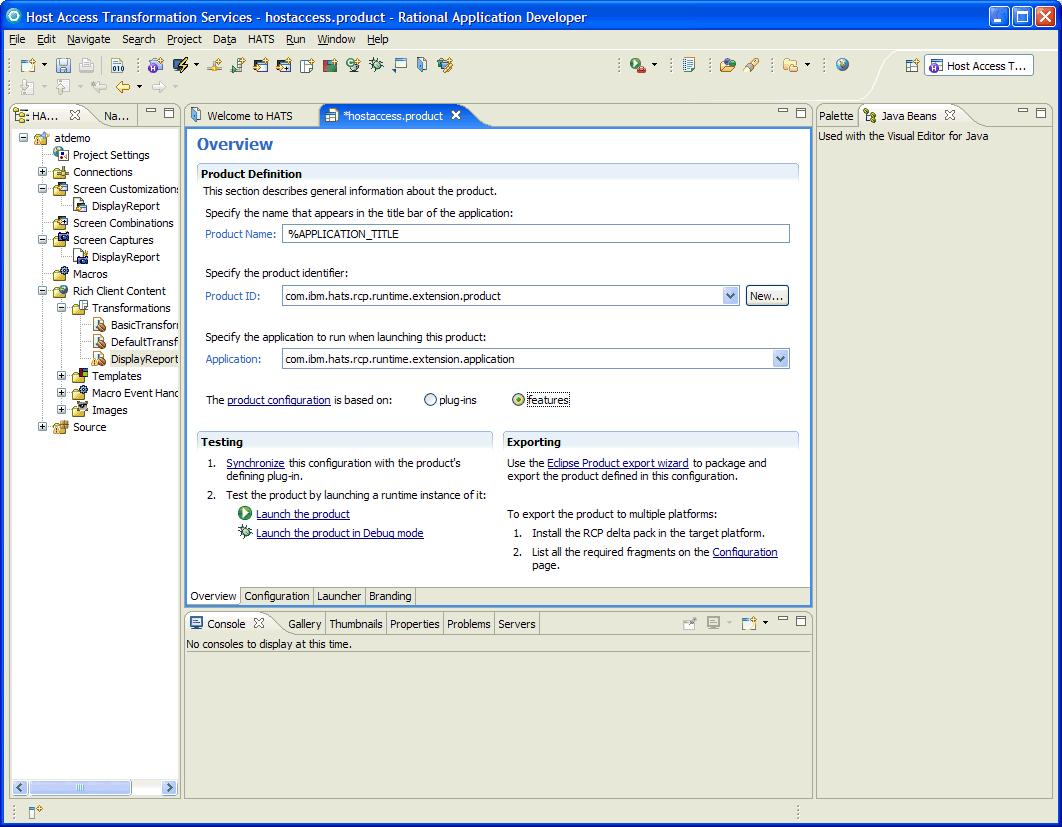
- When the product configuration editor opens, click the features
for The product configuration is based on radio button and open
the Configuration tab.
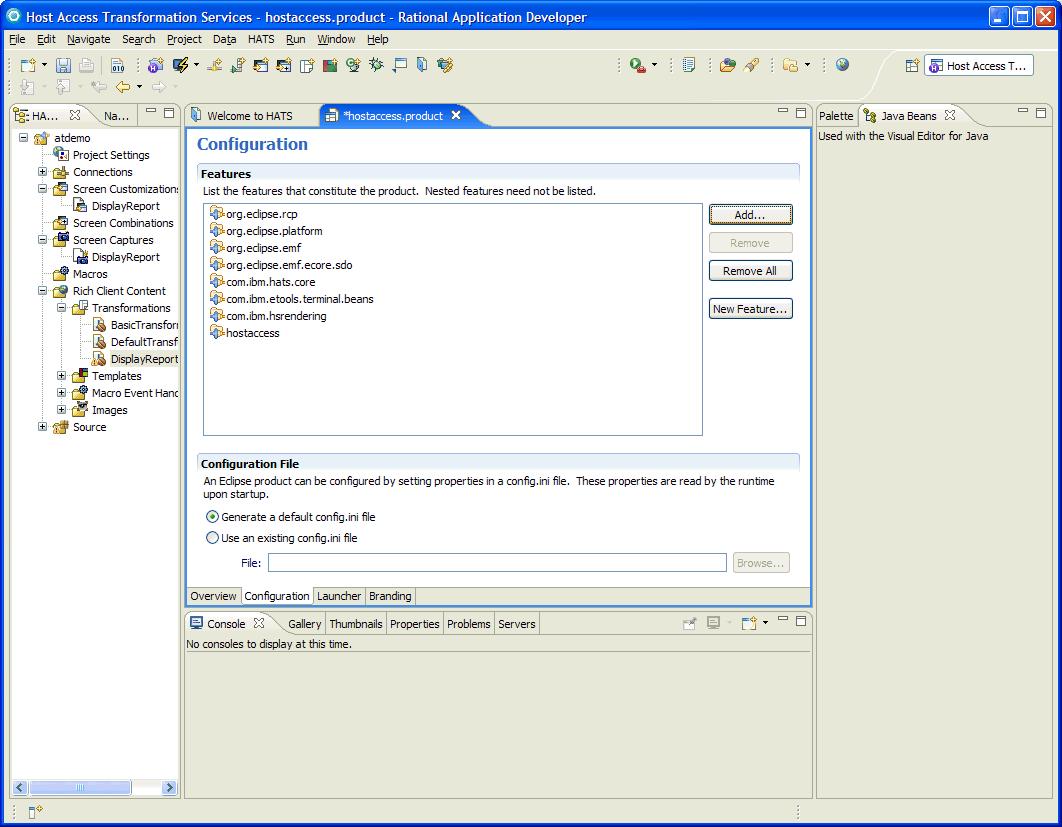
- Add following features to the list:
- org.eclipse.rcp
- org.eclipse.platform
- org.eclipse.emf
- org.eclipse.emf.ecore.sdo
- com.ibm.hats.core
- com.ibm.etools.terminal.beans
- com.ibm.hsrendering
- hostaccess
- Click File > Save to save the changes.
- Click the Overview tab and click Eclipse Product export
wizard link.
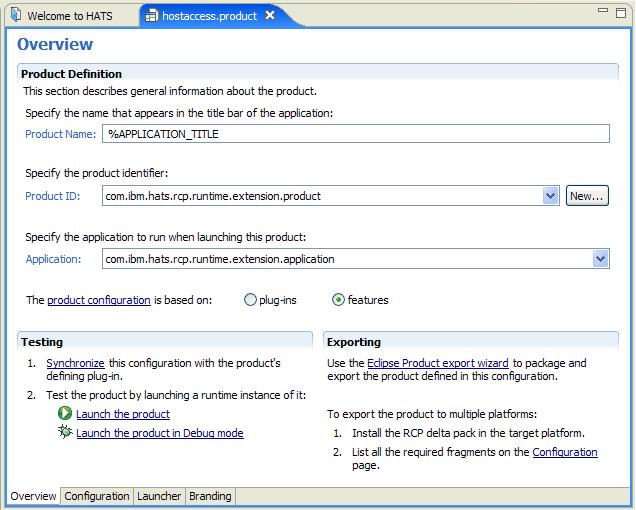
- Under Destination, select Archive file and enter the name
of the archive (zip) file to export the Eclipse product to, for example
"c:\tmp\hostaccess.zip". Click Finish.
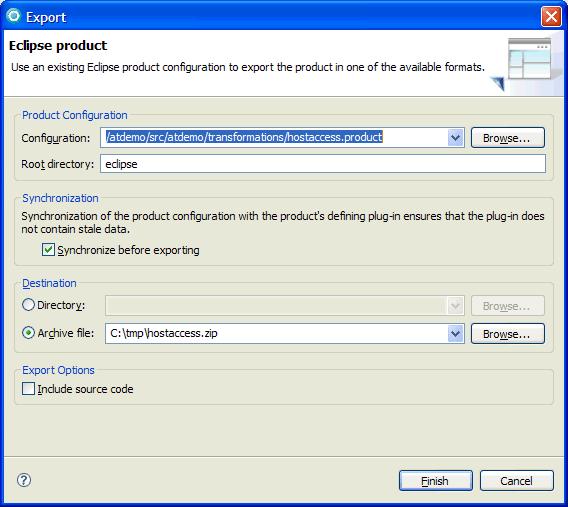
- The hostaccess.zip file is created.
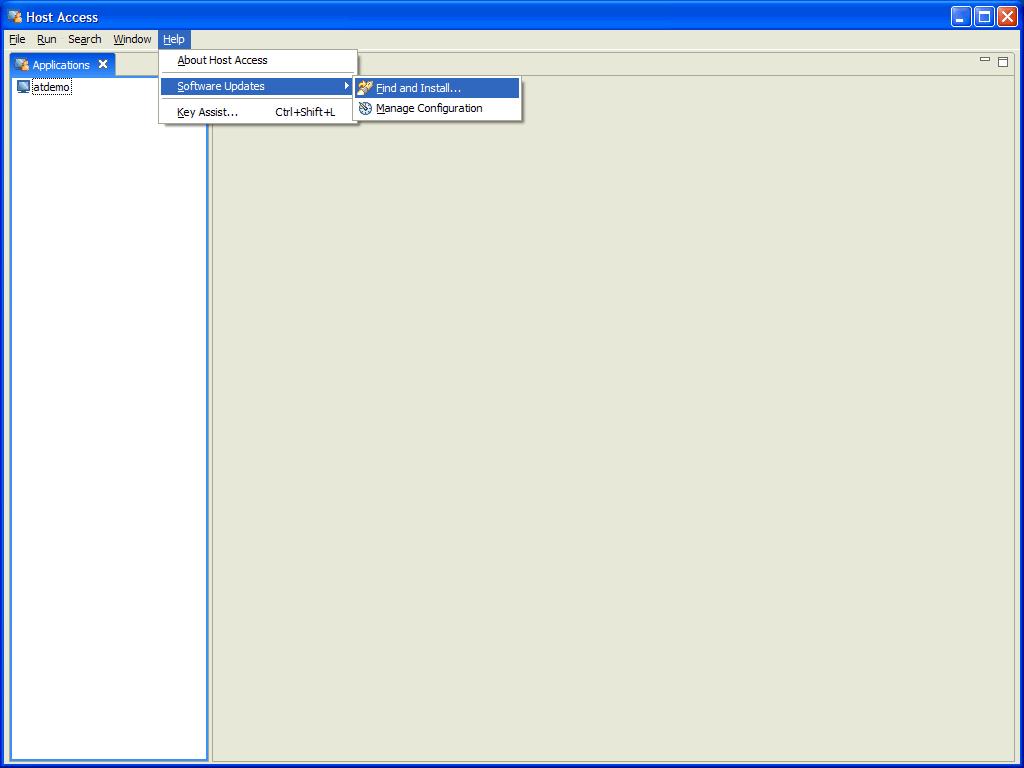
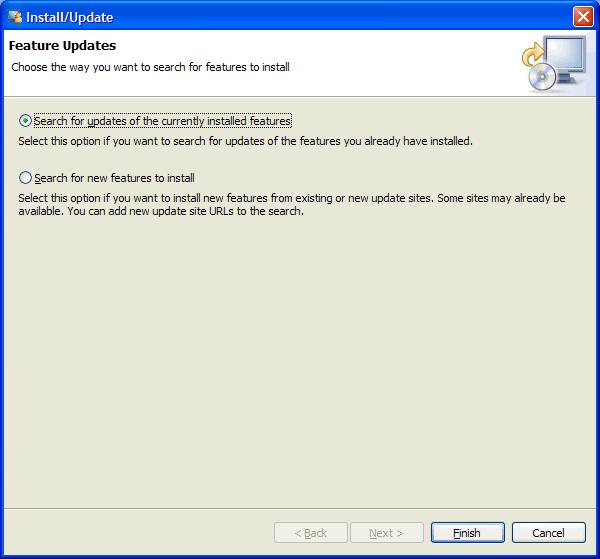
- Unzip the hostaccess.zip file and run the unzipped application. You can
click Help > Software Updates > Find and Install to add
your update site.
-
Can I deploy my HATS Web portlets on
Lotus Expeditor?
No. HATS portlets use the IBM Portlet API and do not use the JSR 168 API, which is supported by Lotus Expeditor.
Application User
-
How can an application user copy text from a
protected field?
To allow application users to copy text from a protected field, enable the Allow positioning on protected text setting of the HATS field widget. Refer to the HATS User's and Administrator's Guide for information on this setting.
-
How can an application user position the
cursor on a protected field?
To allow application users to position the cursor on a protected field, enable the Allow cursor positioning on protected text setting of the HATS field widget. When this setting is enabled, protected fields are rendered as read-only UI text controls. Refer to the HATS User's and Administrator's Guide for information on this setting.
-
Is "type ahead" supported in HATS rich client
applications?
Yes. Rich client type-ahead support, added in HATS Version 7.5.1.1, enables a user to begin typing data intended for input fields on the next screen, or screens, sent by the host, before they are received and processed by HATS.
-
How can an application user disconnect a
HATS session?
There are a number of ways to disconnect an instance of a HATS rich client application:
- Press CTRL+D (assuming keyboard support is enabled).
- Click the X (close) icon on the view's tab.

- Click Disconnect on the application keypad toolbar,
(assuming the disconnect button is displayed. See Project Settings > Rendering > Application Keypad).
- Close the main client window
-
How can I have the layout of my application
user's window saved and restored the next time the window is opened?
Eclipse provides a mechanism that causes the layout of the workbench window to be saved on exit and restored when the application is subsequently opened. To enable this function:
- Open the HostAccessWorkbenchAdvisor.java source file in the com.ibm.hats.rcp.runtime.extension plug-in. You must switch to the Navigator or Package Explorer view to see this file.
- Override the
initialize(IWorkbenchConfigurer)method as follows:public void initialize(IWorkbenchConfigurer configurer) { super.initialize(configurer); configurer.setSaveAndRestore(true); } - Save the file. You will need to restart your runtime workbench window for this change to be applied.
Note: By default, transformation views opened when the workbench starts up do not connect automatically. The user see a Click to Connect button. You can change this behavior by returning true in the shouldAutoStart() method of your TransformationView. See the API reference for more information.