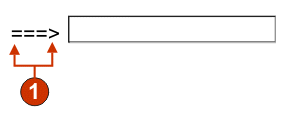
The following figure shows how a text input widget appears on a
transformation, using the data from the Command line component
example as input:
Figure 1. Text input widget example
Caption (from component)
The following settings can be configured for this widget:
Override size
If selected, the specified size value will be set on each generated input field. This setting is useful for visually changing the size of
a large host input field. If cleared, the size of the input field is determined by the
recognizing component.
Size
The size of each input field.
Note:
This value is interpreted by the browser –
no guarantee is made as to how an input field will be rendered on different
browsers.
Override maximum length
If selected, the specified maximum length value will be set on each generate input
field. This setting is useful for manually restricting the number of characters that can
be entered into an input field. If cleared, the maximum number of allowable characters
is determined by the recognizing component.
Maximum length
The maximum number of characters that can be entered into each input field.
Add input attributes
If selected, the specified attributes will be added on each input field. This setting
is useful for adding any extra attributes which are useful for customization. If type
attribute is specified, the default type=text will be overridden by specified attribute.
Same way maxlength and size attributes also will be overridden by specified attributes.
Input attributes
Any valid attribute value pair or a set of attribute value pairs separated by
space. Any double quotes entered will be converted to single quotes. If any
attribute value contains spaces, specify it with in single quotes
Note:
The attribute value pair is interpreted by the browser - no guarantee is made as
to how an input field will be rendered on different browsers.
Example input attributes: type=date type=‘image’ alt=‘Click me!’ src=‘my-img.png’ width=’80’ height=’30’
Caption source
Specifies how the caption for the generated input field is determined. Options:
From component (use the extracted caption from the
component) or Custom (use the specified caption).
Custom caption
Optional. Specifies the caption for the input field.
Note:
Leave
this setting blank to not generate a caption for the check box.
Number of columns per row
The number of input fields to display horizontally before wrapping to the next
line.
Note:
This setting is not applicable in default rendering.
The widget preview does not always match the full page preview. This happens because
the widget preview simply renders the component's output. It does not try to preserve
the alignment of the screen when it renders, as is done in the full page preview.
Read only
If selected, the rendered input field is read only. A read only input field appears as
a regular input field, but does not allow the user to modify its contents. This is
useful in cases where you want to display the contents of a non-protected field to a
user, but you do not want the user to modify the contents.
Strip underscores on input field
Select this box if you want to strip the underscores from text when it is
rendered.
Trim spaces on input field
Selecting this trims leading and trailing spaces from the input field.
Enable cursor positioning option on input fields (Web-only)
Select this box to allow the user to switch from data input mode to
cursor positioning mode for input fields. When in data input mode, the user can enter
data into the input field. When in cursor positioning mode, the user can tab to or
otherwise position the cursor on any character in the input field. This setting is
useful for Web projects that are optimized for mobile devices that do not have other
cursor positioning capabilities. For more information about other settings for this
option that do not appear in the HATS Toolkit GUI, see Considerations and limitations for mobile devices.
Enable foreground colors
If selected, host screen foreground colors are rendered.
For Web applications,
colors are mapped to CSS stylesheet classes representing that
color. For example, if a host screen field is marked as RED, the Field widget will enclose the generated HTML for that field in
a tag whose class name attribute is set to HRED.
This allows for you to remap host screen colors on your generated Web page.
Note:
The
blacktheme.css directly maps host screen field foreground colors (for example, red
text on the host screen will appear as red text on the generated Web page). However,
other stylesheet files like monochrome.css, map field colors
differently in an attempt to create a consistent, modern style.
For rich client applications,
colors are mapped by the rich client template.
Note:
This setting is overridden by the Override color >
Foreground color setting.
Enable 3270 numeric lock
If selected, the user can enter only numbers 0 through 9, plus sign,
minus sign, period, comma, and Hindi numerals into 3270 numeric
fields. If cleared, any characters can be entered. The default is cleared.
Note:
For Web
applications, you can customize the list of acceptable keys in the lxgwfunctions.js
file in the allowNumLockOnly() and allowNumLockOnlyForIEMobile() functions, as
appropriate, using character code values.
Enable extended attributes
If selected, extended field attributes (blink, reverse video, underline, and column
separator) are rendered. Also, for 3270 Web applications, extended field colors are
mapped (see the preceding setting for more information). See Using style sheets for more information.
For rich client applications, extended field
attributes are mapped by the rich client template.
Blink style (Web-only)
The CSS style setting you want to use to render blinking text from the host
screen.
Reverse video style (Web-only)
The CSS style setting you want to use to render reverse video text from the host
screen.
Underline style (Web-only)
The CSS style setting you want to use to render underlined text from the host
screen.
Column separator style (Web-only)
The CSS style setting you want to use to render column separators from the host
screen.
Input field style class (Web-only)
Optional. The CSS style class associated with the generated input field. The value of
the class attribute of the HTML input tag will be set to this value. The default value
is HATSINPUT. See Using style sheets for more information.
Caption style class (Web-only)
Optional. The CSS style class associated with the generated input field's caption. The
default value is HATSCAPTION. See Using style sheets for more information.
Table style class (Web-only)
Optional. The CSS style class associated with the generated table. If more than one
input field is rendered, an HTML table will be generated to enclose these fields. The
value of the class attribute of the HTML table tag will be set to this value. The
default value is HATSTABLE. See Using style sheets for more information.
Style (Web-only)
Optional.Use the launcher button next to this field
to open a style properties dialog. This dialog frees you from the need to understand
CSS to change the font, color, or other style settings for the widget. See
Using style sheets for more information.
Override font (RCP-only)
Select this option and use the supplied Font setting controls
to override the default font name, font style, and font size.
Override color (RCP-only)
Select this option and use the supplied Foreground color and
Background color setting controls to override foreground and
background colors.