Developing and deploying HATS Web applications
In addition, a HATS Web application can be linked with a WebFacing application and both packaged together to interoperate with each other in a single enterprise application. For more information, see WebFacing and HATS.
HATS applications are created from HATS projects using the HATS Toolkit. When you create a new HATS project, a set of folders is created to help you organize your HATS application files. An example of a default project is shown below. The highest level folder has the same name as the name you give to your project when you create it. In that folder are other high-level folders that contain objects defined in your HATS project. Some folders do not appear until you create certain objects.
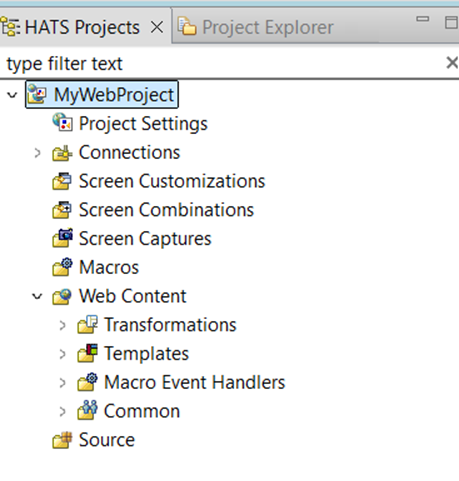
HATS projects can be shared in a team environment by going to the Navigator View of your HATS perspective.
Right-click the project and select Team
> Share Project. Select the repository type from the list and
click Next. Rational® SDP supports
several repositories. For more information, refer to the Rational® SDP documentation
and search on repository.
resourceUpdate.sts file. This
file is automatically generated when testing a project within the
toolkit. The file should not be under version control and can safely
be ignored or deleted before placing a HATS project under version
control.
To exclude the file from version control, open Window -> Preferences -> Team -> Ignored Resources and
click Add Pattern to add a new pattern.
Enter resourceUpdate.sts and click OK.
Make sure the new pattern is selected in the list of ignored patterns
and click OK to save the settings.
HATS Web projects, created in HATS Toolkit, are extensions of Web projects in the Rational® SDP workbench. For more information, click Help > Help contents from the Rational® SDP menu bar, expand Developing, and select Developing Web applications.