Essential Planning and Migration Considerations
All steps in developing a HATS application are performed using the Vanilla Eclipse-based IBM Rational Software Delivery Platform (Rational SDP). The Rational SDP provides the user interface and integrated development environment (built on Eclipse) from which you launch wizards to create resources, view lists of resources, and use editors to modify resources.
With the latest upgrade to the base SDP environment, HATS developers must consider certain features that may impact their development and deployment environment. The details regarding the new changes in the SDP environment can be found in the References section.
- Java 17 Support.
Default Compiler Compliance Level By default, the IDE Windows Preferences sets the compiler compliance level to 17. Before HATS v10, this level was typically 1.8 or lower.
Migrating the older HATS project to v10The HATS toolkit will automatically perform the project migration. However, if your application uses any custom Java API that has been deprecated in JDK 17, you have two options:
Option 1: Update Code- Rewrite the logic to explicitly support JDK 17.
Option 2: Adjust Java SE Support - More details are provided in step 3 below.
- Deployment to Application Servers with Java SE 8 Support.
If you plan to deploy a HATS v10 web project to an application server that uses Java SE 8 (JRE 1.8 or another version), you must adjust the compliance level before exporting the HATS EAR file. More details in step 3 below.
- Running HATSv10 projects in the Java SE8 or lower supported runtime
environment.Action Required:
- Navigate to Windows ➔ Preferences ➔ Compiler.
- Update the Compiler compliance level to the appropriate version (e.g., 1.8).
- Select Apply and Close.
- Right-click on the HATS project and select Properties.
- Select Project Facets and verify Dynamic Web Module and Java version. For a Java EE 8 deployment, the ‘Dynamic Web Module’ and ‘Java version’ should be 4.0 and 1.8, respectively. Similarly, for a Java EE 7 deployment, the ‘Dynamic Web Module’ and ‘Java version’ should be set to 3.0 and 1.7, respectively.
- Verify EAR\application.xml file. For a Java EE 8 deployment, the application version will be 8 and ‘schemaLocation’ should refer to ‘application_8.xsd’. Similarly, for a Java EE7 deployment, the application version will be 7 and ‘schemaLocation’ should refer to ‘application_7.xsd’.
IBM WebSphere Application Server often utilizes Java SE 8, making these steps necessary for deployment to that environment.
- Deprecation of IBM Key Management Utility.
IBM SDP does not support IBM Key Management Utility. Developers should utilize either the standard Java keytool (SDP_Installation_location\jdk\bin\keytool.exe) or the certificate management features provided by the target application server (e.g., WebSphere, Tomcat) for general key and certificate tasks."
Detailed documentation on IBM and OpenJDK Keytool:
https://www.ibm.com/docs/en/sdk-java-technology/8?topic=commands-creating-adding-data-keystore
https://cr.openjdk.org/~jjg/8261930/docs/specs/man/keytool.html
- Recommendation to use .jks instead of .p12 format for secure session using
HATS.
When the p12 file is used, HATS implements IBM SSLite functions. The SSLite is not compatible with the updated encryption used with TLS, but suits well for SSL-like connections. For the updated encryption or TLSv1.0 onwards, it is recommended to use a .jks keystore. HATS uses Java Secure Socket Extension (JSSE) to support TLSv1.0 and onwards.
When using the Java Keytool, convert the existing .p12 to .jks:Verify the content of the newly created .jks file. E.g.,keytool -importkeystore -srckeystore ExisitngFilename.p12 -srcstoretype PKCS12 -destkeystore NewFilename.jks -deststoretype JKS -deststorepass newPwdkeytool -list -v -keystore NewFilename.jks -storepass newPwd - IBM JSON library not available in the IBM Websphere Liberty deployment.
After Liberty 24.0.0.10+ and 25.x, the com.ibm.json.java (JSON4J) is no longer automatically included in the Liberty runtime. At runtime, you may see the error ‘java.lang.NoClassDefFoundError com.ibm.json.java’.
To resolve the issue, open the server.xml and add <feature>json-1.0</feature> in the featureManager section.
-
Error NoClassDefFoundError JWKSKeySelector when deploying HATS OIDC Support in IBM
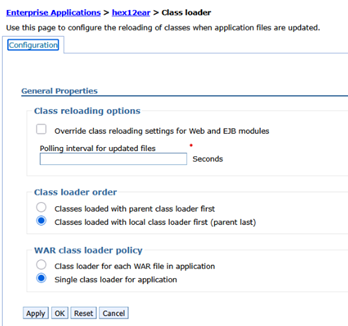
WebSphere Application Server.When using the HATS OIDC feature, the IBM WAS deployment may report this error- ‘java.lang.NoClassDefFoundError: com.nimbusds.jose.proc.JWSKeySelector’. To resolve this issue, update the Class Loader policy of the deployed application as shown below:
- Project Explorer view to replace the Navigator view
Eclipse has formally deprecated the navigator view. As a result, in the HATS toolkit, the navigator view has been replaced with the Project Explorer view, which provides a similar set of features and is the recommended default for navigating project files.
Reference Links:
https://www.ibm.com/support/pages/removed-and-deprecated-functions-rational-application-developer