Configuring connection and Web Configuring files outside the HATS application (ear/war)
For the development and production of HATS, the user uses different connection setting properties (main.hco) or WEL config properties(hatswelcfg.xml).
With this feature, the user can configure the main.hco and hatswelcfg.xml outside the HATS application. It replaces the content of the connection file or config file according to their production or development requirements.
The content replacement occurs only once while deploying the ear to the server.
To perform this configuration, the user must keep the files with required content outside the HATS project and provide that path as System Environment Variable with the name HATS_CONFIG_ENV.
Configuration steps to follow:
- Keep the main.hco/hatswelcfg.xml file outside the HATS
project in the System environment variable path.
Example:
ENVPATH\projName\connections\
ENVPATH\projName\welconfig\ - While handling multiple projects on the same machine, the folder
must be created with the project name and add the files.
Figure 1. 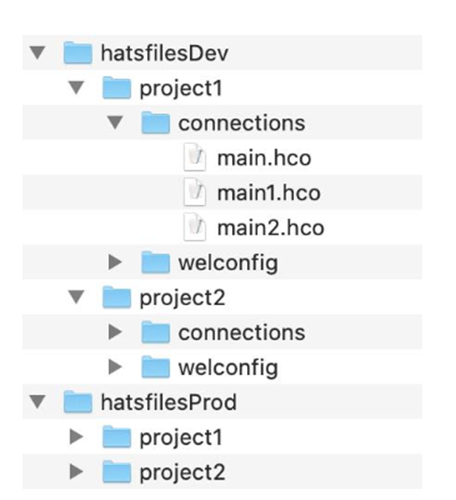
- Provide the System Environment
variable as HATS_CONFIG_ENV and modify the path according to the user's
requirement, whether production or development. Note:
- Changes in Operating System (OS) Environment Variables requires System Restart.
- Changes in Environment Variables at the Server level or the Java level require Server Restart.
- To replace the connection file, provide the path as
ENVPATH\HatsProjName\connections.
- Follow similar steps for configuring the hatswelcfg.xml.
Provide a path as
follows:
ENVPATH\HatsProjName\welconfig
- Now, try to deploy the ear in the server. It should pick the contents of files specified in the system environment path and the content gets replaced while deploying to the server.
- Users can also replace the content of background connections by keeping those files in the system env path with a proper file name. The content in this file will replace the existing content in background connections.
- Once the content is replaced, a new file called
projectName.properties will be generated and keeps track of the last
modified date of main.hco file or hatswelcfg.xml
file.
The path of this properties file will be: ENVPATH\PojectName\projectName.properties
- To modify the files present inside the HATS application for the second time, the user must ensure that main.hco/hatswelcfg.xml in the environment variable path are modified. After modifying the files, HATS application must be restarted in the runtime for considering the changed files.
To work this feature properly, Files must be present in the above-mentioned file structure (refer to figure 1).