Lesson 8: Create an update page
In this exercise, you will create the web page that allows users to update the CUSTOMER table. This page will receive the parameter that the other page passed, display only the record indicated by that parameter, and accept updated information for the record.
Create the updatecustomer.jsp file
About this task
Procedure
Results
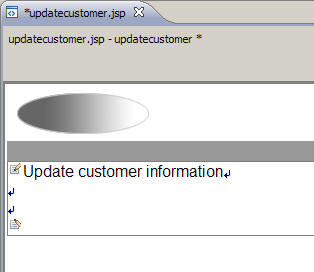
Add an EGL record and display it on the page
About this task
Procedure
Results
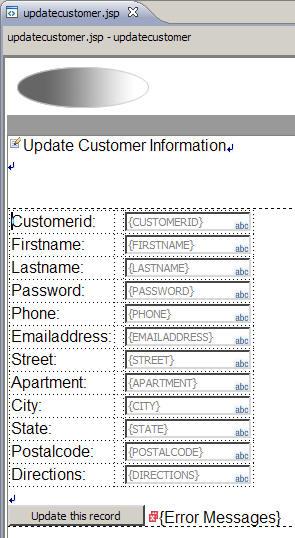
The data controls for updating the record are inserted
on the web page. Note that there is an {Error Messages} control
on the page. This control does not mean that your page has errors;
the {Error Messages} control marks the place where
run time error messages will be displayed.
The page looks like this:
Retrieve the data
About this task
CID. In these steps,
you will set up the handler for new web page to accept this parameter
and retrieve the appropriate record from the database to be displayed
on the page.Procedure
Results
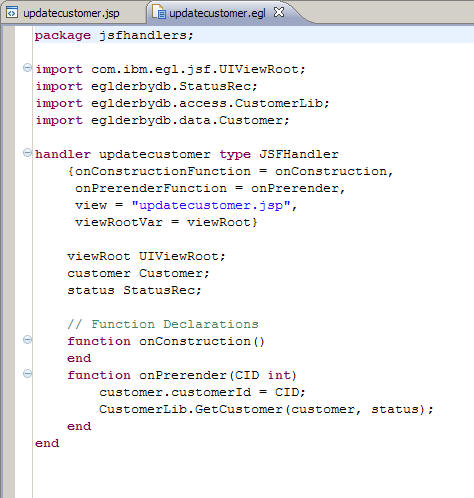
Now when you click
a link on the allcustomers.jsp page, the updatecustomer.jsp page loads
with details about that customer's record. Right now, you can change
the information in the fields on the web page, but there is no function
to send those updates to the database. In the next section, you will
use the UpdateCustomer function to make those updates
to the database.
Update the record in the database
About this task
updateRecord. Then, you will bind this function
to the button you created on the web page. In this way, when you click
the button on the web page, the updateRecord function
will run and call the UpdateCustomer function to
update the database record. Finally, the updateRecord function
will forward the browser back to the allcustomers.jsp page so you
can see the changes you have made to the record.Procedure
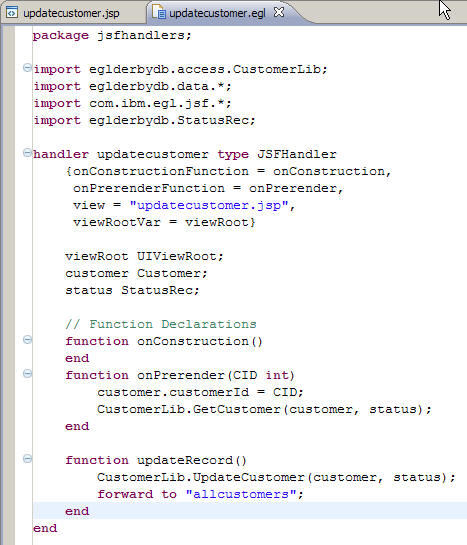
Results