Lesson 6: Add data to the page
In this exercise, you will add data from the database included with this tutorial onto the web page that you created in the previous exercise.
About this task
- You add fields to the Page Data view, associating those fields with the web page.
- You place fields from the Page Data view onto the related web page.
- You add a variable (in this case, an array of records) to an EGL
JSF handler, which you can think of as the code that stands behind
the runtime process. The JSF handler is an example of page code because
it can do any of these tasks:
- Assign data values for submission to the JSP file. Those values are ultimately displayed on the web page.
- Manipulate the data returned from the user or from a called program.
- Forward control to another JSP file.
In this lesson you will also use the EGL content assist feature, a tool that you can use to complete programming statements without having to type the entire statement.
Add a record array to the Page Data view and the JSF Handler
About this task
Procedure
-
Clear the Add controls to display the EGL element
on the web page check box.
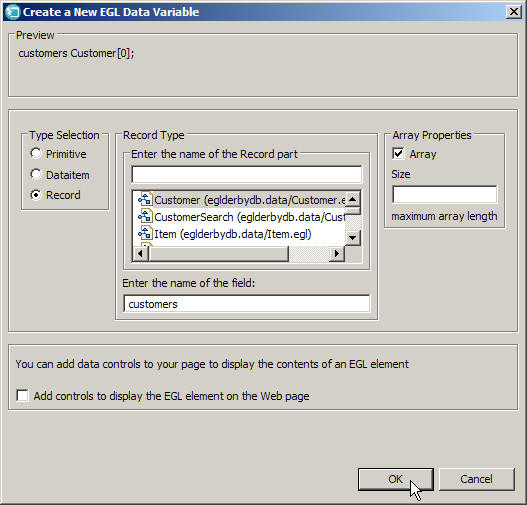
The Create a New EGL Data Variable window looks like this:
Results
The Page Data view looks like this:
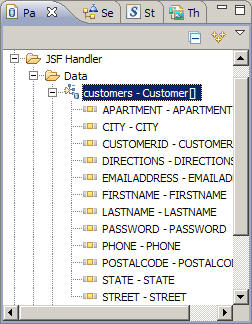
By adding entries to the Page Data view, you have also added an array of records to the JSF handler. In the next section, you will create the related fields on the web page.
Display the data on the web page
About this task
Procedure
-
Select the check boxes next to these fields:
- CUSTOMERID
- FIRSTNAME
- LASTNAME
The Insert List Control window looks like this: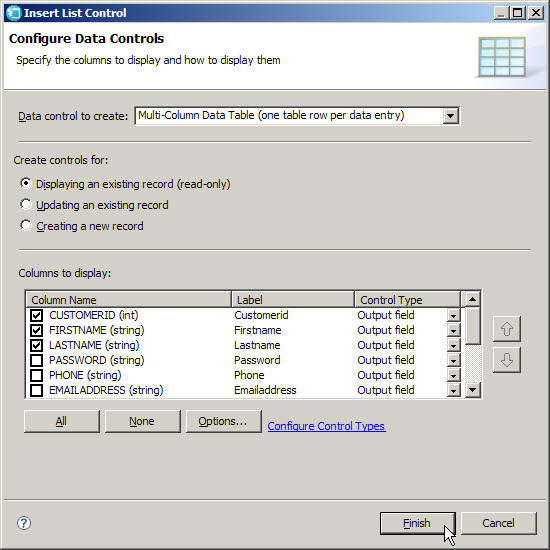
Results
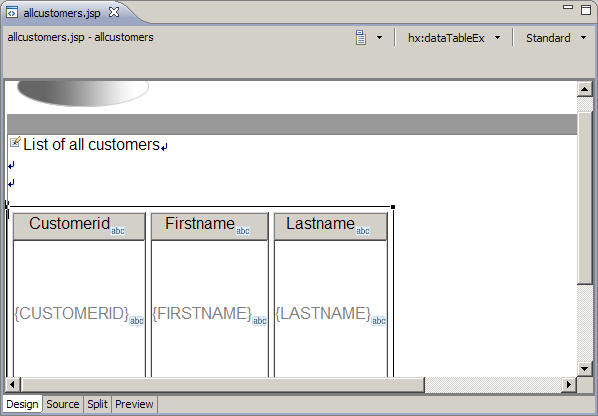
The columns in the data table have headings based on the names of the fields in the database. You can change these headings by clicking them, opening the Properties view, and changing the Value field.
The
three text fields in the data table, which appear as {CUSTOMERID}, {FIRSTNAME},
and {LASTNAME}, represent the places where the database
information will appear on the page.
Call a function from the EGL library
About this task
The next step is to add code to this page that calls a function in the CustomerLibrary.egl library. That function reads the data from the database and makes it available to the page.
Procedure
-
On a blank line immediately after the line
customers Customer[0];, add the following code, exactly as written:status StatusRec;Notice the wavy red line underStatusRec, indicating that the type is not known to the handler. You need to add an import statement that tells the handler where to find theStatusRecrecord definition. You can do this automatically by right-clicking the blank space in the editor window and clicking Organize Imports.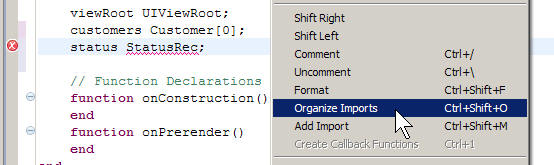
The keyboard shortcut for this feature is Ctrl+Shift+O. EGL checks all files visible to it, locates the necessary information, and adds an import statement at the top of the file.
Now you have the record to be retrieved from the database and the SQL status record. The final step in adding the data to your page is to pass these two variables to the function that accesses the database. This function, named
GetCustomerListAll(), was created by the Data Access Application wizard in a previous lesson.Note the lines within braces that follow the handler declaration. These lines assign values to properties of the JSF Handler. In EGL, properties are name-value pairs that modify how a part behaves. Most types of EGL parts have one or more properties, and each kind of part can have different properties. In this case, the JSF Handler has four properties defined:
onConstructionFunction = onConstruction- The onConstructionFunction property
specifies a function in the JSF Handler that runs the first time
the web page (JSP) associated with the JSF Handler is displayed in
a browser. In this case, the property specifies a function named
onConstruction, which is created by default in the JSF Handler. You will not be working with this function in this tutorial. onPreRenderFunction = onPreRender- The onPreRenderFunction property specifies
a function in the JSF Handler that runs each time the associated
JSP is displayed in the browser, including when the user refreshes
the page or returns to the page after viewing another page. In this
case, the property specifies a function named
onConstruction, which is created by default in the JSF Handler. In the next few steps, you'll add code to this function to retrieve current data from the database each time the page loads. view = "allcustomers.jsp"- The view property specifies the web page associated with the JSF Handler. By default, the web page and the JSF Handler have the same name, minus the file extensions.
viewRootVar = viewRoot- You use the viewRoot variable to get access to the JSF component tree. You will not use the viewRoot variable in this tutorial. For more about JSF components and the viewRoot variable, see .
Results
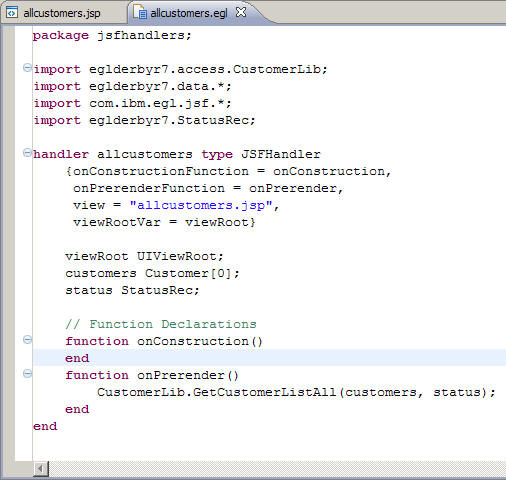
If you see any errors marked by red X symbols in the editor, make sure your code matches the code in this file: Completed allcustomers.egl file after lesson 6.
Test the page
About this task
Now the page is ready to be run on the server. Follow these steps to test it and see how the database data appears on the page.
- Save both the allcustomers.egl and allcustomers.jsp files if you have not already done so, then close both files.
- Make sure your application server is started and synchronized.
Procedure
-
From the popup menu, click .
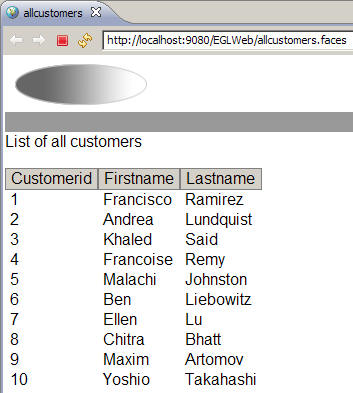
As in the previous lesson, the web page opens in a web browser inside the workbench. This time, the dynamic data appears on the page. If you do not see the dynamic data, click the refresh icon next to the address bar. The page looks like this: