The Filtering select widget is responsible for rendering a Dojo drop-down input text box.
Characteristics of the Filtering select widget are:
A list of value pairs consisting of a list item caption and a
corresponding list item value to be submitted to the host is displayed
in a drop-down input text box. Depending on the component being
rendered, the value pairs can be supplied by the component or manually
by you in the widget settings.
Note:
Both the caption and
value are displayed in the drop-down list.
The Filtering select widget is editable, so users can type in
values at runtime.
As users type into the input text box, partially matched values
from the list are displayed in a drop-down
list.
User-supplied text that does not match a value in the list
is flagged as an error. Invalid input results in a blank being submitted
to the host.
Note:
The main difference between the Filtering select and Combo
box widgets is that the Filtering select widget does not allow users
to submit values not already in the list.
The widget is customizable with many API options, which include
validation and constraint options, error messages, icons, auto-complete,
and more.
This widget renders data supplied by the following components:
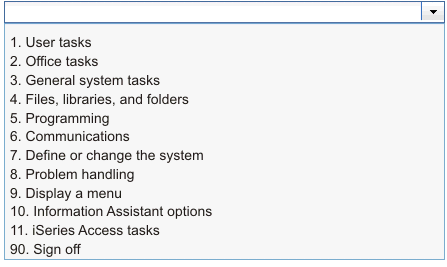
The following figure shows how a Filtering select widget appears
on a transformation, using the data from the Selection list component example as input:
Figure 1. Dojo Filtering select
widget example
The figure below shows an example of partially-matched values
displayed in a pop-up list. In this example, the user typed
a 1 into the input text box.
Figure 2. Dojo Filtering select
widget filtering example
As shown in the following figure, the Filtering select widget,
unlike the Combo box widget, prevents the user from typing and submitting
values not in the supplied list.
Figure 3. Dojo Filtering select widget
invalid user supplied input example
The following settings can be configured for this widget:
Fill from global variable
If selected, fill the drop-down list from the specified global
variable.
Global variable containing list values
Specifies the name of the indexed global variable containing
the set of values. An item for each index in the global variable will
be created in the drop-down list.
Shared
HATS local and shared global variables can have the same name.
Select this box if you want to use the shared global variable to populate
the list items. When this box is cleared, the local global variable
is used.
Global variable containing list captions
Optional. Specifies the name of the indexed global variable
containing the set of captions. The size of the global variable specified
by this value should be greater than or equal to the size specified
in the preceding setting. The indexes in this indexed global variable
should also match up with the indexes in the values global variable
(so that the actual value and caption shown to the user are in sync).
If this value is not specified, the caption for each item in the drop-down
list will be its value.
Fill from string
If selected, fill the drop-down list from the specified string.
List items
Optional. Specifies the string of items to include in the drop-down
list. Items should be separated with a semicolon (;). To have the
list item caption be different than the list item value, enter both
separated by an equal sign (=). For example, a value of Apple=A;Grape=G renders a drop-down list
with two items: A=Apple and G=Grape. Selecting the first item causes
an A to be inserted in the associated
host screen input field.
If you want both the item in the drop-down
list and the value inserted in the host screen to be the same, you
only need to enter the item. For example, Apple=A;G.
In this example, a G appears in the
drop-down list and in the host screen input field.
Auto submit on select
If selected, once a selection is made in the drop-down list,
it is submitted.