User Preference Manager
The User Preference Manager (UPM) provides a method for changing configuration and setup items.
- Preferences set with UPM pertain to you whenever you log on to the same user ID on the affected workstation; they apply to all of your sessions while you are logged on.
- Preferences set using the session Edit menu apply to all sessions controlled by the workstation profile created or changed while using a session—when that session profile is used again, the preferences are applicable, regardless of the user ID at the time.
- One of the capabilities of UPM is to allow specification of a directory to be used for storing your profiles; this allows full control of your environment.
To access UPM, click Programs -> IBM Personal Communications -> Utilities -> User Preferences from the Windows Start menu. Select the Basic tab to change user preferences and select Advanced tab to change the maximum number of emulator sessions and pass through host certification validation.
To change specific configuration items, select the appropriate property page using the Basic tab. Select the language to use for the user interface in subsequent Personal Communications sessions.
- LDAP
- Select this tab to set up use of Lightweight Directory Access Protocol support.
The Basic property page shows a text box with the currently assigned location where profile files are stored. To change it, type a new name, or click the Browse button to locate the directory location of your choice.
Group Policy to Restrict Maximum Emulator Sessions
A new group policy allows administrators to set session limits between 26 and 52 in the "Preferences" utility. Users cannot modify or exceed the assigned limit.
- In the Group Policy Editor, enable the "Maximum Emulator Sessions" option and set the value to 26 or 52.
- Open the Preferences utility and confirm that the maximum emulator sessions field is set to 26 or 52.
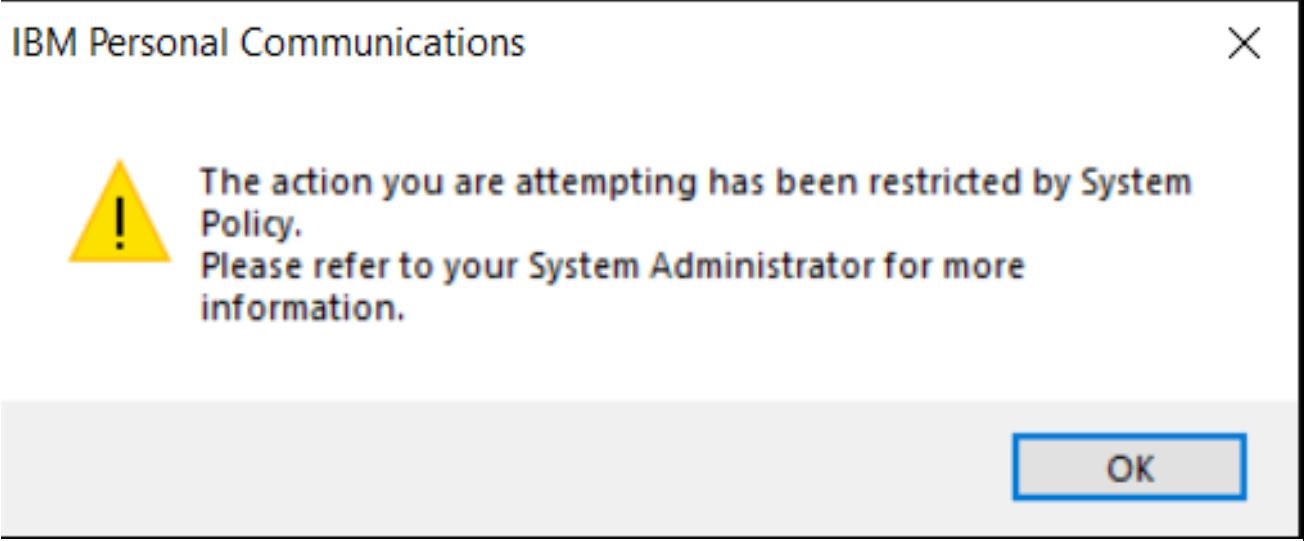
- If user tries to change the value of maximum emulator sessions in the Preference utility, a system restriction popup message will appear.
- Try launching multiple emulator sessions.
- Upon reaching the 26th (if value is set to 26) or 52nd session (if value
is set to 52), any further attempt to start a new session will trigger a system
restriction popup message, indicating that the session limit has been reached and
the group policy has been enforced.