Jenkins Platform Setup (Prerequisites)
Goal: To explain the one-time configuration required on the Jenkins Controller (your main Jenkins server) to enable it to run dynamic Docker agents and connect to Google Cloud. This is a Jenkins Administrator task.
This setup involves three main steps:
- Ensuring Docker is available on the Jenkins host.
- Installing the required Jenkins plugins.
- Adding the GCP Service Account credential to Jenkins.
1. Host Machine Requirement: Install Docker
The agent { docker { ... } } syntax in your pipeline works by using the Docker-out-of-Docker (DooD) method. This means your main Jenkins Controller (or the machine it runs on) must have Docker installed and running.
The pipeline agent container will mount the host's Docker socket (/var/run/docker.sock) to control it.
- Action: If not already installed, follow the official Docker installation guide for your server's operating system.
- Action: You must also add the jenkins user on the host machine to the
docker group so it has permission to access the
socket:
Bash
sudo usermod -aG docker jenkins
- You may need to restart Jenkins for this change to take effect.
2. Jenkins Plugin Installation
Your pipeline relies on special Jenkins plugins to manage Docker agents and credentials.
Step-by-Step Guide:
- Go to your Jenkins Dashboard.
- Select Manage Jenkins from the left-side menu.
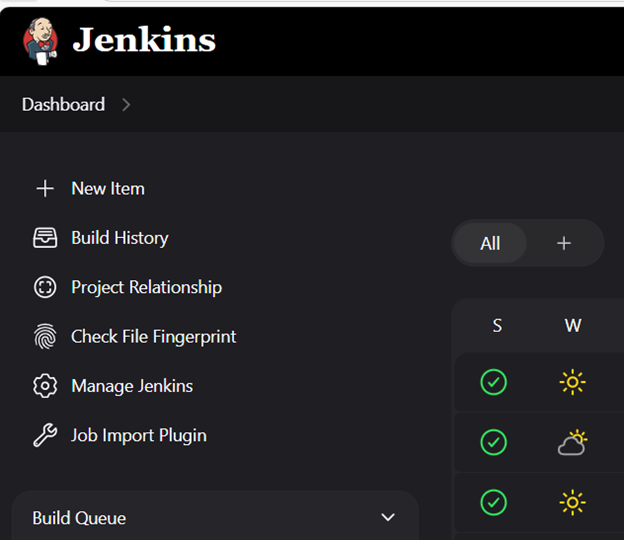
- Click Plugins.
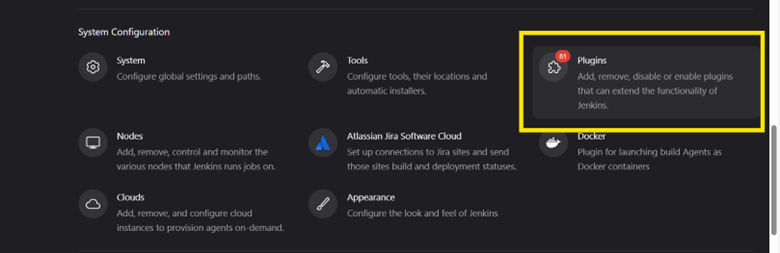
- Select the Available plugins tab.
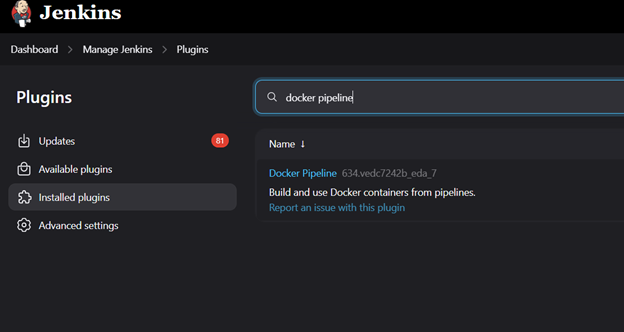
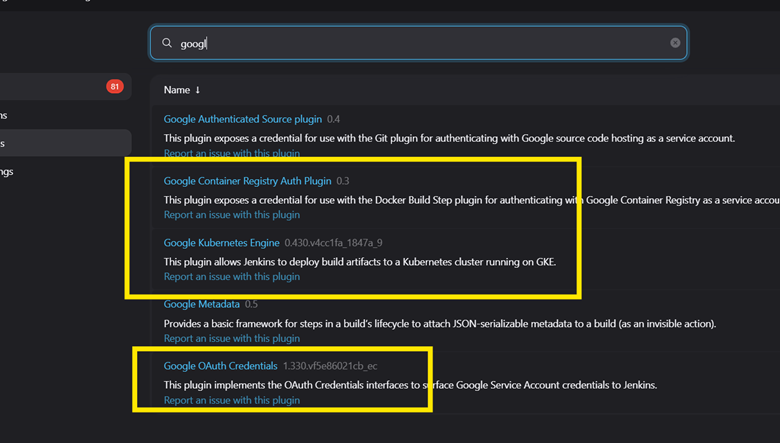
- In the search field, find and select the checkboxes for the following
plugins:
- Docker Pipeline: This is the essential plugin that provides the agent { docker { ... } } syntax.
- Google OAuth Credentials: This (or a similar GCloud plugin) is highly recommended for managing GCP credentials.
- Credentials Binding: This provides the withCredentials step.
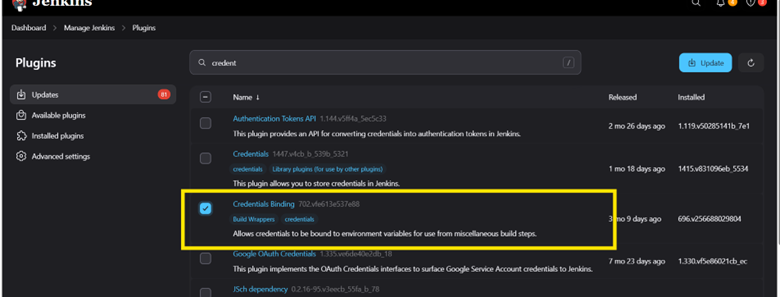
- Click the Download now and install after restart button.
- Check the box at the bottom of the screen to Restart Jenkins when installation is complete and no jobs are running.
Step-by-Step Guide:
- From the Jenkins Dashboard, go to Manage Jenkins➔Credentials.
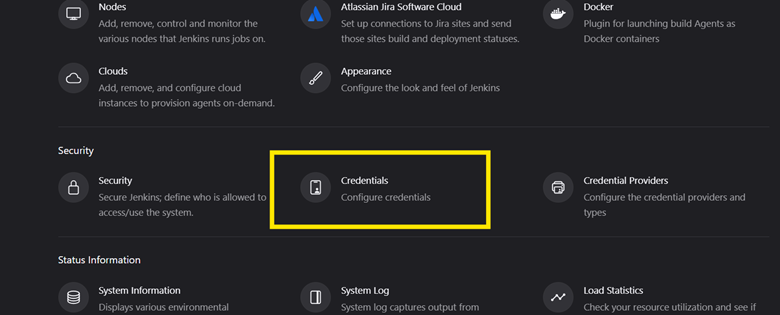
- Click on the (global) domain.
- Click Add Credentials on the left.
- Set the Kind to Secret file.
- Click the Choose File button and upload your GCP Service Account JSON key.
- Set the ID to hclsw-service_Account.
- Critical: This ID must match the CREDENTIALS_ID in your Jenkinsfile's environment block.
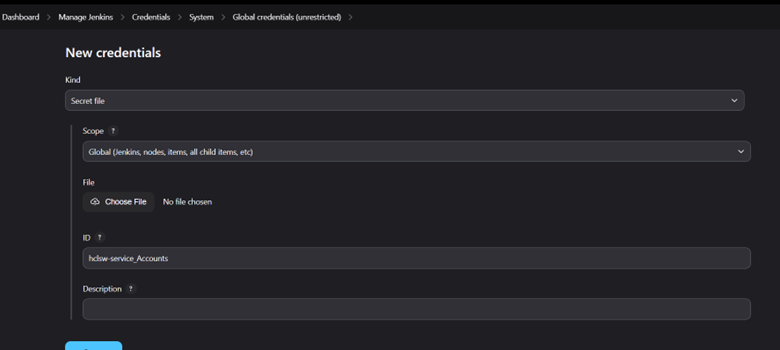
- Add a clear Description, such as "GCP Service Account for GKE/GAR Deployments".
- Click OK.