Step 4: Finish creating your Host On-Demand portlet.
Now that you have configured your Host On-Demand session to use
Web Express Logon and have recorded your login macro, you are ready
to finish creating your portlet file using the Deployment Wizard.
To finish creating the file, take the following steps:
- On the Host Sessions window, click Next to open the Additional
Options window (Additional
Options window). Make any
changes that you desire and click Next.

Do not select Web Start client as your client type when creating a Host On-Demand portlet. Figure 1. Additional Options window 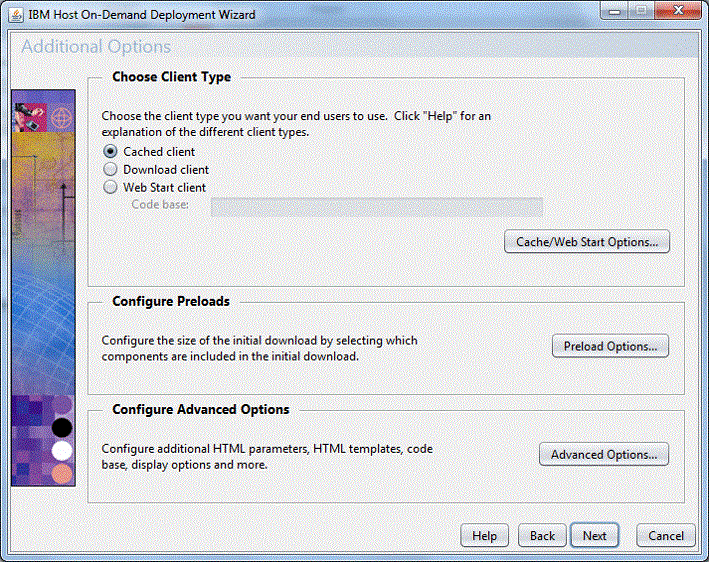
- On the File Name and Output Format window (File Name
and Output Format window), enter the page title and file name,
choose the directory where you want to save your portlet file, and
check the Output Portlet box. You should save your portlet to the Host On-Demand server
in a directory known to your Web server; usually, this directory is
your Host On-Demand server's publish directory. Click the Portlet
Details button when you are finished.
Figure 2. File Name and Output Format window 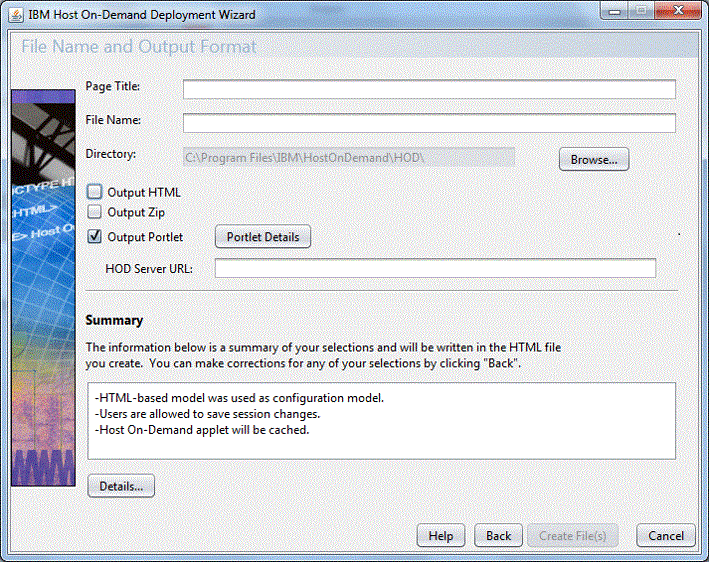
- On the Portlet Details window (Portlet Details),
select Credential Vault in the left tree view to configure your portlet
and allow Host On-Demand to retrieve the user credentials from the
Portal Credential Vault. Once you enable Host On-Demand to use the
Portal Server's Credential Vault, enter information for the following
two fields:
- Portal Vault Slot ID: Specifies a string that is prepended to the Portal Credential Vault Slot name retrieved by the Host On-Demand portlet. The Portal Vault Slot name is made up of the slot ID, the host name, and the application name, which you specify when you record the Web Express Logon macro. The default value is HATS.
- Portal Vault Slot Type: Identifies the Portal
Credential Vault Slot Type retrieved by the Host On-Demand portlet.
The default is , which is recommended.
Click OK.
Any information that you provide about the Portal Server Credential Vault is only used if you have left the Credential Mapper Server Address field in the Express Logon window of session properties blank. Host On-Demand provides a separate portlet for manipulating user IDs and passwords stored in administrative slots. The WAR file (PasswordEditor.war) is stored in the portal sub-directory of Host On-Demand published directory. Step 5: Using a custom portlet to manage user credentials describes the usage of the utility. Host On-Demand does not provide any tools for manipulating other types of valut slots (system and shared). Figure 3. Portlet Details 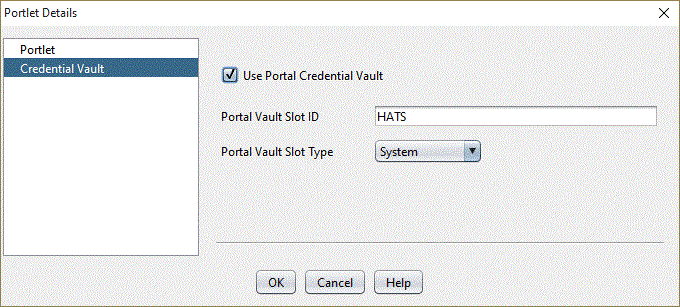
- On the File Name and Output Format window (File Name and Output Format window), enter the HOD Server URL so the Portal Server will be able to locate the Host On-Demand Server. The URL that you specify here must identify the Host On-Demand publish directory. An example HOD Server URL is http://server_name.mycompany.com/hod, where server_name is the name of the server where Host On-Demand is installed. You are not required to enter a value for this field since it can be modified by a Portal Server administrator once the portlet has been installed. This field is a configuration parameter of the generated portlet and is named hodCodeBase.
- Click Create File(s) to finish creating your portlet file.