Loading the IVP data and connect to the CICS® IA plug-in
CICS® IA provides sample data that you can load into your new IA Db2® database. You can then connect to the database with the CICS® IA plug-in for CICS Explorer® and verify that your Db2® database is created successfully.
Loading the IVP sample data
- To load the IVP sample data, review, and run job hlq.SCIUSAMP.Db2(CIUIVPLD). This job completes with a return code 0 or 4.
Viewing the IVP sample data
Before you complete this task, you must have the CICS® IA plug-in installed into your CICS Explorer® environment with an established a connection to the CICS® IA perspective. For more information about connecting to the CICS® IA perspective, see Getting Started with the CICS IA plug-in for CICS Explorer.
When you have a connection that is established and you have selected the CICS® IA perspective, do the following tasks:
- In the CICS® IA plug-in, open the IA Navigation view.
- Select
- Enter IA in the filter box and select the IA Navigation view.
- Expand Cloud Explorer.
- Expand IVP_PLATFORM and GENAPP_APPL.
- Right-click the COMMERCIAL_PROPERTY_POLICY application and click Show All Resources. All resources for the selected operation are displayed in the Show Resources view.
- In the Show Resources view, expand the TRANSID resource type.
- Right-click the SSP4 transaction, then click . The results are displayed in the Uses view.
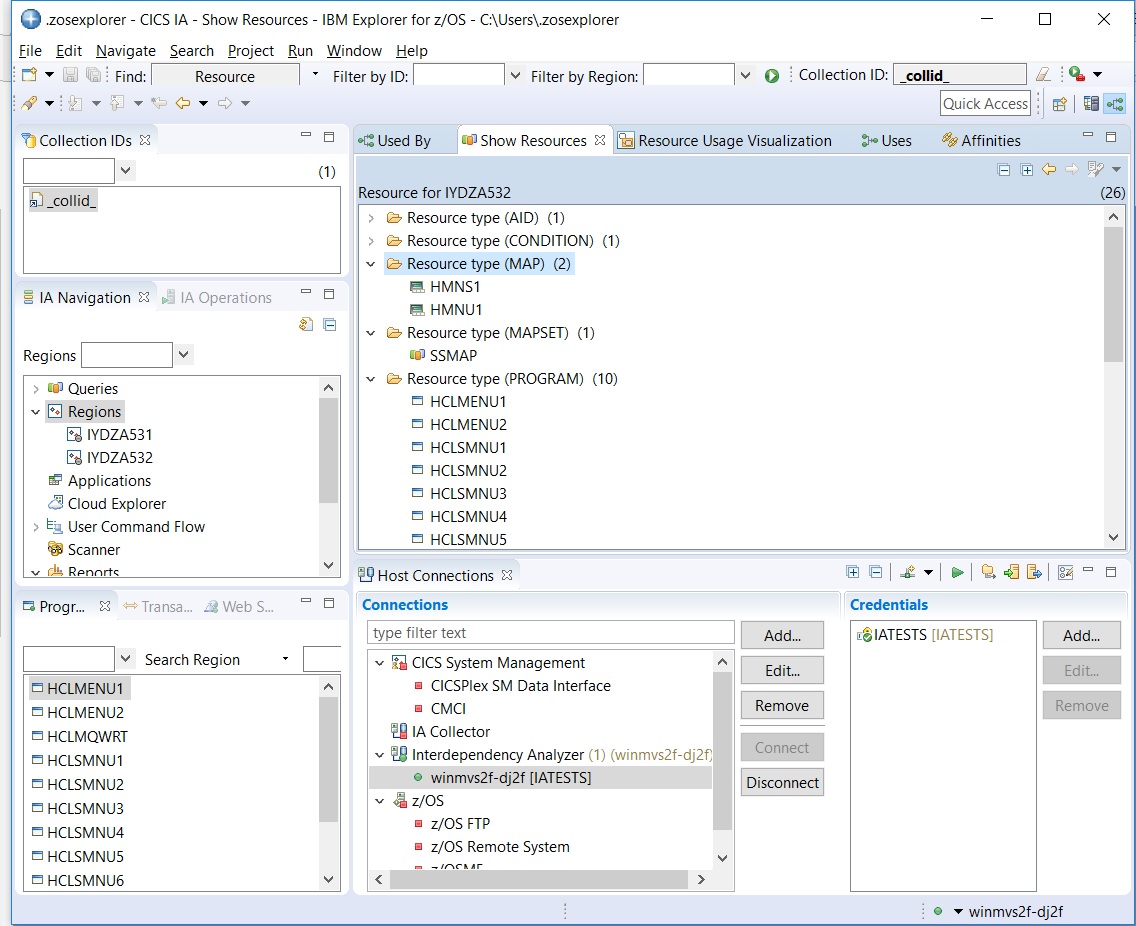
The following example screen capture shows the CICS® IA
perspective:
Your CICS® IA database is now successfully configured and created.