When troubleshooting a link problem, the analysis is started from
the master domain manager.
The loss of the "F" flag at an agent indicates that some link had
a problem. The absence of a secondary link can be located by matching
the "W" flags found on the full-status fault-tolerant agent on the
other side.
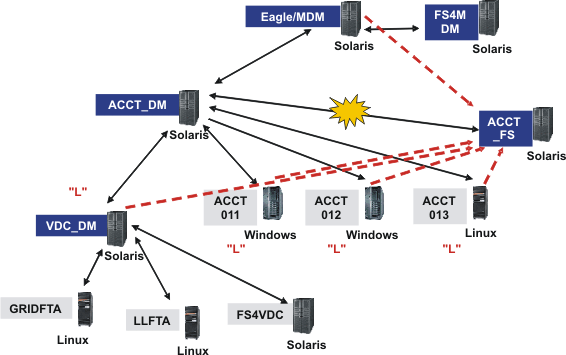
Consider the network shown in ACCT_FS
has not linked,
where the workstation ACCT_FS, which is a full-status fault-tolerant agent,
is not linked: Figure 1. ACCT_FS
has not linked
The key to ACCT_FS
has not linked is as follows
(for those looking at this guide online or who have printed it on
a color printer, the colors of the text and labels is indicated in
parentheses, but if you are viewing it without the benefit of color,
just ignore the color information):
White text on dark (blue) labels
CPUIDs of fault-tolerant agents in
the master domain
Black text
Operating systems
Black text on grey labels
CPUIDs of standard agents in the master domain, or any agents
in lower domains
Text (red) in "double quotation marks"
Status of workstations obtained by running conman sc
@!@ at the master domain manager.
Only statuses of workstations that return a status value are shown.
Black double-headed arrows
Primary links in master domain
Explosion
Broken primary link to ACCT_FS
Dotted lines (red)
Secondary links to ACCT_FS from the other workstations in the
ACCT domain that could not be effected.
You might become aware of a network problem in a number of ways,
but if you believe that a workstation is not linked, follow this procedure
to troubleshoot the fault:
Figure 2. Example output for conman sc @!@ run on
the master domain manager
$ conman sc @!@
Installed for user 'eagle'.
Locale LANG set to "C"
Schedule (Exp) 01/25/11 (#365) on EAGLE.  Batchman LIVES.  Limit: 20, Fence: 0,
Audit Level: 1
sc @!@
CPUID      RUN   NODE     LIMIT FENCE    DATE   TIME  STATE  METHOD   DOMAIN
EAGLE     365  *UNIX MASTER   20    0   01/25/11 05:59   I J            MASTERDM
FS4MDM    365   UNIX FTA      10    0   01/25/11 06:57 FTI JW           MASTERDM
ACCT_DM   365   UNIX MANAGER  10    0   01/25/11 05:42 LTI JW           DM4ACCT
ACCT011   365   WNT  FTA      10    0   01/25/11 06:49 L I J            DM4ACCT
ACCT012   365   WNT  FTA      10    0   01/25/11 06:50 L I J            DM4ACCT
ACCT013   365   UNIX FTA      10    0   01/25/11 05:32 L I J            DM4ACCT
ACCT_FS   363   UNIX FTA      10    0                                   DM4ACCT
VDC_DM    365   UNIX MANAGER  10    0   01/25/11 06:40 L I J            DM4VDC
FS4VDC    365   UNIX FTA      10    0   01/25/11 06:55 F I J            DM4VDC
GRIDFTA   365   OTHR FTA      10    0   01/25/11 06:49 F I J            DM4VDC
GRIDXA    365   OTHR X-AGENT  10    0   01/25/11 06:49 L I J   gridage+ DM4VDC
LLFTA     365   OTHR FTA      10    0   01/25/11 07:49 F I J            DM4VDC
LLXA      365   OTHR X-AGENT  10    0   01/25/11 07:49 L I J   llagent  DM4VDC
$
From the ACCT_DM workstation run conman sc.
In this case you see that all the writer processes are running, except
for ACCT_FS. These are the primary links, shown by the solid lines
in ACCT_FS
has not linked. The output of the command
in this example is as shown in Example output for conman sc run on the domain manager:
Figure 3. Example output for conman sc run on the domain manager
$ conman sc
TWS for UNIX (SOLARIS)/CONMAN 8.6 (1.36.2.21)
Licensed Materials  Property of IBM
5698-WKB
(C) Copyright IBM Corp 1998,2011
US Government User Restricted Rights
Use, duplication or disclosure restricted by GSA ADP Schedule Contract with IBM
Corp.
Installed for user 'dm010'.
Locale LANG set to "C"
Schedule (Exp) 01/25/11 (#365) on ACCT_DM.  Batchman LIVES.  Limit: 10, Fence: 0
, Audit Level: 1
sc
CPUID      RUN   NODE     LIMIT FENCE    DATE   TIME  STATE  METHOD   DOMAIN
EAGLE     365   UNIX MASTER   20    0   01/25/11 05:59 LTI JW           MASTERDM
ACCT_DM   365  *UNIX MANAGER  10    0   01/25/11 05:42   I J            DM4ACCT
ACCT011   365   WNT  FTA      10    0   01/25/11 06:49 LTI JW           DM4ACCT
ACCT012   365   WNT  FTA      10    0   01/25/11 06:50 LTI JW           DM4ACCT
ACCT013   365   UNIX FTA      10    0   01/25/11 05:32 LTI JW           DM4ACCT
ACCT_FS   363   UNIX FTA      10    0                                   DM4ACCT
VDC_DM    365   UNIX MANAGER  10    0   01/25/11 06:40 LTI JW           DM4VDC
$
If a network problem is preventing ACCT_FS from linking, resolve
the problem.
Wait for ACCT_FS to link.
From the ACCT_FS workstation, run conman sc @!@.
If the workstation has started to link, you can see that a writer
process is running on many of the workstations indicated in ACCT_FS
has not linked. Their secondary links have now
been made to ACCT_FS. The workstations that have linked have an "F"
instead of their previous setting. This view also shows that the master domain manager has
started a writer process running on ACCT_FS. The output of the command
in this example is as shown in Example output for conman sc @!@ run
on the unlinked workstation:
Figure 5. Example output for conman sc @!@ run
on the unlinked workstation
$ conman sc @!@
Installed for user 'dm82'.
Locale LANG set to "C"
Schedule (Exp) 01/24/11 (#364) on ACCT_FS.  Batchman LIVES.  Limit: 10, Fence: 0
, Audit Level: 1
sc @!@
CPUID      RUN   NODE     LIMIT FENCE    DATE   TIME  STATE  METHOD   DOMAIN
EAGLE     371   UNIX MASTER   20    0   01/25/11 10:16 F I JW           MASTERDM
FS4MDM    370   UNIX FTA      10    0                                   MASTERDM
ACCT_DM   371   UNIX MANAGER  10    0   01/25/11 10:03 LTI JW           DM4ACCT
ACCT011   369   WNT  FTA      10    0                                   DM4ACCT
ACCT012   371   WNT  FTA      10    0   01/25/11 11:03 F I JW           DM4ACCT
ACCT013   371   UNIX FTA      10    0   01/25/11 09:54 F I JW           DM4ACCT
ACCT_FS   371  *UNIX FTA      10    0   01/25/11 11:08 F I J            DM4ACCT
VDC_DM    371   UNIX MANAGER  10    0   01/25/11 10:52 F I JW           DM4VDC
FS4VDC    371   UNIX FTA      10    0   01/25/11 11:07 F I J            DM4VDC
GRIDFTA   371   OTHR FTA      10    0   01/25/11 11:01 F I J            DM4VDC
GRIDXA    371   OTHR X-AGENT  10    0   01/25/11 11:01 L I J   gridage+ DM4VDC
LLFTA     371   OTHR FTA      10    0   01/25/11 12:02 F I J            DM4VDC
LLXA      371   OTHR X-AGENT  10    0   01/25/11 12:02 L I J   llagent  DM4VDC
$