Typical installation scenario
Scenario for a fresh typical installation at the latest product version of IBM® Workload Scheduler

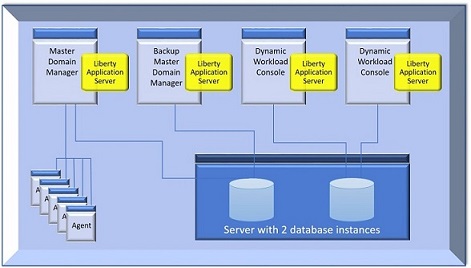
- One workstation for the database server which hosts both the master domain manager and Dynamic Workload Console databases.
- One workstation for the master domain manager and the related WebSphere Application Server Liberty Base.
- One workstation for the backup master domain manager and the related WebSphere Application Server Liberty Base. The master domain manager and backup master domain manager share the same database. This ensures the backup master domain manager has the latest data and can take over seamlessly, in case the master domain manager fails.
- Two workstations for two Dynamic Workload Console installations, each of them with their related WebSphere Application Server Liberty Base. The two Dynamic Workload Console instances share the same database.
- A number of agents.
Typical IBM Workload Scheduler architecture describes how the IBM® Workload Scheduler components listed above are usually installed.
Starting from version 10.2.1, using certificates is mandatory when installing or upgrading the product. You can use default certificates, generated automatically by the product with the password you specify, or you can define your own custom certificates. For more information, see Enhanced security for default certificates.
- Ubuntu 22
- AIX 7.3
- Red Hat 9
To ensure IBM® Workload Scheduler uses these libraries, always launch the installation or upgrade procedure from a brand new shell. You can also check the OpenSSL library currently in use with the which openssl command and check the OpenSSL version with the openssl version command.
This release installs a new version of the file tws_env.sh (tws_env.cmd) and also creates a backup file named, tws_env.sh.bk (tws_env.cmd.bk), which are both saved to the TWA_HOME/TWS directory, where TWA_HOME is the IBM® Workload Scheduler installation directory. After completing the installation, if you have modified the original version, merge the content of the new version with the content of the customized version to carry your customized content into the new version. When merging the two versions as described above, ensure you do not modify the paths to OpenSSL libraries.
You can now proceed to Installing WebSphere Application Server Liberty Base.