Using EGL with the Eclipse IDE
The Eclipse IDE offers a graphical user interface (GUI) called the workbench, in which users perform work by pointing and clicking objects on the screen as well as by typing code. In this way, when you are working with EGL, you are using the Eclipse workbench, so it is worth taking a minute to look at the tools in the workbench.
While developing EGL applications, you use the workbench to manage your files, write your code, and test and deploy your application. The workbench includes code editors similar to editors for other programming languages, but it also includes a range of graphical tools for working with EGL code and the many other types of code and files that the workbench understands.
Eclipse gives you the ability to change the set of tools that it offers and choose which tools appear in the interface. Each different tool set is called a perspective, and the windows within a perspective are called views and editors. You will learn more about these concepts later in this topic.
A typical EGL development workbench
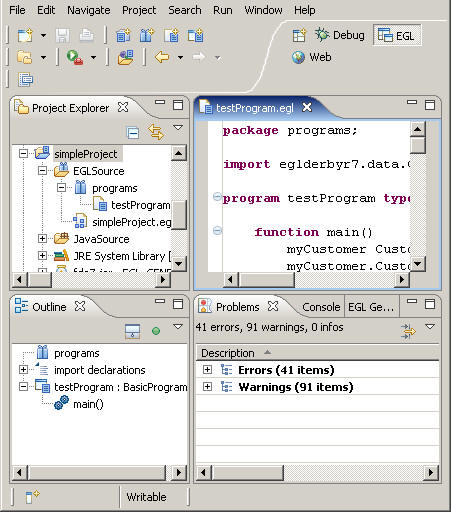
- Menu bar
Functions in a GUI are typically listed in a menu bar at the top of the window. In the picture above, the menu bar lists menus beginning with File, Edit, and Navigate. The menus drop down when you click the menu item with the mouse. The Eclipse menu bar contains global options for the workbench, such as the location of the workspace, commands for importing and exporting files, search commands, and help menus.
With the menu bar, you can also open and close views and perspectives. You can click to open a view or to open a perspective.
- Perspectives bar
- The Perspectives bar lists the currently active perspectives. You can click the name and icon of a perspective to switch to that perspective. In the picture above, the Debug, EGL, and Web perspectives are active, and the EGL perspective is open.
- Toolbars
- The workbench displays various toolbars below the menu bar depending
on the open perspective, views, and files. If you position the cursor
over an icon, hover help shows the function provided by that icon.
Some icons also have a drop-down list with additional options. For
example, the tool bar for the EGL perspective contains icons that
start the EGL wizards to create a new EGL project, a new EGL package,
or a new EGL source file. Some views and editors also have their own
toolbar.
The icons on these toolbars are shortcuts for commands found elsewhere in the workbench, such as in the menu bar or on the popup menu that appears when you right-click a file. You can customize the toolbars shown by clicking and selecting or clearing check boxes on the Commands tab.
- EGL editor
The EGL editor looks and works like a standard text editor or code editor for other languages, but it has additional features to help you edit EGL code. The code editor highlights invalid syntax, provides an explanation for problems in the code, and colors keywords and strings.
The EGL editor also includes content assist, which attempts to complete code that you have begun to type. To use content assist, type the first few characters of a variable name, library name, or EGL keyword and press CTRL + Space. A content assist window opens, listing valid EGL code phrases that begin with the code you have typed. Select a code phrase from the list by highlighting it and pressing Enter or double-clicking it.
- EGL Rich UI editor
- The EGL Rich UI editor includes the functionality of the EGL editor, as well as a Design surface and Preview view for fast development of client-side web applications. For details, see Overview of EGL Rich UI and Introduction to the EGL Rich UI editor.
- Project Explorer view
The Project Explorer view shows all of your files and projects. Within the projects, this view shows your files in a hierarchical arrangement. Click a plus sign to expand a package or folder and expose the files inside. Double-click a file to open it in its default editor. Right-click a file, project, or folder to display a context-sensitive menu of options. From this menu, you can delete or rename files, among many other options. You can also click and drag files from place to place in the view. You can group projects in this view by defining working sets, or groups of projects or other elements. See Working sets.
- Outline view
- The Outline view shows a hierarchical representation of the file you are currently editing. For example, if the file contains a Program part and a Record part, the Outline view shows the file's package at the top of the hierarchy, followed by any import statements in the file, and then the Program part and Record part. Variables and functions in the Program part appear under the Program part in the Outline view, and fields in the Record part appear as nodes under the Record part. You can click any of the entries in the Outline view to go to the matching location in the EGL source file.
- Problems view
- The Problems view shows syntax errors or warnings in your code or other files. You can double-click on an error to show the location of the error in the file.
- Generation Results view
- EGL updates the Generation Results view each time you generate parts. If any of your EGL parts do not generate correctly, this window shows which parts did not generate and why. This view also shows which parts generated successfully.
In the previous image, the Generation Results view is "stacked," or hidden behind the Problems view. You can switch to a hidden view by clicking the tab with the name of the view you want, which brings that view to the top of the stack. You can also double-click the name of a view to expand that view to fill the workbench. Double-clicking the name again will return the view to its original size.
Other windows EGL developers commonly use
Aside from the main workbench window, EGL developers will often need to use other windows. Following are some examples:
- EGL Preferences window
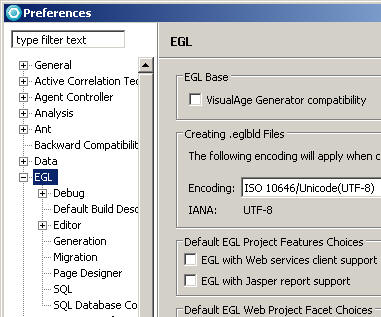
- With the Preferences window, you can set global options for the workbench. This illustration shows the EGL page of the Preferences window. To set EGL preferences, click and click EGL. See Preferences for links to information on the particular EGL preferences you can set.
- Search window
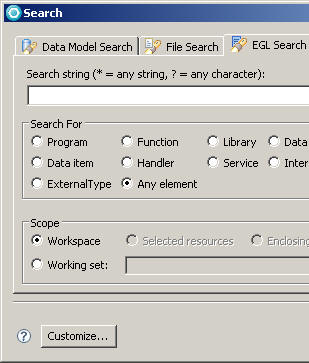
- In the Search window, not to be confused with the Search view, you can search for EGL parts or for other information in your workspace. The search results appear in the Search view. See Searching for parts for details.
- Properties window
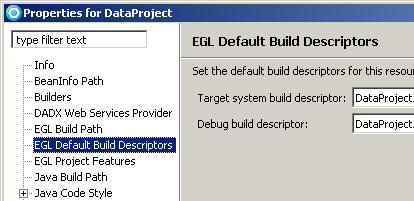
- Most types of projects and files have a Properties window, not to be confused with the Properties view. The Properties window sets individual options for the artifact. Access the Properties window for a project or file by right-clicking it and then clicking Properties.
Other views and editors EGL developers commonly use
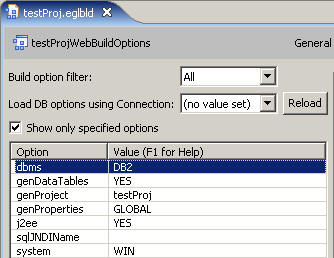
- EGL build parts editor
- The build parts editor is used for editing build parts, including
build descriptors.
- EGL Parts Reference view
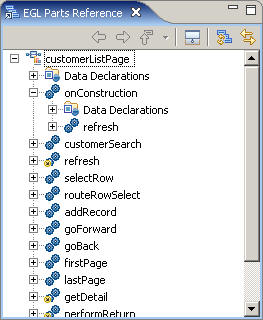
- The EGL Parts Reference view shows a hierarchical view of the parts referenced in a main logic part. To open a part in the Parts Reference view, right-click the file that contains the part in the Project Explorer view and then click Open in Parts Reference. See Viewing part references for details.
- EGL Parts List view
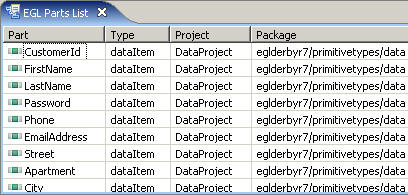
- The EGL Parts List view shows a list of EGL parts that you can sort or filter for reference purposes. See Viewing lists of parts for details.
- Page Designer Editor
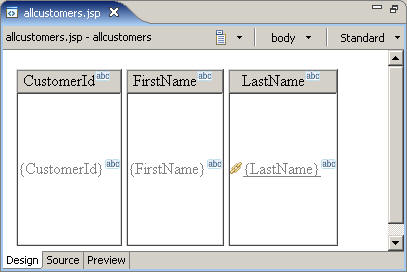
- Page Designer is a what-you-see-is-what-you-get (WYSIWYG) editor for web pages. Page Designer can work with EGL to create a web interface for an EGL application.
- Properties view
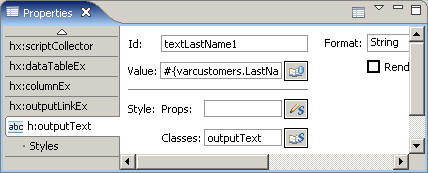
- The Properties view provides detailed information on a specific object that you have selected in an editor. For example, if you have a web page open in Page Designer and you select a text output field on that web page, the Properties view shows you information such as the style applied to the field, where its content comes from, and its other characteristics.
- Palette view
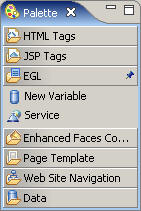
- The Palette view works alongside WYSIWYG editors. The Palette lists objects that you can drag into the editor, creating new objects in the open file.
- Snippets view
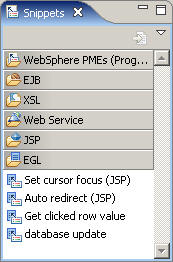
- The Snippets view works alongside code editors. The Snippets view holds reusable pieces of code that you can drag into your code. You can also create new snippets for code that you use often.
- Console view
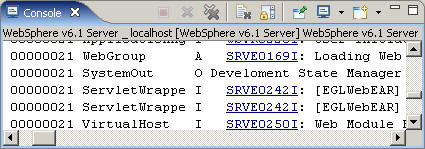
- The Console view shows logged messages that are related to running your applications. For example, if you run an application and it causes an error, that error is listed in the Console view.
- Navigator view
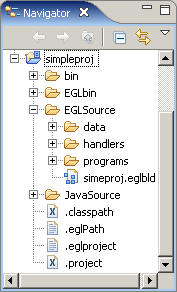
- The Navigator view is similar to the Project Explorer view in that both show the projects and files in your workspace. However, the Navigator view is a pure view of the folders and files in your workspace, without any formatting or filtering done by EGL. As such, it shows every folder and file in the workspace based on the actual location of those artifacts. The Project Explorer reduces clutter by automatically hiding metadata files (such as the .eglproject file) and directories that you do not normally need to access (such as the EGLbin directory). Also, the Navigator view does not support refactoring EGL parts and files, such as renaming or moving them, like the Project Explorer view does.
How the workbench is organized
- Capabilities
- Capabilities are the broadest category of functionality in the
workbench. Capabilities are organized by major functional areas, such
as "Web developer" or "Tester."
Capabilities can be enabled or disabled to display or hide functionality. For example, if the Tester capability is disabled, perspectives and views related to testing will not be available. You can manually enable a capability in the Preferences window by clicking and then selecting the check boxes next to the capabilities you want to enable. Alternately, when you try to create a file or open a perspective that is associated with a disabled capability, the workbench will prompt you to enable the associated capability.
The main capability that EGL developers use is the EGL Developer capability. Enabling this capability makes EGL-related perspectives available, which in turn makes tools available for working with EGL code. See Enabling EGL capabilities.
- Perspectives
- A perspective is a group of views and editors that are all shown
on the screen at once. For example, when you open the Web perspective
by clicking , you see tools for building website. There are other
perspectives for working with data sources, debugging code, and testing.
The perspectives available to you depend on the capabilities enabled in your workbench. For example, if the Tester capability is disabled, you will not see the Test perspective as an option in .
You can switch perspectives at any time without losing your work, and you can have as many perspectives open as you want. Often, developers switch between perspectives as they perform different tasks. To switch between perspectives, open the perspectives you want with or click a perspective's icon in the Perspectives bar, which is typically at the top right corner of the workbench.
You can also create customized perspectives that show only the tools you want. To create a customized perspective, open an already existing perspective and tailor it to your needs by repositioning its views and editors and opening or closing views and editors. Then, click and type a name.
- Views
- When you open a perspective, the views associated with that perspective
are displayed in the workbench. Each view performs a specific purpose,
such as displaying certain information or giving access to a specific
tool. The purpose of each view varies widely, but in general, views
give you access to a specific area of your workspace. Some views,
such as the Project Explorer, Navigator, and Package Explorer views,
show the files, projects, and packages in your workspace, enabling
you to open files or reorganize projects. Other views, such as the
Outline and Properties views, give information about a file you are
currently viewing in an editor. Finally, some views, such as the Problems
view and the Console view, display information about the status of
your projects.
Views are flexible; you can move them around the workbench, resize them, minimize or maximize them, stack them on top of other views, or close them. To close a view, click the X at the top of the view. To open a view, either open a perspective that contains that view or click and click the name of a view. You can have as many views open as you want, but it is best to organize your views into one or more perspectives.
- Editors
- Editors look like views, but editors are designed to change a
particular type of file. Some editors, like the EGL code editor, look
and work just like code editors for many other programming languages,
although the EGL code editor has additional features for working with
EGL code.
Other editors are graphical, with drag-and-drop tools or what-you-see-is-what-you-get (WYSIWYG) preview tools. For example, with Page Designer you can edit a web page by clicking and typing directly in the web page. You can also drag web page elements onto the page from views such as the Palette view.
Still other editors are tabular and provide tables in which you enter values. For example, the EGL build parts editor enables you to edit a Build Descriptor part by entering the values for build descriptor options in a table.
In general, when you double-click a file in a view that displays files, such as the Project Explorer or Navigator, that file opens in its default editor. You can also right-click the file, and then click Open With to see a list of editors that can open that file, or you can click to open the file outside of the workbench, in the default editor for that type of file in the operating system.
Other information on the workbench
For more information on using the workbench effectively, see these sources: