Removing Language Packs using Consol Mode
This option enables the user to remove language packs from the product.
Refer the below table to remove language packs in console mode. Required file to perform console mode modify installation under HOD installation directory (<Installation Path>\install).
| Operating System | Command | More Information |
|---|---|---|
| Windows | setup.exe -i console -remove | Administrator user Command Prompt |
| AIX, Linux, Ubuntu | sh ./setup -i console -remove | Root user Terminal client |
Execue the following steps to remove the language packs in console mode:
- Open the Command Prompt.
- Navigate to the Host On-Demand install directory and execute the below command:
setup.exe -i console -remove

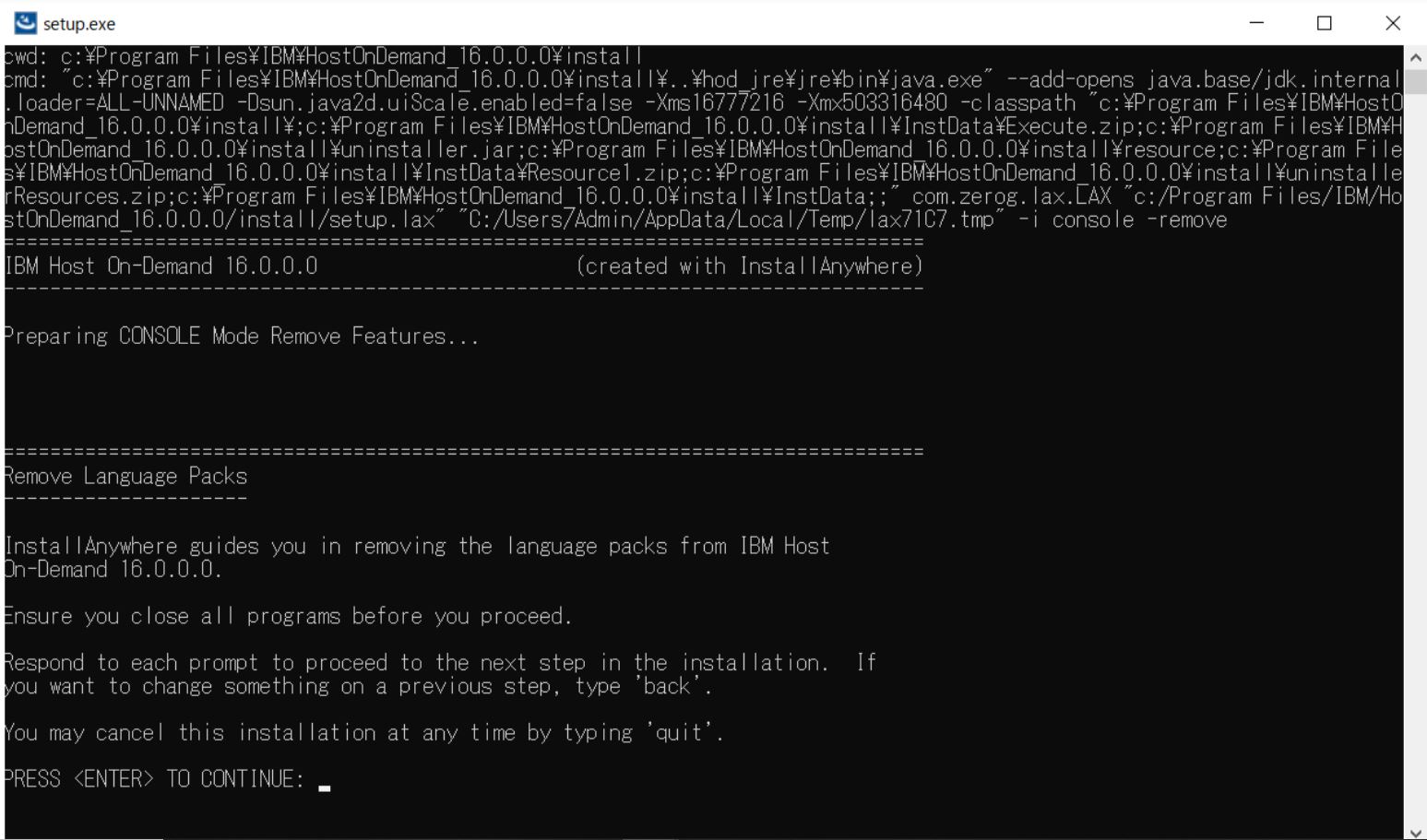
- The Introduction console appears.
- Press Enter to continue.
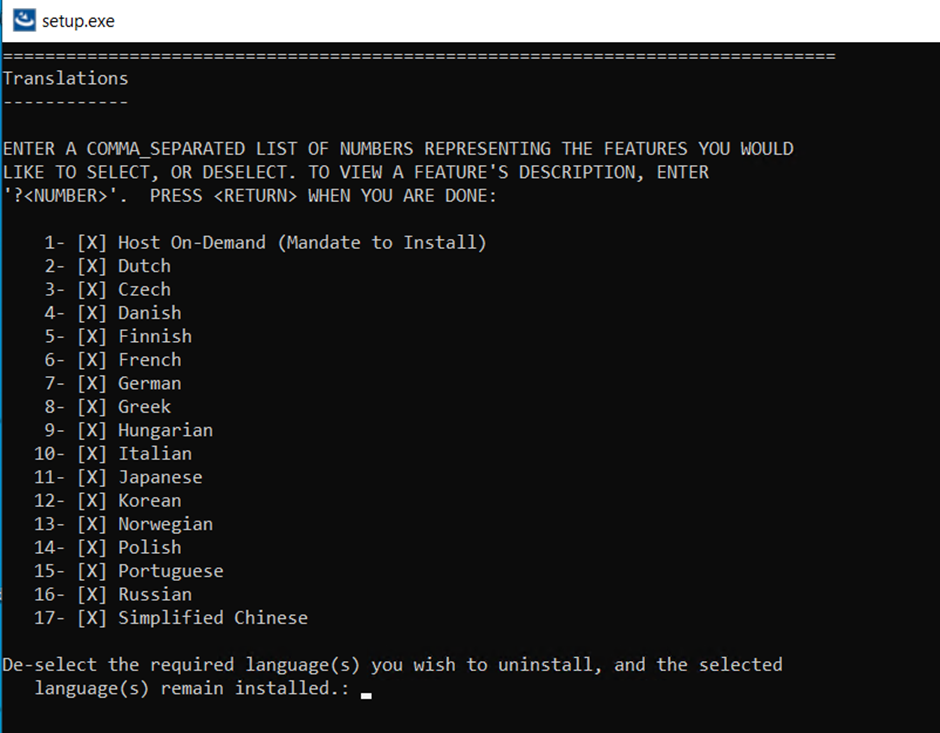
- The Translations console appears.
- Enter the appropriate language pack(s) value to de-select the required language
pack(s) and press Enter. By default, all language packs are selected.
 Note:
Note:- The de-selected language pack(s) will be removed.
- To remove multiple language packs, enter the numbers separated by comma(,).
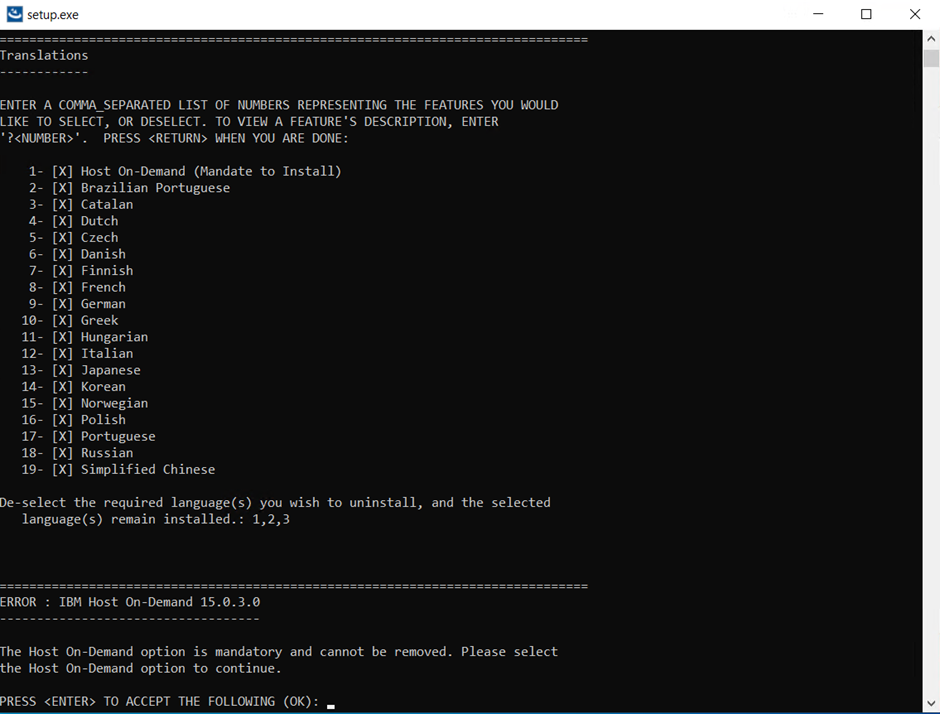
- The Host On-Demand option is mandatory. If you clear the Host On-Demand language pack option, an error message will appear, as shown below.
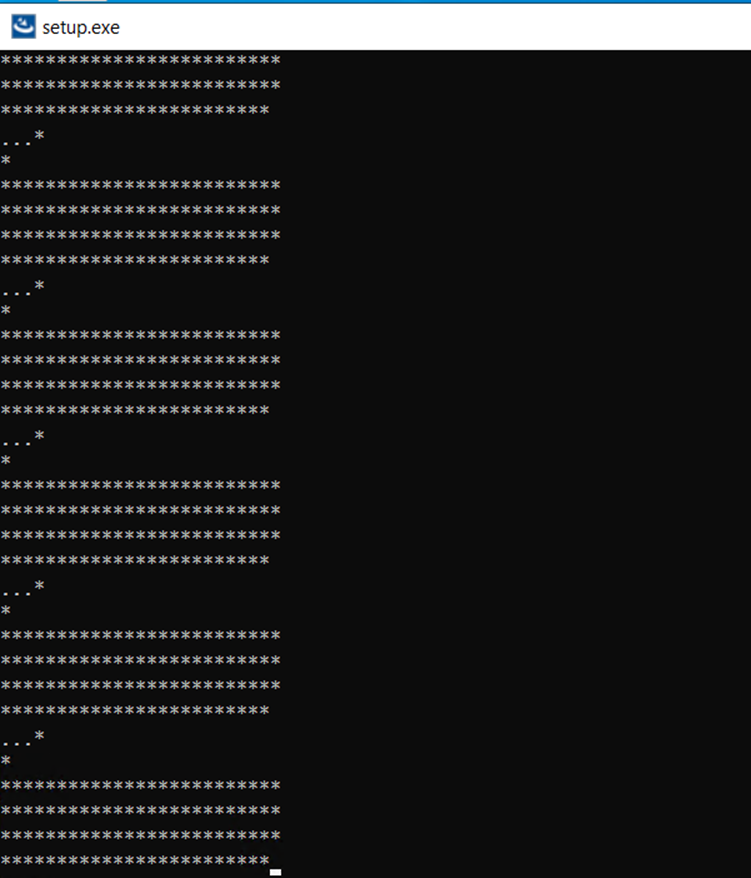
- The uninstallation progress console appears.
- After successful uninstallation of language packs, the Remove Language Packs Complete console appears.
- Press Enter to exit.
