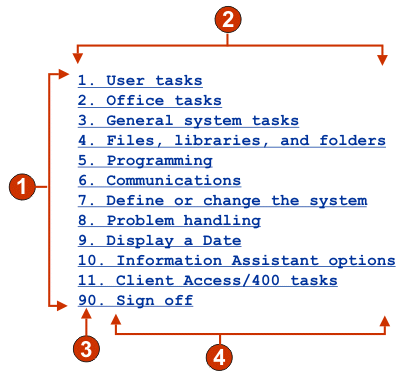
The following figure shows how a link widget appears on a transformation,
using the data from the Selection list component
example as input:
Figure 1. Link widget example
Rows
Number of columns per row (1)
Leading token (show both)
Description (show both)
The following settings can be configured for this widget:
Caption type
Specifies how the caption for each link is determined. The value
of the leading token and the description are derived from the component;
you can select what appears as the text for the link. For example,
if the host screen had a menu item that read 4. Mail, you can have the text display 4, or Mail, or 4.
Mail.
Trim spaces on caption
If selected, white space (extra space) is trimmed from both
ends of the caption.
Layout
Specifies how the links will be arranged on the HTML page. Options: Table, Separated.
Note:
This setting is not applicable in default rendering if the function key component is
being used.
The widget preview does not always match the full page preview. This happens because
the widget preview simply renders the component's output. It does not try to preserve
the alignment of the screen when it renders, as is done in the full page preview.
Number of columns per row
The number of links to display horizontally before wrapping
to the next line.
Separator
Specifies what separator you want to use to separate the rendered
links on the HTML page. You can select from the drop-down list or
type in your own in the entry field.
Target (Web-only)
Select from the drop-down list the target where you want to
display the contents of the linked URL; the same, new, parent, or
top window.
Link style class (Web-only)
Optional. The CSS style class associated with each generated
link. The value of the class attribute of the HTML link tag will be
set to this value. The default value is HATSLINK. See Using style sheets for more information.
Style (Web-only)
Optional. Use the launcher
button next to this field to open a style properties dialog. This
dialog frees you from the need to understand CSS to change the font,
color, or other style settings for the widget. See Using style sheets for more information.
Override font (RCP-only)
Select this option and use the supplied Font setting controls
to override the default font name, font style, and font size.
Override color (RCP-only)
Select this option and use the supplied Foreground color and
Background color setting controls to override foreground and
background colors.