Create SSL keystore file (DCAS only)
In order to communicate with a DCAS server, an SSL
connection must be established using client authentication. This requires
you to specify a keystore file. The supported keystore file
types are PKCS12, JKS, or JCEKS (PKCS12 is not supported on Solaris).
To create a keystore file to specify in the CMPI_DCAS_TRUSTSTORE
parameter, use the Certificate Management tool (also
known as the IBM® Key Management
tool). This keystore file must contain the HATS DCAS client's
certificate and the DCAS server's certificate (public key) information.
Note:
- If you set the CMPI_DCAS_USE_DEFAULT_TRUSTSTORE parameter to true, the JSSE default keystore file is used instead of the keystore file specified by the CMPI_DCAS_TRUSTSTORE parameter, and must contain the HATS DCAS client's certificate and the DCAS server's certificate (public key) information.
- The HATS DCAS client's certificate must also be added/imported to the DCAS server's keystore file for SSL client authentication.
If you already have an older certificate that was
created using the IBM® Key
Management tool, you can import it. Personal server certificates
that were created with an old system cannot be exported from
the old and imported into the new. There is however a way in which you can do this:
- Import the existing .kdb file into a new keystore file (PKCS12, JKS, or JCEKS).
- Export the certificate (such as, the DCAS personal server certificate) to a .p12 format certificate.
- Import the certificate (.p12 format) into a new keystore file (PKCS12, JKS, or JCEKS).
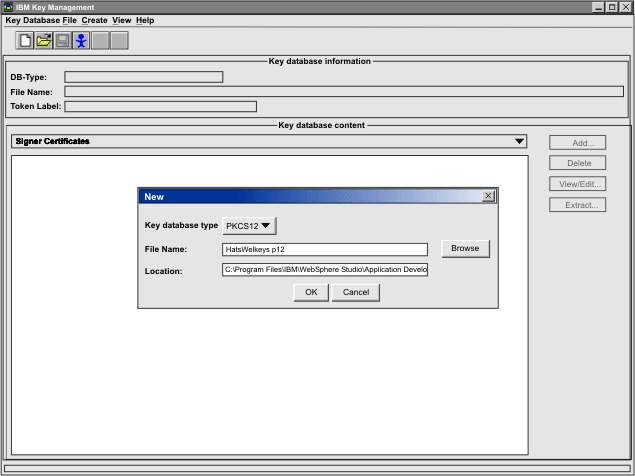
To create a new keystore file named HatsWelkeys.p12 that
will be specified in the CMPI_DCAS_TRUSTSTORE parameter,
take the following steps:
Note:
These instructions
show how to create a PKCS12 keystore file. If the target platform
for your HATS application is Solaris, instead of using Key database
type of PKCS12 below, use either JCEKS or JKS instead.
- Click Start > All Programs > IBM Rational SDP package group > HATS 9.7 > Certificate Management > (where IBM® Rational® SDP package group is the name of the Rational® SDP package group you have installed).
- Click Key Database File and select New. For the Key database type, select PKCS12. Enter File Name and Location or accept default values.
- Click OK.
- Enter a password, confirm it, and click OK.
- Add the DCAS server's certificate to the keystore file. Be
sure that the Key database content is
displaying the Signer Certificates.
If it is not, select the pull-down menu and change it. Then select Add.
- Select Binary DER data for the Data type. If the server certificate is in ASCII format, select Base64-encoded ASCII data.
- Enter the file name in the Certificate file name field.
- Enter the path name in the Location field.
- Click OK.
- Enter a label for the certificate and click OK.
- Add the DCAS client's certificate to the keystore file.
- Change the Key database content to Personal Certificates and click Export/Import.
- On the Export/Import Key panel, select Import Key.
- Select PKCS12 for the key file type.
- Enter the client certificate's .p12 file name in the File Name field and the path name in the Location field.
Note:You may have to browse to the keystore file (.p12/pkcs12) containing the certificate to import and enter the user id and password to open the file. It is best to make sure the keystore file contains only certificates that you want to import. You can also import certificates from a .kdb file. In this case, it will allow individual certificates to be selected.
- Click OK and enter the password to open the source key database.
- Click OK.
- Exit the Certificate Management GUI.
Note:
For more information about the Certificate Management tool,
see Using IBM Certificate Management for HATS applications.