Lotus® Notes®
In the Lotus Notes® environment, a widget is used to install applications that are provided as features and plug-ins. The widget can later be published to a Widget catalog for others to use. For more information about widgets, see the Widgets and Live Text section in the Lotus Notes® Knowledge Center at https://help.hcltechsw.com/notes/11.0.1/client/wid_app_overview_c.html?hl=widgets .
To download and install your HATS rich client application in a Lotus Notes® environment, perform the following steps on the client system:
- Start the Lotus Notes® client and select File > Preferences > Widgets.
- Select Show Widget Toolbar and the
My Widgets Sidebar panel. Click OK.
Figure 1. Lotus® Notes® Widgets preferences 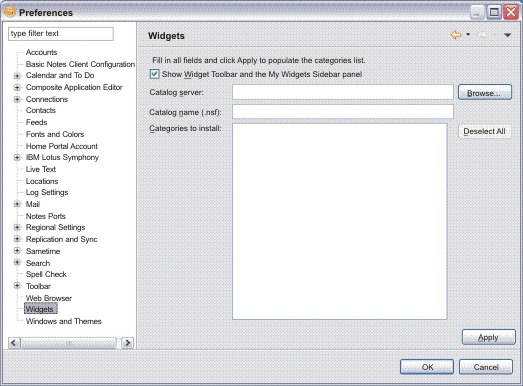
- The Widget toolbar looks like this:
Figure 2. Lotus® Notes® Widget toolbar 
- The My Widgets Sidebar panel looks like this:
Figure 3. My Widgets Sidebar 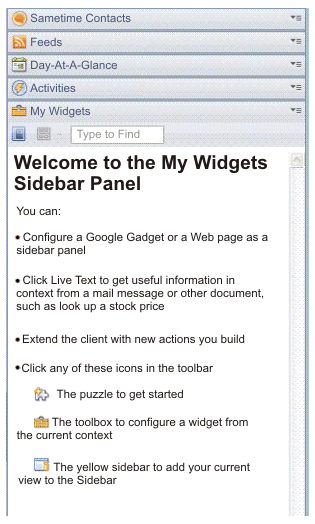
- Select Getting Started with Widgets from the Widget toolbar.
- Select Features and Plugins, then select Next.
- In the Enter the URL field, enter
the path to the update site's site.xml file using this format as an
example (must start with
file:///):file:///c:\hatsupdatesite\site.xml. Click the Load button. - Under Features to Install, select all features and select Next.
- Optional: In the Widget name field,
you can enter
HATS Provisioning Widgetor another appropriate name. - Optional: If you want the widget to have an image associated with
it, copy the desired image to your update site folder. Then in the Image URL field, enter the path to the
image using this format as an example (must start with
file:///):file:///c:\hatsupdatesite\myhatsimage.png. - Choose to install the plug-ins when asked.
The My Widgets Sidebar panel will look similar to this:
Figure 4. My Widgets Sidebar with example HATS Provisioning Widget 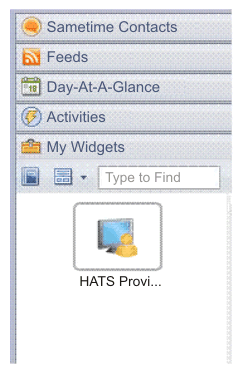
- Restart Lotus Notes® when asked.
You can run your application by selecting Open > Host Access. Your HATS application is listed in the Applications view. To start your application, either double-click it or right-click and select Open.
To uninstall the HATS application, right-click the HATS Provisioning Widget (or whatever name you gave it) and select Remove. Restart Lotus Notes® when asked.