How to create IBM Workload Scheduler default situations
An easy assisted creation of the default situations in a new Tivoli Workload Scheduler view or a view of your choice in the Tivoli® Enterprise Portal console.
About this task
You can create and display IBM Workload Scheduler default situations in a new Tivoli Workload Scheduler or in a view of your choice in the Tivoli® Enterprise Portal console. The default situations are associated to a view in the Tivoli® Enterprise Portal with their respective severity.
Procedure
- Run the script to create the default situations.
- For UNIX™ operating systems
<TWA_home>/TWS/ITM/ITMCreateSituations.sh- For Windows™ operating systems
<TWA_home>\TWS\ITM\ITMCreateSituations.cmd
<TWA_home>is the installation directory of IBM Workload Scheduler. - Copy this file and the
baseNameSituation.xmlfile to the Tivoli® Enterprise Monitoring Server and run the script using the following syntax:- For UNIX™ operating systems
ITMCreateSituations.sh -ITMUser <user> -ITNPassword <password> -host <host> -ITMHome <ITM_Home> [-TWSHome <TWA_home>]- For Windows™ operating systems
ITMCreateSituations.cmd -ITMUser <user> -ITNPassword <password>
-host <host> -ITMHome <ITM_Home> [-TWSHome <TWA_home>]
- <user>
- Specifies the user ID of the IBM Z Monitoring user.
- <password>
- Specifies the password of the IBM Z Monitoring user.
- <host>
- Specifies the hostname of the Tivoli® Enterprise Monitoring Server you log on to.
- <ITM_Home>
- Specifies the Candle home directory of the Tivoli® Enterprise Monitoring Server.
- <TWS_Home>
- Specifies the home directory of IBM Workload Scheduler. Use this option only if IBM Workload Scheduler is also installed on the same workstation where Tivoli® Enterprise Portal is installed.
ITMCreateSituations.cmd -ITMUser root -ITMPassword password -host nc050167 -ITMHome C:\IBM\ITM -TWSHome nc005093 - You can associate these situations and the severity to
a view of the Tivoli® Enterprise Portal,
by using the following executable file:
- For UNIX™ operating systems
<TWA_home>/TWS/ITM/ITMsetSeverity.sh- For Windows™ operating systems
<TWA_home>\TWS\ITM\ITMsetSeverity.cmdwhere<TWA_home>is the installation directory of IBM Workload Scheduler
- Copy this file to the Tivoli® Enterprise Monitoring
Server and
run the executable file using the following syntax:
- For UNIX™ operating systems
ITMsetSeverity.sh -TEPUser <user> -TEPPassword <password> -TEPhost host> -TEPHome <TEP_Home> {[-TWSHost <TWS_Host> -TWSOSType <Linux|Unix|Windows>]|[-navigator <navigator_item> [-view <Physical|Logical>]]}- For Windows™ operating systems
ITMsetSeverity.cmd -TEPUser <user> -TEPPassword <password>
-TEPhost host> -TEPHome <TEP_Home> {[-TWSHost <TWS_Host>
-TWSOSType <Linux|Unix|Windows>]|[-navigator <navigator_item>
[-view Physical|Logical>]]}
- <user>
- Specifies the user ID of the Tivoli® Enterprise Portal user.
- <password>
- Specifies the password of the Tivoli® Enterprise Portal user.
- <host>
- Specifies the hostname of the Tivoli® Enterprise Portal you log on to.
- <TEP_Home>
- Specifies the Candle home directory of the Tivoli® Enterprise Portal server.
- <TWS_Host>
- Specifies the host name of the workstation where Tivoli® Enterprise Portal is configured. This parameter is case sensitive.
- <TWOSType>
- Specifies the type of operating system where the agent is installed.
These values are case sensitive:
- Linux
- Unix
- Windows
- <navigator_item>
- Specifies the fully qualified name of the navigator item where to associate situations, or to assign the list of managed systems. This path is case sensitive.
- -view
- The name of the navigator view which the navigator item belongs
to. The default value is
Physical.
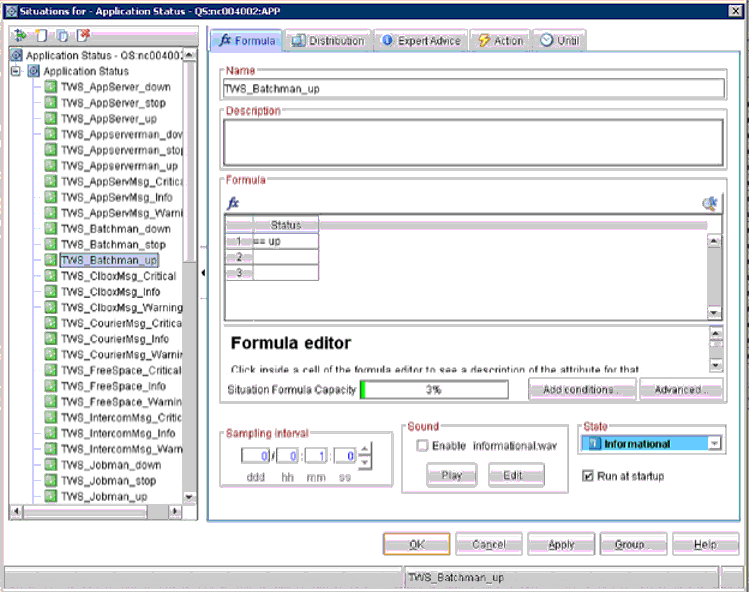
To associate the severity for each situation with the navigator item to which to associate the situation and the name of the navigator view that the navigator item belongs to, run the command as follows:ITMsetSeverity.cmd -TEPUser sysadmin -TEPPassword password -TEPhost nc050167 -TEPHome C:\IBM\ITM -TWSHost nc004002 -TWSOSType LinuxTMsetSeverity.cmd -TEPUser sysadmin -TEPPassword password -TEPhost nc050167 -TEPHome C:\IBM\ITM -navigator “Enterprise/Windows Systems/NC005093/Tivoli Workload Scheduler /Application Status -QS:nc005093:APP” -view Logical - When you log on to the Tivoli® Enterprise Portal for
the first time, the following IBM Workload Scheduler associated
situations are displayed:
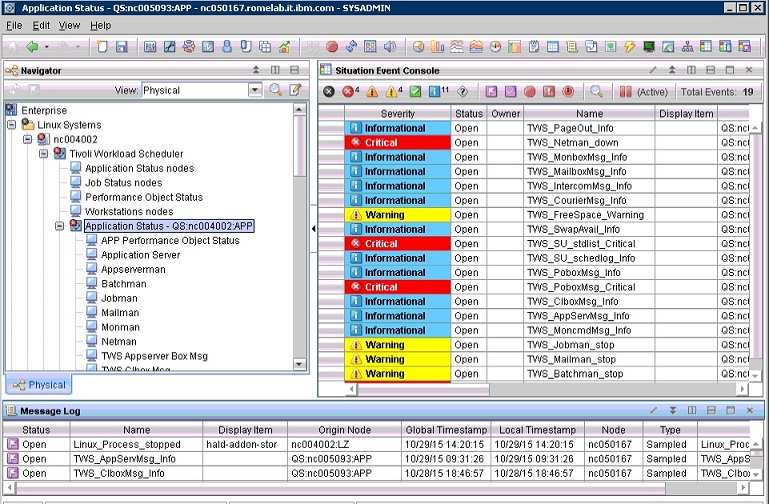
- After the creation of the IBM Workload Scheduler situations,
you can view the events associated to each situation in the Tivoli® Enterprise Portal desktop: