Adding a single-selection widget
The combo box, radio button group, and list box are similar because they both require the user to select a single option from a group of options.
Like the check box widget, the single-selection widgets must be bound to a variable that represents their states. However, instead of a boolean variable, the single-selection widgets must be bound to an INT variable to represent the index of the currently selected option.
- In a console
form, create the widget using the predefined parts:
record singleSelectForm type ConsoleForm { formsize=[12,40] } myRadio consoleRadioGroup {name = "radio", bounds = [1,2,4,17]}; myCombo consoleCombo {name = "combo", bounds = [7,2,1,15]}; myList ConsoleList {name ="list", bounds = [9,2,2,18]}; end - At minimum, specify the following fields for
each widget:
- name
- A mnemonic that you will use later to link the widget to an event handler
- bounds
- An array of four integers that represent the row, column, height, and width of the widget, respectively
- In a
program, create an integer variable to represent the state of the
widget:
radioValue, comboValue, listValue int = 2; - Between creating the form variable and displaying the form in
a window,
define the options in the widget with an array of variables or literals:
myWindow WINDOW {name="myWindow", position=[1,1]}; openWindow(myWindow); myForm singleSelectForm{}; myForm.myCombo.items = ["Option One", "Option Two", "Option Three"]; myForm.myRadio.items = ["Option One", "Option Two", "Option Three"]; myForm.myList.items = ["one","two","three","four","five","six"]; displayForm(myForm); - With an openUI statement,
open the form and
bind the variables to the widgets:
openUI myForm bind radioValue, comboValue, listValue //event handlers go here end - Within the openUI statement,
specify an event
handler for the widget's SELECTION_CHANGED event:
onEvent (ConsoleRadioGroup.SELECTION_CHANGED : "radio")
  SysLib.writeStdout("Radio selected: "::radioValue);
onEvent (ConsoleCombo.SELECTION_CHANGED : "combo")
  SysLib.writeStdout("Combo selected: "::comboValue);
onEvent(ConsoleList.SELECTION_CHANGED : "list")
  SysLib.writeStdout("List selected: "::listValue);
A complete example of a Console UI program that uses a combo box widget and radio button group widget in this way follows:
In the file
programs/singleSelectTest.egl:package programs;
import forms.singleSelectForm;
program singleSelectTest type BasicProgram {}
radioValue, comboValue, listValue int = 2;
function main()
myWindow WINDOW {name="myWindow", position=[1,1]};
openWindow(myWindow);
myForm singleSelectForm{};
myForm.myCombo.items =
["Option One", "Option Two", "Option Three"];
myForm.myRadio.items =
["Option One", "Option Two", "Option Three"];
myForm.myList.items =
["one","two","three","four","five","six"];
displayForm(myForm);
openUI myForm
bind radioValue, comboValue, listValue
onEvent (ConsoleRadioGroup.SELECTION_CHANGED : "radio")
SysLib.writeStdout("Radio selected: "::radioValue);
onEvent (ConsoleCombo.SELECTION_CHANGED : "combo")
SysLib.writeStdout("Combo selected: "::comboValue);
onEvent(ConsoleList.SELECTION_CHANGED : "list")
SysLib.writeStdout("List selected: "::listValue);
end
end
end
In the file
forms/singleSelectForm.egl:package forms;
record singleSelectForm type ConsoleForm
{ formsize=[12,40] }
myRadio consoleRadioGroup
{name = "radio", bounds = [1,2,4,17]};
myCombo consoleCombo
{name = "combo", bounds = [7,2,1,15]};
myList ConsoleList
{name ="list", bounds = [9,2,2,18]};
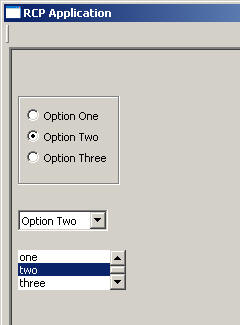
endWhen you run the EGL program in RCP mode, the
user interface looks like
this:
Each time you change the selection in one of the widgets, the appropriate event handler runs and, in this case, prints a message to the Console view:
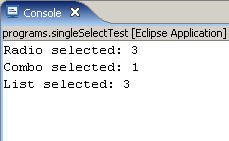
Each time you change the selection in one of the widgets, the appropriate event handler runs and, in this case, prints a message to the Console view:
The list box can also behave as a multiple-selection
widget, allowing the
user to select more than one item from the list. To allow users to
select
more than one item from the list, set the widget's multipleSelect property
to true:
myForm.list1.multipleSelect = TRUE;