Installing help content locally from a downloaded archive file
If you must access help content from a computer that does
not have an Internet connection, you can install the help content from a file that you
can obtain from the IBM® Local Help System Updater website. You must download the help
content file by using a computer that has Internet access and copy the file to the
computer without Internet access. 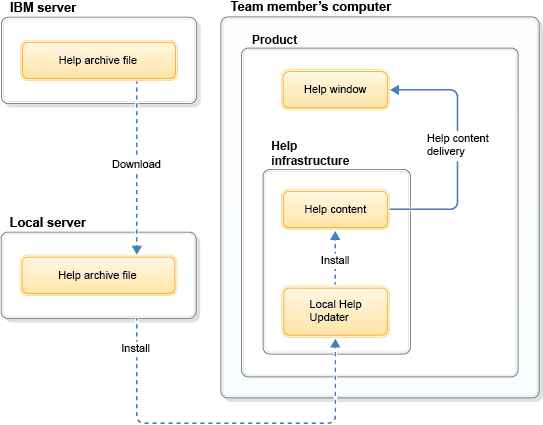 This task can be used to install help content
on your computer or on a server.
This task can be used to install help content
on your computer or on a server.
Before you
begin
Typically, this task is done on a computer where the product is installed. If you are installing the help on an intranet server where the product is not installed, you must first deploy the help system infrastructure on that server. Then, you can install the local help.
About this
task
For this help configuration, you use the Local Help Updater to install local help content on your computer from a compressed archive file. The archive file can be on your computer or on a shared server on your network, as shown in this graphic.
Procedure
- On the Local Help Updater page, click the
 Add internal site icon.
Results
The help that you selected is installed and is available from your product.
What to do
next
If you downloaded the help to either a
server or your computer:
- Optional: You can choose to enable automatic updates. By default, the Automatic Updates option is not selected in the Local Help Updater. If you select the Automatic Updates option, you receive updated content from the site and the sites in the Favorites Sites list when the help archive file is restarted and an internet connection exists. If you choose to leave the Automatic Updates check box cleared, you can manually update content.
If you downloaded the help to a server and the product was
installed by using IBM Installation Manager:
- If other users are accessing this help content from the
products that were installed on their computers with IBM Installation
Manager, provide them with the server, the port, and the path to the
help system. Ensure that the server you provide is not localhost.Example: http://server.ibm.com:8080/help-name/index.jsp
- Server: server.ibm.com
- Port: 8080
- Path: /help-name